Laptop keyboards feel simple, but they’re actually compact mechanical systems: keycaps, scissor mechanisms (on most laptops),
a membrane or dome-switch layer, and a thin ribbon cable connecting everything to the motherboard.
Over time, wear, contamination, and accidental damage can cause keys to fail.
So, what’s the real lifespan of a laptop keyboard? The best answer is:
it depends on usage intensity, environment, and how the laptop is handled.
This guide explains realistic lifespan expectations, what usually kills keyboards early, how to spot the warning signs,
and when replacement is the smartest option.
A laptop keyboard can last for many years under normal use, but heavy daily typing, dust/crumbs, and especially liquid exposure
can shorten lifespan dramatically. In real-world repairs, most “early” keyboard failures come from contamination or spills,
while gradual failures come from wear or ribbon/connector fatigue.
What affects keyboard lifespan the most
These are the biggest factors that determine how long a laptop keyboard lasts:
| Factor | Why it matters |
|---|---|
| Typing volume | Heavy daily typing increases mechanical wear on key mechanisms and switch membranes. |
| Dust/crumbs | Debris can block scissor mechanisms, create inconsistent key travel, and cause stuck keys. |
| Liquid exposure | Spills can cause corrosion or short circuits and are the most common cause of sudden keyboard failure. |
| Pressure/handling | Hard impacts, pressing keys aggressively, or carrying the laptop without protection can stress the keyboard deck. |
| Heat & environment | Extreme conditions can accelerate material aging and cause sticky keys or plastic deformation. |
Keeping the keyboard clean and dry often matters more than typing technique.
How laptop keyboards usually fail
Keyboard failures tend to fall into three categories:
1) Mechanical problems (feel and motion issues)
- Keys feel sticky, mushy, or uneven
- Keys don’t return properly
- Keycap hinges/scissor clips break
2) Electrical/matrix problems (input issues)
- A specific group of keys stops working (often indicates a matrix line failure)
- Keys register inconsistently (must press harder or multiple times)
- Double-typing (one press becomes two) or phantom input
3) Connector/ribbon cable issues
- Keyboard works sometimes, then stops after movement or vibration
- Failure appears after a repair, upgrade, or repeated opening/closing
If your keyboard works in BIOS/UEFI but fails only in Windows, it’s often a software/driver/settings problem.
If it fails in BIOS too, hardware failure is more likely.
Early warning signs your keyboard is wearing out
The earlier you notice these, the easier it is to prevent full failure:
- Inconsistent key response (must press slightly harder or at a specific angle)
- Stuck keys after typing fast (often debris-related)
- Frequent typos that weren’t normal (keys sometimes not registering)
- Backlight problems on backlit keyboards (flicker or dead zones)
- Multiple nearby keys failing together (possible matrix line wear)
How to extend the lifespan of your keyboard
These habits offer the best return for keyboard longevity:
- Keep it clean: light cleaning reduces debris-related failures. Avoid pushing crumbs deeper into the mechanism.
- Avoid liquids near the laptop: spills are the #1 cause of sudden keyboard death.
- Use a protective sleeve during travel: reduces keyboard deck pressure and impact stress.
- Don’t store heavy items on top of the laptop: keyboard decks can flex and damage mechanisms.
- If you type heavily, consider an external keyboard at a desk: reduces wear on the built-in keyboard.
can massively reduce wear and also improve ergonomics.
Repair vs replace: what’s worth it?
Whether repair makes sense depends on the type of failure:
- One loose keycap (if the scissor hinge is intact)
- Debris-related stuck key (if no electrical damage)
- Layout/setting issues (software, not hardware)
- Multiple keys failing or inconsistent input
- Matrix-line failures (groups of keys dead)
- Liquid exposure causing widespread issues
- Broken scissor mechanisms across multiple keys
In practice, once a keyboard shows widespread inconsistencies, replacement is often the most reliable fix—especially for people who depend on the laptop daily.
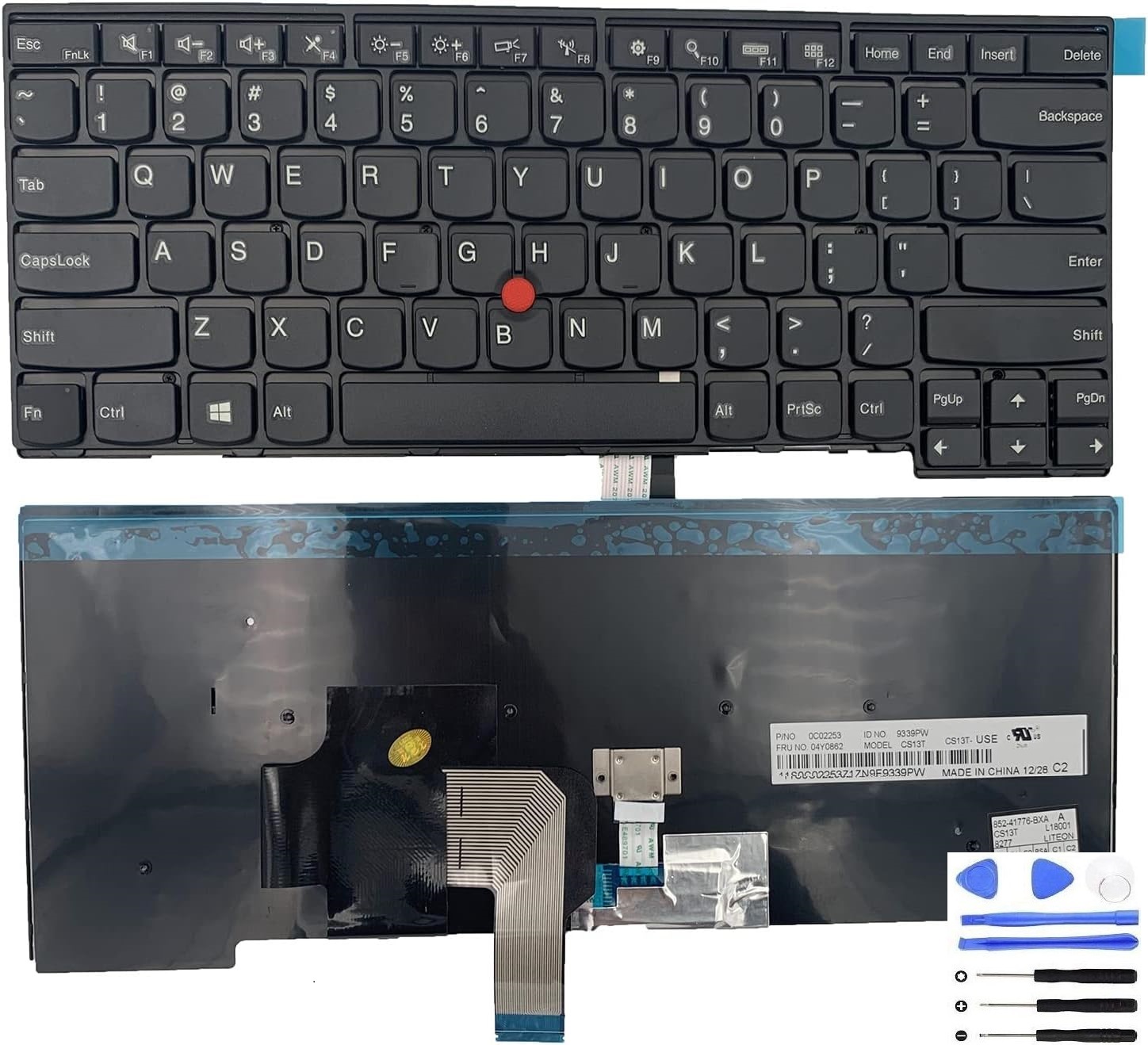
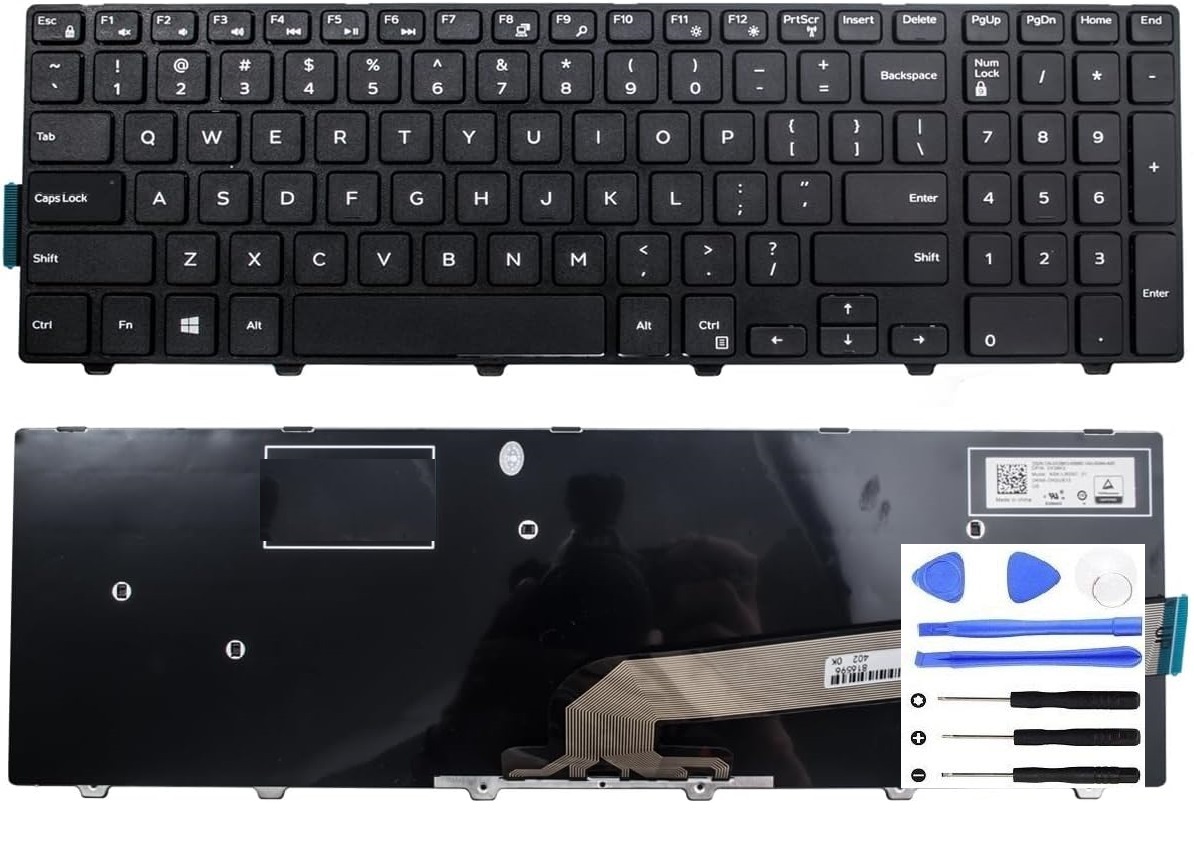
How to choose the correct replacement keyboard
To avoid ordering the wrong keyboard, confirm these details before buying:
- Exact laptop model (full model code from the bottom label)
- Keyboard layout (US/UK/DE/FR, etc.)
- Backlight support (backlit vs non-backlit)
- Connector/ribbon type when possible
- Keyboard-only vs top-case assembly (some laptops require the full upper case)
Replacement keyboard (clickable images)

FAQ
Do laptop keyboards wear out from typing?
Yes, but gradual wear from typing is usually slower than people expect. Many keyboard failures happen earlier due to debris, spills, or physical stress.
How do I know if it’s hardware failure or Windows settings?
A quick clue is BIOS behavior: if the keyboard works in BIOS/UEFI but fails only in Windows, settings/drivers are often involved.
If it fails everywhere, hardware failure is more likely.
Is replacing a keyboard worth it?
If your laptop is otherwise in good condition, replacing the keyboard is often one of the most cost-effective repairs you can do.