A broken keyboard can make a perfectly good laptop feel “dead.” The good news is that
fixing a laptop keyboard is often worth it—especially if the laptop is otherwise fast and reliable.
The key is knowing whether you can repair the keyboard (minor fix) or whether you should
replace it (more reliable long-term).
This guide breaks down the most common keyboard problems, how to tell hardware vs software issues,
what repair options are realistic, and a simple decision framework to choose the best value path.
Yes—fixing a laptop keyboard is usually worth it if the laptop is still in good condition and the issue is isolated (stuck keys, missing keys, consistent dead keys).
It may not be worth it if the laptop has liquid damage affecting multiple components, the keyboard is riveted into the top case and the repair becomes expensive,
or the laptop is already far below your performance needs.
- Keyboard problems: repairable vs replace-now
- When it’s not hardware (software/settings issues)
- Decision rules (fix vs replace vs new laptop)
- Cost/value factors people forget
- Before you spend money: quick checks
- When replacement is the smartest fix
- How to choose the correct replacement keyboard
- Replacement keyboard (clickable images)
- FAQ
Keyboard problems: repairable vs “replace now”
Not all keyboard failures are equal. Some are simple and repairable; others are almost always best solved by replacing the keyboard.
| Problem | Usually repairable? | Best approach |
|---|---|---|
| One keycap popped off | Often yes | Re-seat keycap if the scissor hinge is intact; replace keycap/hinge if available. |
| Sticky key / key not returning | Sometimes | Clean debris; if mechanism is broken, replacement is more reliable. |
| Several keys dead in a group | Rarely | Often a keyboard matrix or ribbon issue—replacement recommended. |
| Random double-typing / repeats | Sometimes | Check settings first; if persistent across BIOS/OS, replacement is usually best. |
| Keyboard totally dead | Sometimes | Check ribbon connector and software; if dead everywhere, replacement likely. |
| After liquid spill | Uncertain | May require keyboard + additional repairs; replacement helps but motherboard damage is possible. |
If the problem is inconsistent input, multiple dead keys, or repeated failures after cleaning, replacing the keyboard is usually the most dependable fix.
When it’s not hardware (software/settings issues)
Many “keyboard problems” are actually settings or driver issues—especially after updates.
Fix these first because they’re free and fast:
- Accessibility settings like Filter Keys / Sticky Keys affecting response
- Wrong keyboard layout (typing looks “wrong” but keys actually work)
- Driver glitches after Windows updates
- External keyboard/receiver conflicts causing strange behavior
If the keyboard works in BIOS/UEFI but fails in Windows, it’s often software/settings.
If it fails in BIOS too, hardware is more likely.
Decision rules: fix vs replace vs buy a new laptop
Use these practical decision rules to choose the best value path.
- Only one or two keys are affected and the issue is clearly mechanical (keycap popped off, minor sticking)
- The rest of the keyboard works consistently
- There was no liquid spill
- Multiple keys are dead or inconsistent
- Keys repeat/double-type and settings changes don’t help
- The keyboard works intermittently (often a matrix/ribbon issue)
- You need reliability for work/school and don’t want recurring failures
- The laptop also has major issues (screen/hinge/charging/overheating/SSD errors)
- There is significant liquid damage beyond the keyboard area
- The keyboard is riveted into the top case and the repair becomes very expensive
- The laptop is far below your performance needs anyway
Cost/value factors people forget
People often compare “keyboard repair cost” to “new laptop cost” and stop there. But the hidden cost of replacing a laptop is real:
- Time: migrating files, reinstalling apps, re-signing into accounts, printer/dock setup
- Compatibility: new ports, new dongles, different chargers, different keyboard feel
- Downtime: you may lose productivity for days during setup
If your laptop is otherwise good, fixing the keyboard is usually one of the best “life-extension” repairs you can do.
Before you spend money: quick checks
- Test in BIOS/UEFI (if keys work there, software/settings are likely involved).
- Check layout settings (wrong layout can look like “wrong keys”).
- Inspect for debris (crumbs can cause stuck keys).
- If you recently repaired the laptop, re-check the keyboard ribbon connector seating (loose connection causes intermittent failure).
When replacement is the smartest fix
Replacement is typically the best long-term fix when the keyboard has:
- Matrix failures (groups of keys dead)
- Persistent double-typing
- Multiple broken scissor mechanisms
- Intermittent input that keeps coming back
How to choose the correct replacement keyboard
Avoid the #1 mistake: ordering “a keyboard for the laptop brand” without matching the exact model and layout.
Confirm these before ordering:
- Exact laptop model code (from the bottom label)
- Keyboard layout (US/UK/DE/FR etc.)
- Backlight (backlit vs non-backlit)
- Connector/ribbon type (when possible)
- Keyboard-only vs top case assembly (some thin laptops require the full upper case)
Replacement keyboard (clickable images)

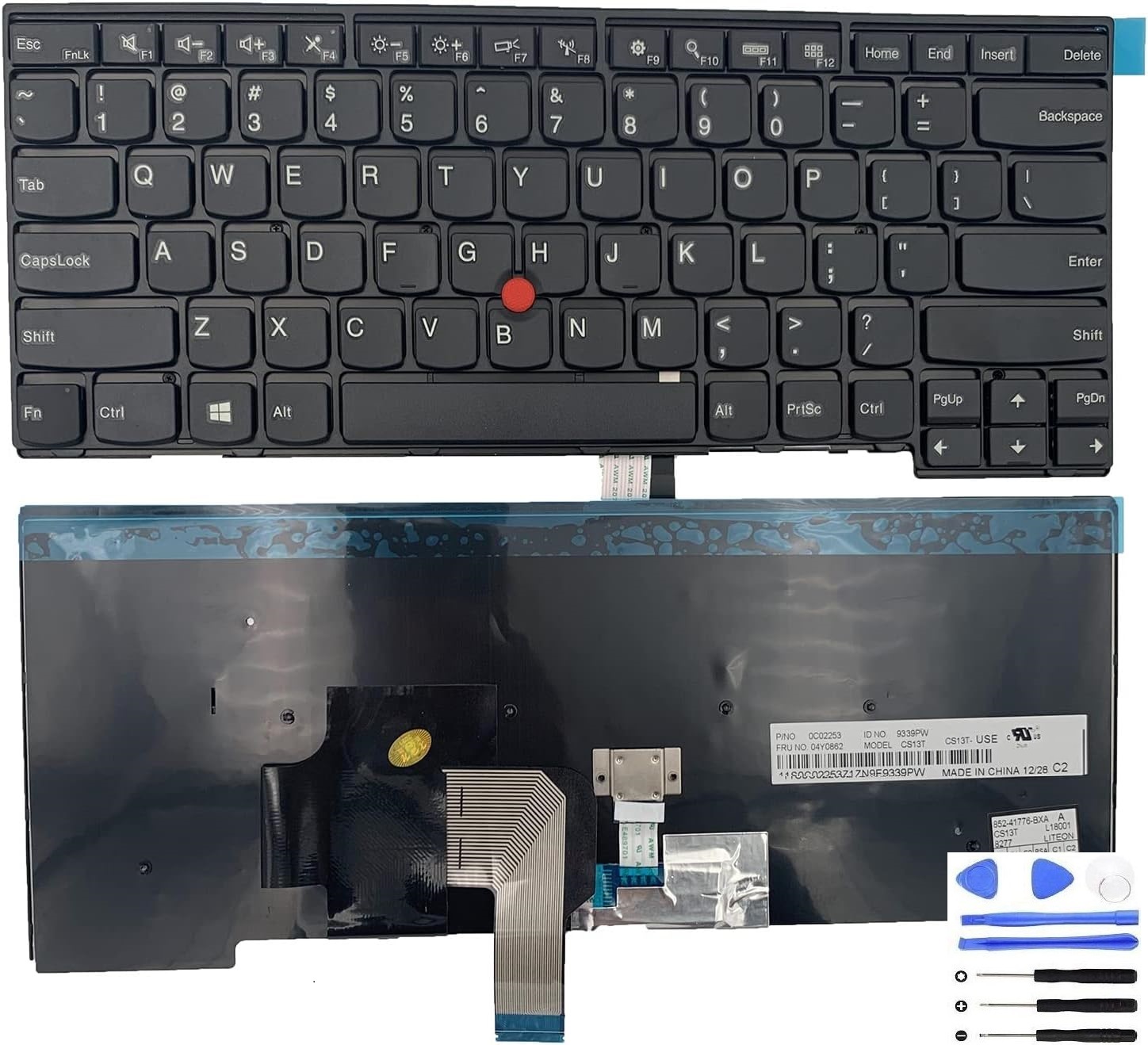
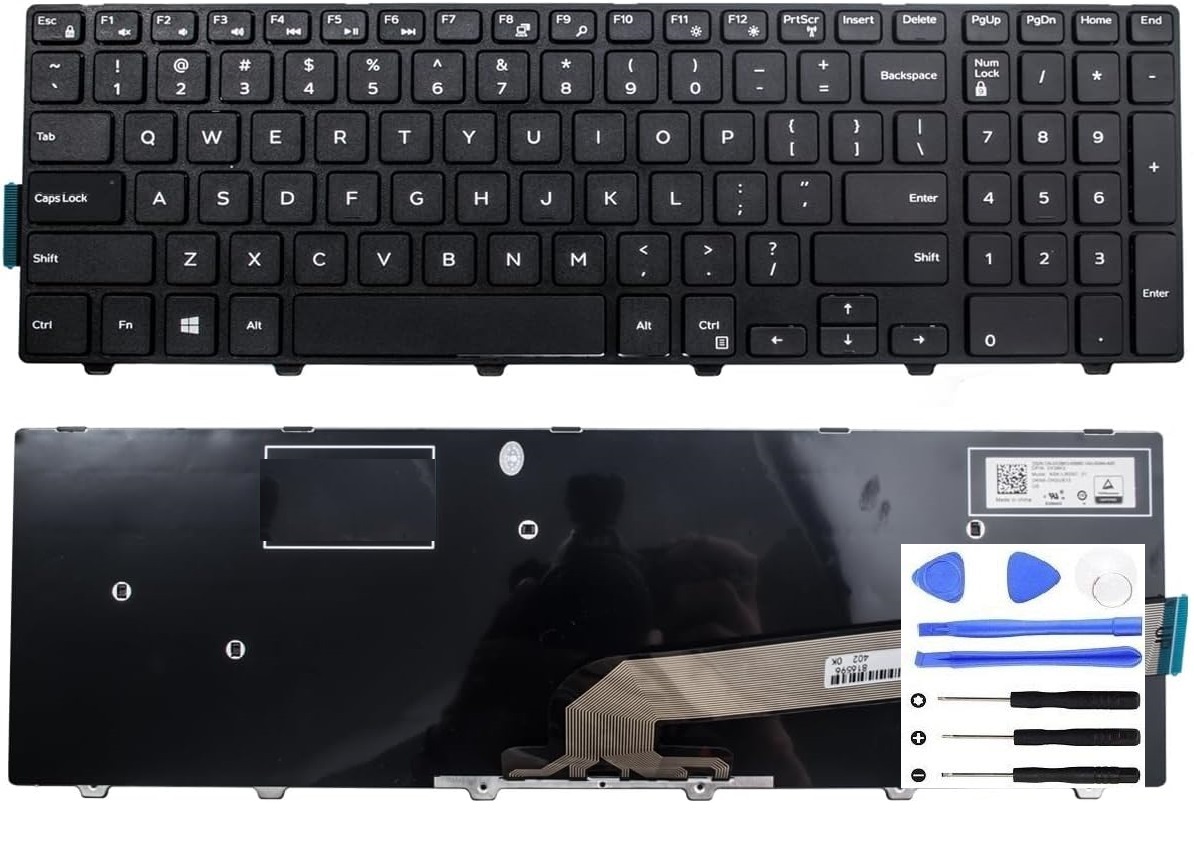
FAQ
Is it worth fixing a laptop keyboard or just using an external keyboard?
An external keyboard can be a temporary workaround, but it reduces portability. If you travel, study, or work in different places,
fixing the built-in keyboard usually restores the laptop’s real usability.
What if only a few keys don’t work?
If the same keys consistently fail across BIOS and Windows, it’s likely hardware and may spread over time.
If the issue only happens in Windows, check settings/drivers first.
How do I avoid ordering the wrong keyboard?
Match the exact laptop model, keyboard layout, backlight support, and (when possible) connector type. Don’t buy by “brand name only.”