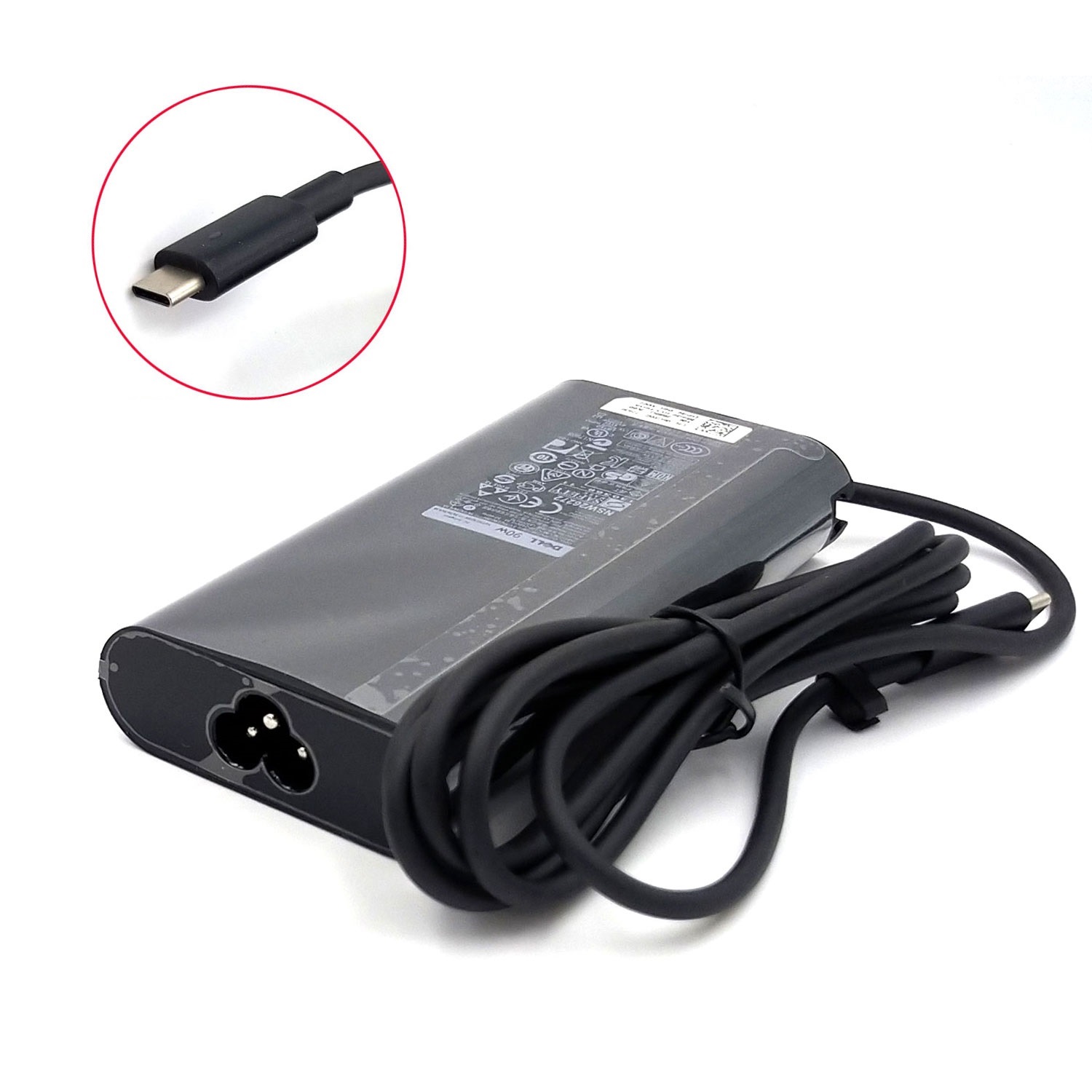
The Dell Precision 5550 (P91F001) charges via USB-C Power Delivery (PD). An under-rated adapter, a non–e-marked cable, a worn DC-in/USB-C port, battery wear, or outdated firmware can trigger “Plugged in, not charging”, extremely slow charging, power throttling, or even failure to power on. This guide gives you a structured, field-tested workflow to isolate the fault and apply the right fix.

Typical Symptoms
- “Plugged in, not charging”, charging capped at a fixed % (e.g., stuck at 60–80%), or extremely slow charge.
- Won’t power on from AC (adapter LED goes out when connected; shutdowns under load on AC).
- BIOS message “AC Adapter type cannot be determined / Unknown” → performance limited.
- Adapter LED off permanently, or switches off the moment you connect to the laptop.
Power Requirements & USB-C PD Reality Check
- Precision 5550 variants typically require 90 W or higher; configurations with dGPU and heavy workloads can benefit from higher-wattage PD for full performance (slow charging may occur on lower wattage under load).
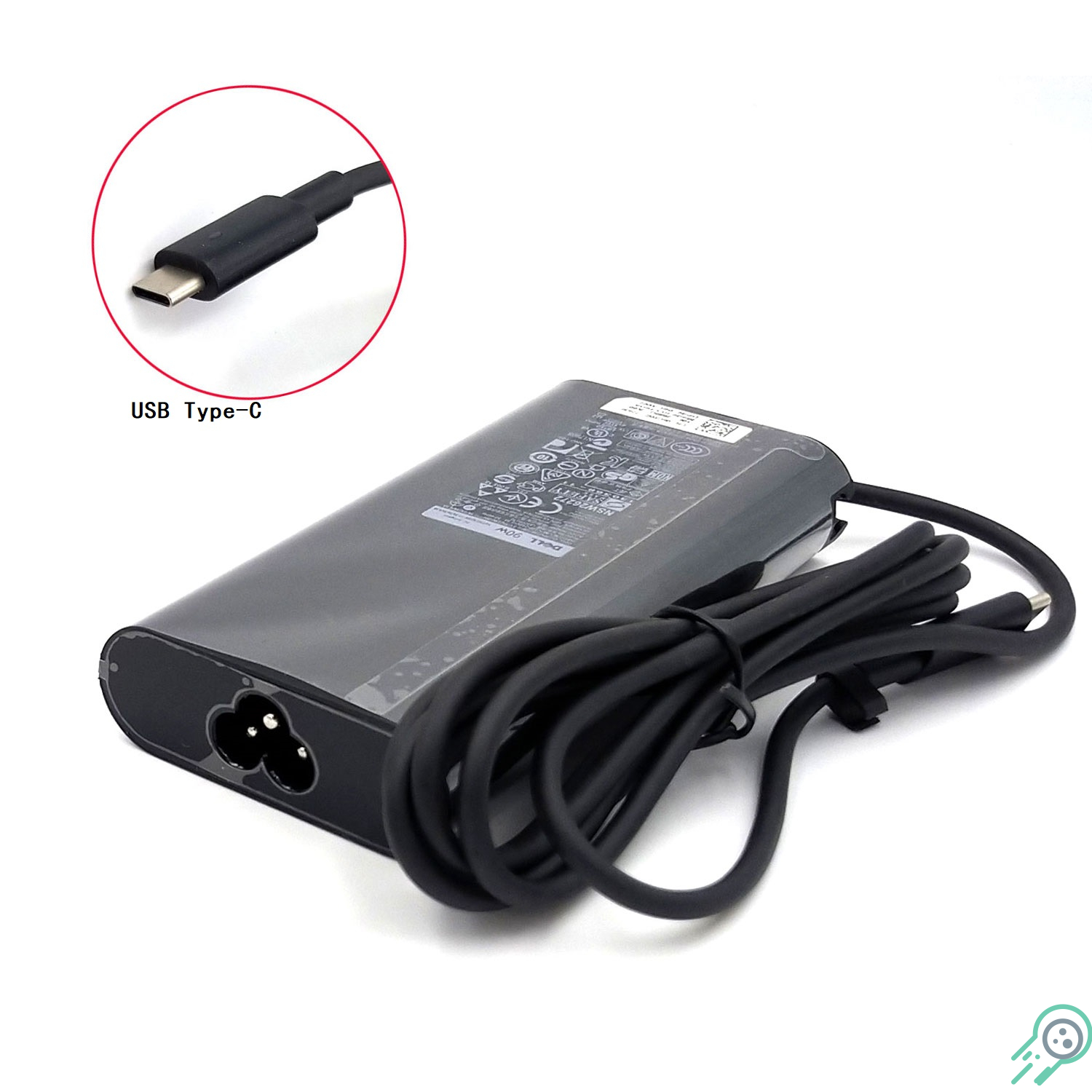
- For ≥ 90 W, use an e-marked 5 A USB-C cable. Non–e-marked (3 A) cables can limit PD negotiation and cause “not charging.”
- Some third-party PD chargers provide power but report a different ID than Dell → possible throttling or slower charge.
2-Minute Quick Checks
- Wall outlet direct: plug the adapter directly into a wall outlet (avoid power strips/surge protectors during testing).
- Visual check: USB-C port clean and undamaged; cable straight, no kinks; adapter LED stable.
- Swap cable: test with a known-good e-marked 5 A USB-C cable.
- Try the other USB-C port: some ports on the 5550 negotiate PD more reliably than others.
Structured Troubleshooting — From Easiest to Deepest
1) Isolate the Fault: Adapter, Cable, or Laptop?
- Adapter LED behavior: solid → good sign. LED turns off when connecting to the laptop → possible short/fault on DC-in/USB-C board.
- Cross-test: your adapter/cable on another USB-C PD laptop, then a known-good adapter/cable on your Precision 5550.
- Gentle port clean: compressed air (dry) or antistatic brush. Do not use liquids inside the port.
2) Windows & Dell Power Manager Settings
- In Windows, disable aggressive battery life modes while testing.
- In Dell Power Manager / Dell Command, ensure no charge threshold (Primarily AC Use / Custom) is limiting charge to 50–80%.
3) Validate in BIOS/UEFI
- Reboot and press F2 for BIOS.
- Under Battery & AC Adapter, check AC Adapter Type. Does it show 90 W (or expected) or Unknown?
- If Unknown: suspect adapter/cable/port or outdated BIOS.
4) Fix “Plugged in, not charging”
- EC reset: shut down; unplug AC; hold Power for 30–40 s; reconnect AC; boot.
- Temporarily disable charge limits in Dell Power Manager; charge to 100% and leave on AC for 30–60 minutes.
- Light calibration: one clean cycle (~15% → 100%) can stabilize the gauge (does not increase real capacity).
5) Update BIOS / Firmware
- Ensure battery ≥ 10–20% and AC connected.
- Update the BIOS and any power/USB-C management components via Dell Command | Update.
6) Pre-Boot Diagnostics (ePSA)
- On boot, tap F12 → choose Diagnostics.
- Let ePSA run; record any codes for the DC-in board, battery, or motherboard.
7) Hardware Inspection (When Indicated)
- Loose/burnt USB-C port, wobble, or discoloration: consider DC-in board replacement.
- Battery swelling (raised palmrest/touchpad): replace the battery immediately for safety.
Decision Table — Symptom → Likely Cause → First Fix
| Symptom | Likely Cause | First Fix |
|---|---|---|
| Plugged in, not charging | Under-rated adapter; 3 A cable; charge threshold enabled | Use ≥90 W adapter; e-marked 5 A cable; disable thresholds; EC reset |
| Very slow charging / throttling | PD negotiation limited; third-party adapter behavior | Test certified PD adapter/cable; verify “AC Adapter Type” in BIOS |
| Adapter LED turns off when connected | Fault at USB-C/DC-in board | Cross-test; inspect port; service DC-in if confirmed |
| BIOS shows “Unknown adapter” | Non–e-marked cable; incompatible adapter; outdated BIOS | E-marked 5 A cable; proper PD adapter; update BIOS |
| Random shutdowns on battery | Battery wear / low real capacity | powercfg /batteryreport; if ≤60–70% of design → replace battery |
Useful Windows Commands
- Battery report:
powercfg /batteryreport /output %USERPROFILE%\Desktop\battery-report.html - Compare Design Capacity vs Full Charge Capacity. If Full ≤ 60–70% of Design, the pack is near end-of-life for mobile use.
Best Practices: always use an e-marked 5 A USB-C cable for ≥90 W, keep BIOS/drivers current, avoid repeated deep discharges, and consider enabling Dell charge thresholds when you’re mostly on AC to reduce battery wear.