If your Microsoft Surface charger light is blinking (flashing) instead of staying solid, it usually means the charger and the device are not maintaining a stable power “handshake”. In simple terms: power is trying to flow, but something is interrupting it—like a loose connection, an underpowered adapter, a damaged cable, a dirty port, or a protective shutoff inside the charger.
Shop Surface Chargers & Adapters (All Models)
Table of Contents
- 1) What “blinking” usually means on a Surface charger
- 2) Fast checks (most fixes in 2 minutes)
- 3) Step-by-step troubleshooting (deeper fixes)
- 4) The #1 hidden cause: wrong wattage / wrong connector
- 5) Special cases: Surface Dock / unusual adapters
- 6) When it’s time to replace the charger
- 7) Recommended Surface chargers from our store
- 8) FAQ
1) What “blinking” usually means on a Surface charger
Important: Different Surface chargers have different “indicator styles.” Many Surface Connect chargers have a small LED on the magnetic connector tip. If that LED is blinking, it generally indicates unstable contact or protective shutoff behavior.
Here are the most common blinking patterns and what they usually point to:
| What you see | Most likely cause | Quick action |
|---|---|---|
| LED blinks as soon as you connect | Loose connection / dirty port / cable damage | Reseat connector, inspect port, try another outlet |
| LED blinks, then goes off | Charger protection (over-current / short / unstable load) | Unplug everything, wait 30s, reconnect cleanly |
| LED only blinks when Surface is on / under load | Adapter is underpowered for the model | Use the correct wattage (often 65W / 102W / 127W) |
| No LED at all | Outlet/cable/brick failure or loose wall plug | Try a known-good outlet, re-seat wall plug, check cord |
2) Fast checks (most fixes in 2 minutes)
- Try a different wall outlet (not the same power strip). A weak/loose strip can cause “blink cycling.”
- Unplug–wait–replug reset:
- Unplug charger from the wall.
- Disconnect from Surface.
- Wait 30 seconds.
- Plug into wall first, then connect to Surface.
- Check the wall plug / AC cable is fully seated. Some bricks use a removable “duckhead” or power cord—if it’s not firmly inserted, the adapter can flicker.
- Remove extra load: If your charger has a USB port and you’re charging a phone at the same time, unplug the phone temporarily and test again.
- Inspect the cable near stress points (near the brick and near the connector). If bending the cable changes the blinking behavior, that’s a strong sign of internal wire damage.
3) Step-by-step troubleshooting (deeper fixes)
Step A — Clean the connection (safe method)
- Power off the Surface and unplug the charger.
- Check the Surface charging port for dust, lint, or debris.
- Use a dry soft brush or compressed air. Avoid liquids.
- Reconnect and see if the LED becomes stable.
Step B — Test “wiggle sensitivity”
Reconnect the charger and gently move the cable near the connector and near the brick. If the light blinks with movement, the issue is typically:
- a worn cable, or
- a damaged connector/port contact.
Step C — Battery/drain edge case (protective cycling)
If your Surface battery is extremely low or the system is pulling heavy current, some adapters will repeatedly enter a protective cycle (blink → stop → try again). Try this:
- Shut down Surface completely.
- Connect charger and leave it for 15–20 minutes without turning it on.
- Then power on and check if blinking stops.
Step D — Rule out the device vs the charger
Best test if you can do it:
- Try the charger on another compatible Surface device (or try another known-good Surface charger on your device).
- If the blinking follows the charger, replace the charger.
- If the blinking only happens on one Surface device, the port or internal charging circuit may be the issue.
4) The #1 hidden cause: wrong wattage / wrong connector
A Surface may “sort of” connect to a charger but still blink if the adapter can’t supply stable power. This is especially common when:
- You use a lower-wattage charger on a higher-power model (LED blinks when the laptop is on).
- You use a dock adapter or special-purpose adapter by mistake.
- The connector type doesn’t match the device generation (Surface Connect variations, USB-C PD, or barrel connectors used for specific docks/accessories).
Practical rule: Match your charger by (1) connector type and (2) wattage. Underpowered adapters often cause “blink cycling,” slow charging, or “plugged in, not charging.”
5) Special cases: Surface Dock / unusual adapters
If your setup involves a dock, a monitor, or a special Surface accessory, blinking can happen because the power requirements are different.
- Surface Dock adapters: Some docks use dedicated power specs (for example, 12V/4A for certain dock models). Using a standard Surface laptop charger in place of a dock adapter can cause unstable behavior.
- Barrel connector adapters: Some “Surface-related” power supplies are not the classic Surface Connect magnetic tip. If you have a barrel connector device, make sure you match the exact size and voltage/current.
6) When it’s time to replace the charger
Replace the charger if any of these are true:
- The charger LED keeps blinking after you try multiple outlets and a full unplug/reset.
- Any cable bend causes flickering.
- The brick gets unusually hot or makes buzzing noises (stop using it).
- Your Surface only charges at a certain “angle” or position.
7) Recommended Surface chargers from our store
Below are popular options from our Surface charger collection. If you’re not sure which one you need, the safest approach is to compare your original charger label (output voltage/amps) and your Surface model, then choose the matching adapter.
View All Surface Chargers (Choose by Model/Wattage)
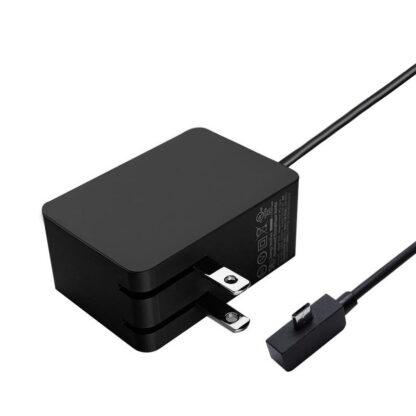
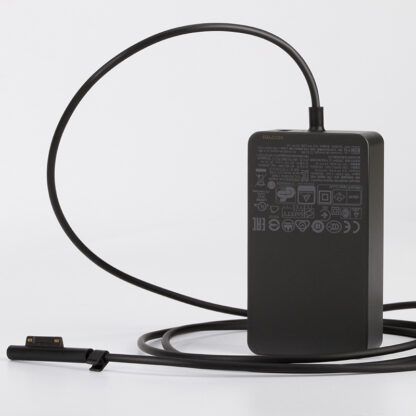

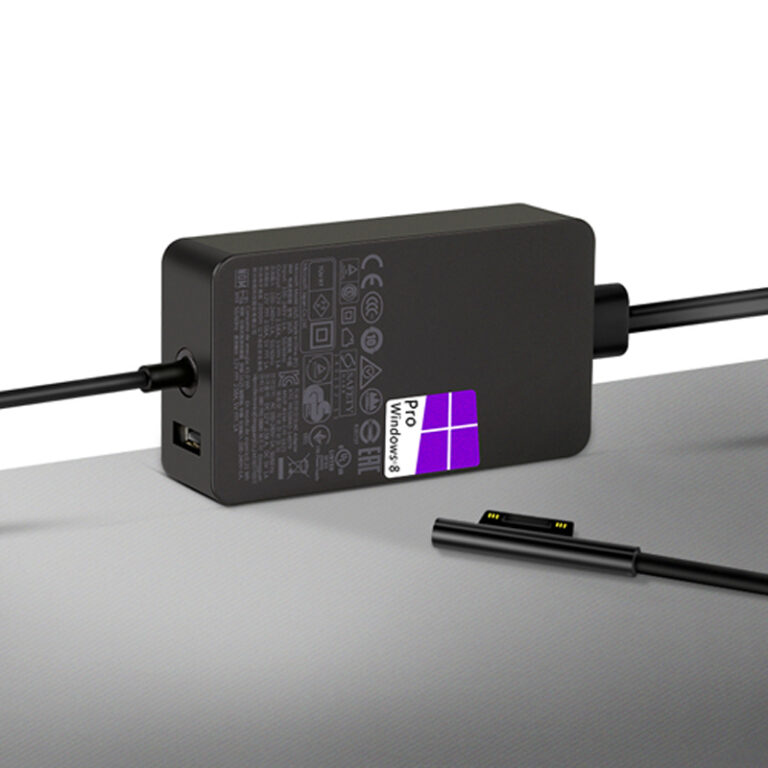
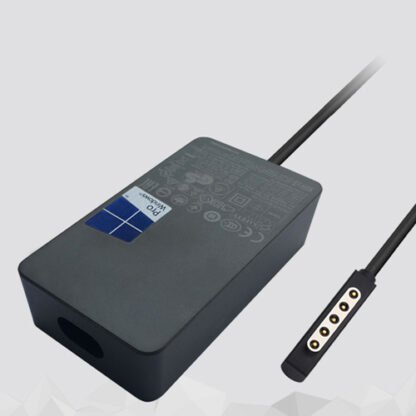
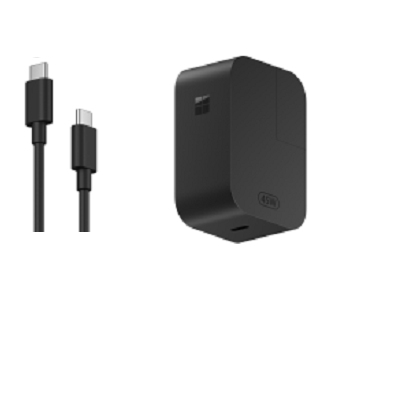
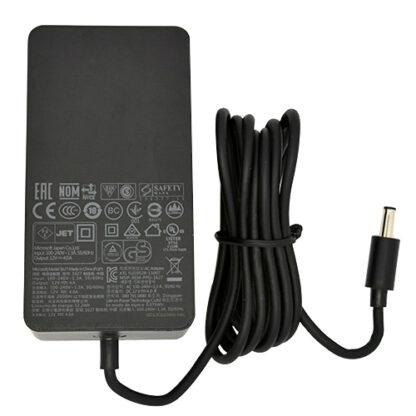
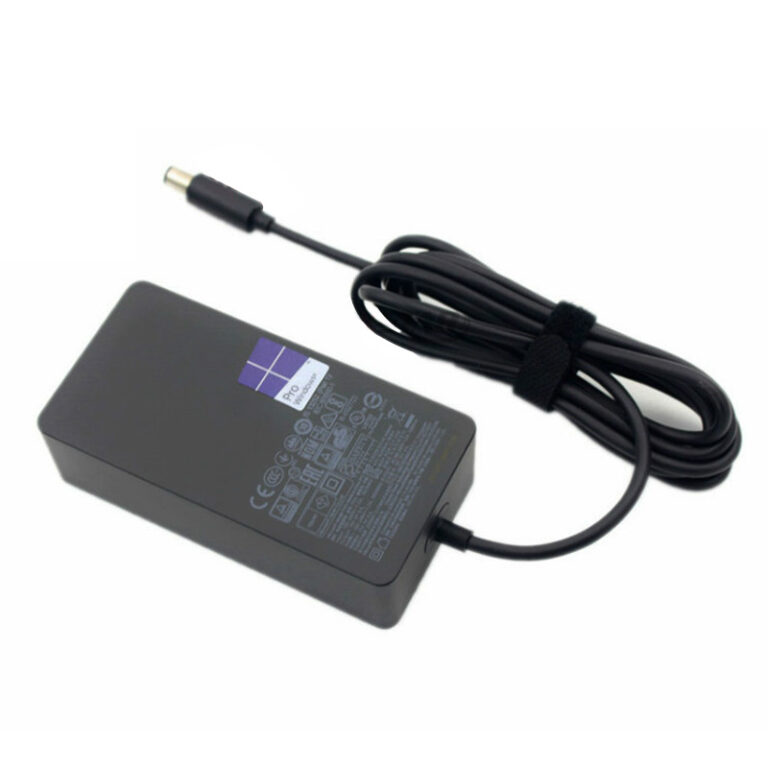
Browse the Full Surface Charger Collection
8) FAQ
Is it safe to keep using a Surface charger if it’s blinking?
If it’s blinking due to an unstable connection, continued use can cause repeated connect/disconnect cycles and heat at the contact point. If you notice heat, smell, buzzing, or the blink is constant across outlets, it’s safer to stop and replace the charger.
Why does it blink only when I’m gaming / doing heavy work?
That’s a classic sign of an underpowered adapter or a charger that can’t maintain stable output under load. The device draws more power, the charger dips, protection kicks in, and you see blinking.
Could this be a battery problem instead of a charger problem?
Yes. A failing battery or charging circuit can create unstable load behavior that causes the charger to cycle. The best way to separate the two is testing with a known-good compatible charger.
What’s the fastest way to choose the right charger?
Match your Surface model and the original charger’s output (voltage/amps), then pick the correct connector type (Surface Connect / USB-C / barrel). If you’re unsure, start from our collection page and choose by model/wattage.