Dell laptop charging problems can be frustrating because they do not always look the same. In some cases, the laptop will not charge at all. In other cases, it shows “plugged in” but the battery percentage barely moves. Some users see intermittent USB-C charging, random disconnects, slow charging under load, or warning messages about an unrecognized or insufficient adapter.
These problems are especially common on modern Dell laptops that rely on USB-C power delivery. The charger may still appear to work, but it may no longer provide stable voltage, proper wattage, or consistent communication with the laptop. That is why adapter problems can be misdiagnosed as battery problems, port problems, BIOS problems, or even motherboard problems.
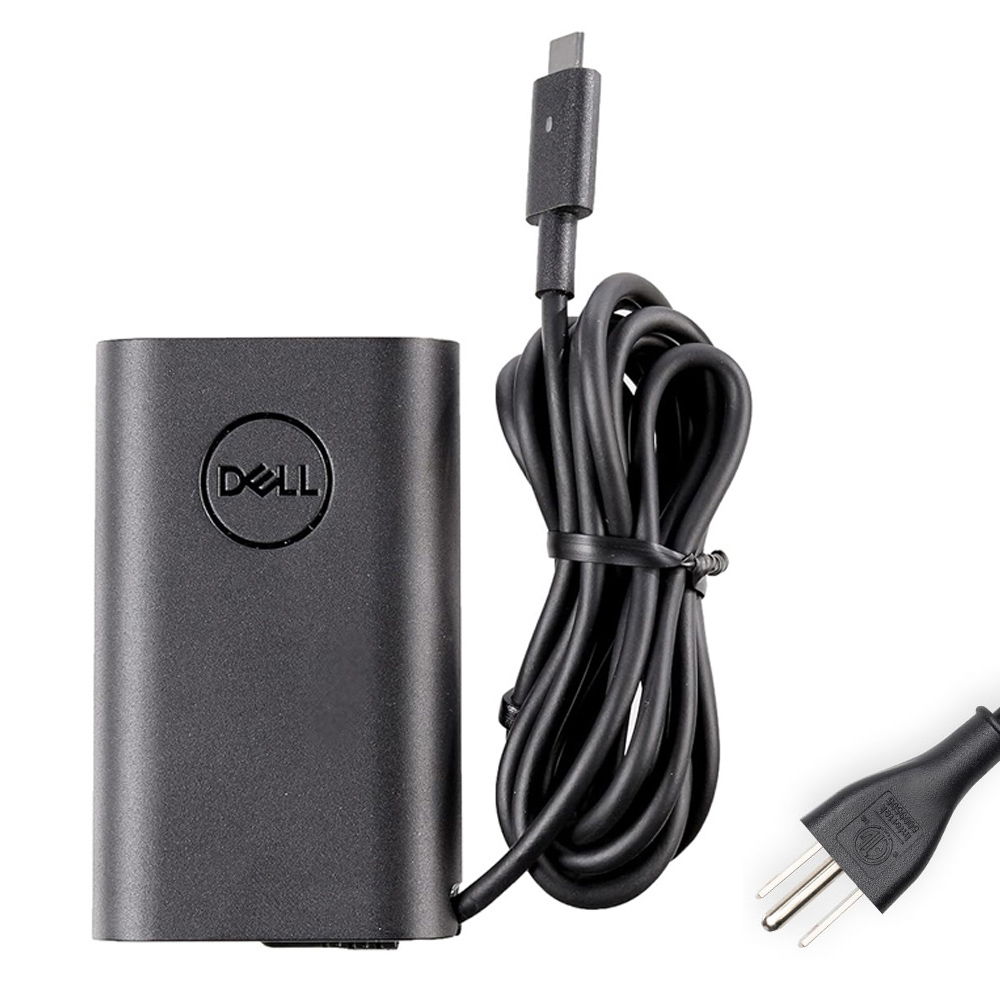
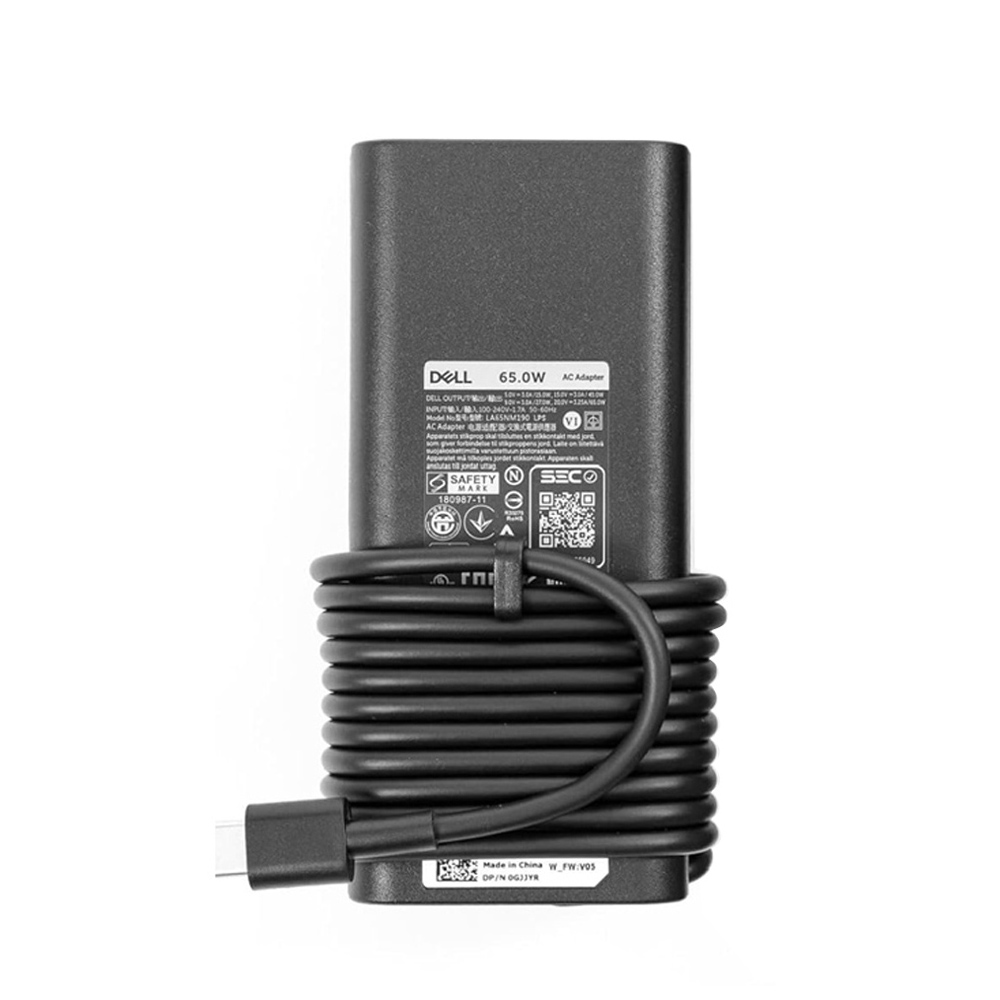
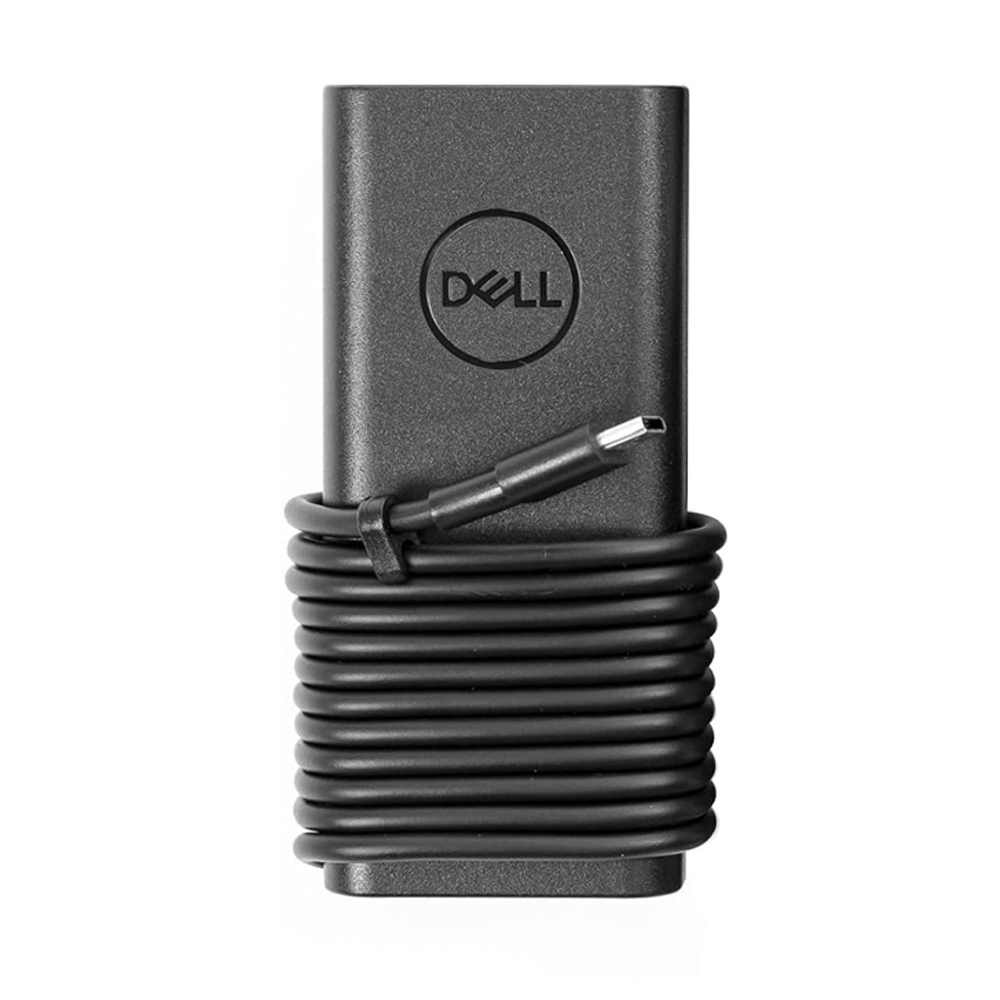
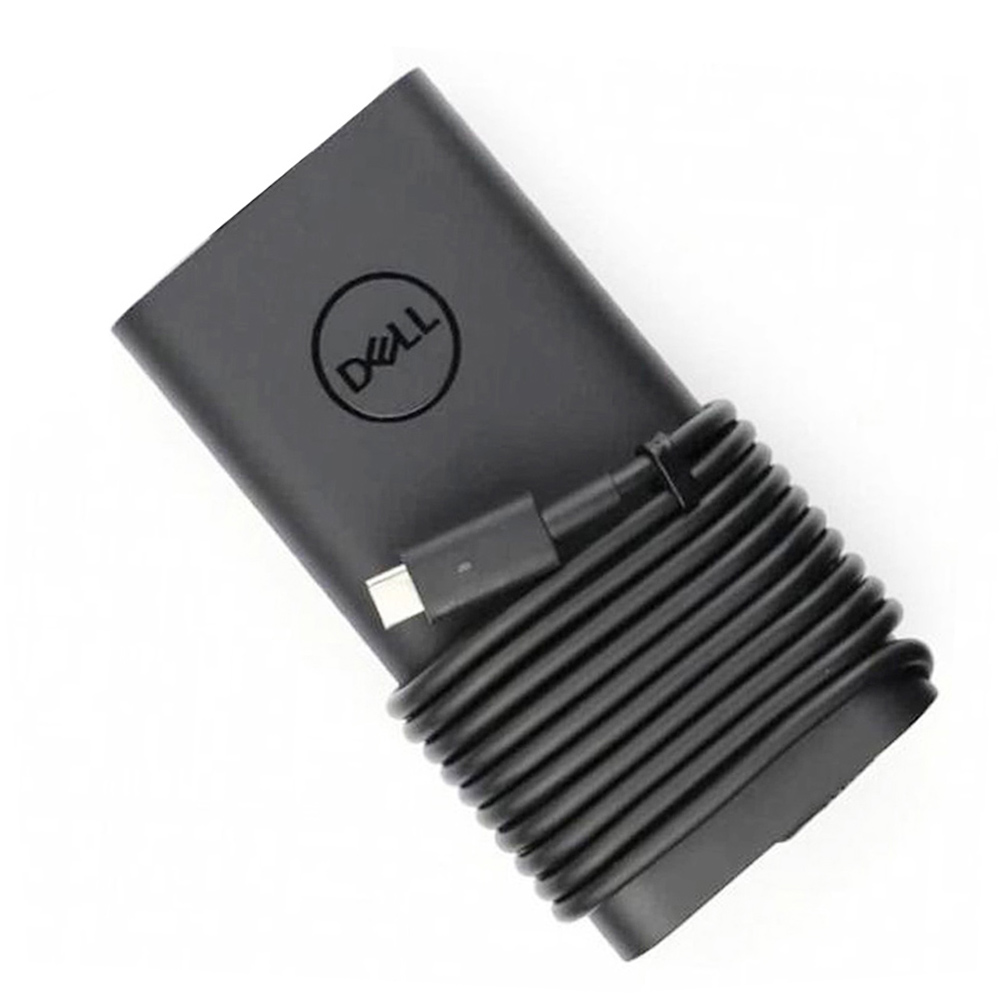
This guide focuses on a practical replacement option: the 20V 3.25A 65W Dell USB-C AC Adapter Charger. This charger is designed for many Dell laptops that use a 65W USB-C power profile, and it supports multiple USB-C PD output levels including 20V / 3.25A / 65W, 15V / 3A, 9V / 3A, and 5V / 3A.
View the 20V 3.25A 65W Dell USB-C AC Adapter Charger
Product Overview
Product Name: 20V 3.25A 65W Dell USB-C AC Adapter Charger
- Input: 100 ~ 240V, 50 ~ 60Hz
- Main Output: 20V / 3.25A / 65W
- Additional USB-C PD Profiles: 15V / 3A, 9V / 3A, 5V / 3A
- Connector: USB-C
- Package: 1 x Dell Charger + 1 x Power Cord
- Warranty: 12 Months / 30-Day Return
Typical Dell Adapter Problems Users Report
1. Dell laptop not charging at all
This is the most obvious symptom. You connect the charger, but there is no charging indicator, no battery icon change, and the laptop keeps running only on battery power.
Possible causes:
- Adapter failure
- Bad wall outlet or loose AC power cord
- Faulty USB-C connector
- Damaged laptop charging port
- Power negotiation failure between charger and laptop
- Battery or motherboard charging circuit problem
2. Plugged in, but battery percentage does not increase
This is very common on Dell laptops. The charger is detected, but real charging either does not begin or happens too slowly to be useful.
Possible causes:
- The adapter is no longer delivering stable full output
- The system load is too high for a 65W charger
- The battery is heavily worn or failing
- The USB-C PD handshake is unstable
- The laptop accepts power intermittently
3. Dell laptop charges slowly or loses battery while plugged in
Many users notice that the laptop charges when idle, but during video calls, software updates, browsing with many tabs, or office multitasking, the battery still drains.
This does not always mean the charger is defective. It may also mean the laptop is drawing close to, or temporarily above, the power available from a 65W adapter.
4. Charging disconnects and reconnects repeatedly
If the charging icon appears and disappears, or the laptop only charges when the USB-C connector is held at a certain angle, the issue is usually related to physical instability.
Possible causes:
- Worn USB-C tip
- Loose laptop charging port
- Dust or debris inside the USB-C port
- Cable strain damage near the plug or adapter brick
5. Dell warning about an unknown or insufficient adapter
Some Dell laptops are strict about charger identification. If the adapter is unstable, underpowered, or not correctly recognized, the laptop may reduce performance or limit charging.
Users may notice:
- Battery not charging normally
- Reduced CPU performance
- System slowdown while plugged in
- Battery percentage going down even with the charger connected
Why Dell USB-C Adapter Problems Are Often Misdiagnosed
With older barrel-plug chargers, diagnosis was often simpler. A charger either powered the laptop or it did not. Modern Dell USB-C charging is more complex. The adapter does not just deliver electricity. It also has to negotiate a compatible power profile and remain stable under changing load conditions.
That means a charger can partially fail.
- It may still power the laptop when idle, but fail under load
- It may charge a phone or tablet, but not a Dell laptop properly
- It may work intermittently depending on connector angle
- It may supply unstable power after warming up
This is why step-by-step diagnosis matters.
Specific Dell Part Numbers This Charger Can Replace
One of the most useful ways to identify a compatible Dell replacement charger is by the original part number. This 65W USB-C Dell adapter is associated with a wide range of Dell charger part numbers, including:
- Dell 01F45P
- Dell 022JKR
- Dell 02YK0F
- Dell 0CJG9W
- Dell 0D2YG
- Dell 0JJV9D
- Dell 0JYJNW
- Dell 0M0RT
- Dell 0RGF3F
- Dell 0VT148
- Dell 0WMDHR
- Dell 0XVH3P
- Dell 0Y7R4
- Dell 1DVRJ
- Dell 1F45P
- Dell 1N3PY
- Dell 20HYG
- Dell 22JKR
- Dell 28I-D1W2-A00
- Dell 2WDR5
- Dell 2Y7R4
- Dell 2YK0F
- Dell 450-AGOB
- Dell 450-ALJL
- Dell 450-ALQR
- Dell 450-BBVD
- Dell 450-BBWD
- Dell 48P28
- Dell 55NVC
- Dell 56FVH
- Dell 68V14
- Dell 6D35N
- Dell 6FNJG
- Dell 6T7NR
- Dell 723JG
- Dell 7F38C
- Dell 7HGF6
- Dell 7P6HW
- Dell 85W87
- Dell 921CW
- Dell 9GFC6
- Dell C5PVT
- Dell CJG9W
- Dell CN-0XVH3P
- Dell CPL-JJV9D
- Dell CPL-WMDHR
- Dell DA65NM170
- Dell FHYND
- Dell FTTTJ
- Dell GJJYR
- Dell HA60NM200
- Dell HA65NM170
- Dell HA65NM190
- Dell HKA65NM200
- Dell HN6C1
- Dell HRR76
- Dell JJV9D
- Dell JYJNW
- Dell K5MD6
- Dell K60KM
- Dell KKT2W
- Dell LA60NM200
- Dell LA65NM170
- Dell LA65NM190
- Dell M1WCF
- Dell MVPDV
- Dell O1F45P
- Dell OXVH3P
- Dell OY7R4
- Dell R0J7H
- Dell RGF3F
- Dell T3JDJ
- Dell T8W34
- Dell V2TJ7
- Dell V6YKG
- Dell VFHDX
- Dell VH2W4
- Dell VMJKJ
- Dell VT148
- Dell WMDHR
- Dell XVH3P
- Dell YRP78
If your original Dell USB-C charger carries one of these part numbers, this replacement is much more relevant than a generic charger with vague compatibility claims.
Targeted Dell Models That Commonly Match This 65W USB-C Charger Category
This charger is associated with a large Dell model range, including many laptops in the following families:
Dell Inspiron Series
- Dell Inspiron 13 (5310)
- Dell Inspiron 13 (7368)
- Dell Inspiron 13 (7370)
- Dell Inspiron 13 2-in-1 (7306)
- Dell Inspiron 13 2-in-1 (7390)
- Dell Inspiron 14 (5410)
- Dell Inspiron 14 (5418)
- Dell Inspiron 14 (5430)
- Dell Inspiron 14 (5441)
- Dell Inspiron 14 (5490)
- Dell Inspiron 14 (7400)
- Dell Inspiron 14 (7490)
- Dell Inspiron 14 2-in-1 (7415)
- Dell Inspiron 14 2-in-1 (7420)
- Dell Inspiron 14 2-in-1 (7425)
- Dell Inspiron 14 2-in-1 (7430)
- Dell Inspiron 14 2-in-1 (7435)
- Dell Inspiron 14 2-in-1 (7440)
- Dell Inspiron 14 Plus (7441)
- Dell Inspiron 15 (3530)
- Dell Inspiron 15 (5502)
- Dell Inspiron 16 (5630)
- Dell Inspiron 16 2-in-1 (7620)
- Dell Inspiron 16 2-in-1 (7630)
- Dell Inspiron 16 2-in-1 (7635)
- Dell Inspiron 16 2-in-1 (7640)
Dell Latitude Series
- Dell Latitude 13 (7320)
- Dell Latitude 13 (7330)
- Dell Latitude 13 (7340)
- Dell Latitude 13 (7370)
- Dell Latitude 13 (7390)
- Dell Latitude 13 2-in-1 (5300)
- Dell Latitude 13 2-in-1 (5310)
- Dell Latitude 13 2-in-1 (5330)
- Dell Latitude 13 2-in-1 (7390)
- Dell Latitude 13 2-in-1 (9330)
- Dell Latitude 14 (3410)
- Dell Latitude 14 (3420)
- Dell Latitude 14 (5400)
- Dell Latitude 14 (5410)
- Dell Latitude 14 (5420)
- Dell Latitude 14 (5430)
- Dell Latitude 14 (5440)
- Dell Latitude 14 (5450)
- Dell Latitude 14 (7410)
- Dell Latitude 14 (7420)
- Dell Latitude 14 (7430)
- Dell Latitude 14 (7440)
- Dell Latitude 14 (7450)
- Dell Latitude 14 2-in-1 (9410)
- Dell Latitude 14 2-in-1 (9420)
- Dell Latitude 14 2-in-1 (9430)
- Dell Latitude 14 2-in-1 (9440)
- Dell Latitude 14 2-in-1 (9450)
- Dell Latitude 15 (3510)
- Dell Latitude 15 (3520)
- Dell Latitude 15 (3540)
- Dell Latitude 15 (5500)
- Dell Latitude 15 (5510)
- Dell Latitude 15 (5520)
- Dell Latitude 15 (5530)
- Dell Latitude 15 (5540)
- Dell Latitude 15 (5550)
- Dell Latitude 15 (7520)
- Dell Latitude 15 (7530)
- Dell Latitude 15 (9510)
- Dell Latitude 15 (9520)
- Dell Latitude 16 (7640)
- Dell Latitude 16 (7650)
Dell Vostro Series
- Dell Vostro 13 (5310)
- Dell Vostro 13 (5320)
- Dell Vostro 13 (5390)
- Dell Vostro 14 (5490)
- Dell Vostro 15 (5502)
- Dell Vostro 15 (5590)
- Dell Vostro 16 (5630)
Dell XPS Series
- Dell XPS 12 (9250)
- Dell XPS 13 (7390)
- Dell XPS 13 (9300)
- Dell XPS 13 (9305)
- Dell XPS 13 (9310)
- Dell XPS 13 (9315)
- Dell XPS 13 (9340)
- Dell XPS 13 (9345)
- Dell XPS 13 (9360)
- Dell XPS 13 (9365)
- Dell XPS 13 (9370)
- Dell XPS 13 (9380)
- Dell XPS 13 2-in-1 (7390)
- Dell XPS 13 2-in-1 (9310)
- Dell XPS 13 2-in-1 (9315)
- Dell XPS 13 Plus (9320)
- Dell XPS 13 Plus (9340)
- Dell XPS 14 (9440)
Dell Precision, Chromebook, and Other Models
- Dell Precision 14 (3480)
- Dell Precision 14 (3490)
- Dell Precision 15 (3540)
- Dell Precision 15 (3550)
- Dell Precision 15 (3560)
- Dell Precision 15 (3570)
- Dell Precision 15 (3580)
- Dell Precision 15 (3590)
- Dell Chromebook 11 (3120)
- Dell Chromebook 11 (5190)
- Dell Chromebook 13 3380
- Dell Venue 8 Pro
- Dell Venue 10 Pro
Important: Even when the laptop family matches, buyers should still compare the original charger specifications, part number, and USB-C charging requirement before ordering.
How to Diagnose a Dell Adapter Problem Step by Step
Step 1: Check the wall outlet and AC side first
Do not begin with the laptop. Start with the simplest part of the power chain.
- Try another wall outlet
- Remove the extension strip or surge protector temporarily
- Reconnect the AC power cord firmly
- Check whether the charger brick warms slightly after a few minutes
If nothing changes and the adapter stays completely inactive, the charger may have failed internally.
Step 2: Inspect the USB-C connector and laptop charging port
USB-C charging depends on a stable physical connection. A loose or contaminated port can cause symptoms that look like charger failure.
- Inspect for dust inside the port
- Look for bent contacts or abnormal wobble
- Check if charging changes when the plug angle changes
- Look for signs of overheating or discoloration
Step 3: Compare the symptom to the likely cause
| Symptom | Most Likely Causes |
|---|---|
| Dell laptop not charging at all | Dead charger, damaged USB-C port, failed charging circuit, bad battery |
| Plugged in but battery not increasing | Weak adapter output, battery wear, unstable PD negotiation |
| Battery drains while plugged in | System load exceeds available power, battery aging, unstable charger |
| Charging connects and disconnects | Loose connector, broken cable section, damaged port |
| Unknown adapter or reduced performance | Adapter identification failure, non-stable power delivery, port logic issue |
Step 4: Consider the real power demand of the laptop
A 65W charger is appropriate for many Dell laptops in the Inspiron, Latitude, Vostro, XPS, Precision, and Chromebook ranges listed above. However, actual laptop power draw changes depending on workload.
For example:
- A Dell Latitude used for browsing, office work, email, and meetings may work perfectly on 65W
- An Inspiron or XPS 13 on light daily use may also charge normally with 65W
- The same laptop under heavy multitasking, software updates, or attached peripherals may charge more slowly
This means that “slow charging” does not always mean “wrong charger.” It can also mean the laptop is consuming most of the available 65W while running.
Step 5: Check battery health behavior
A weak battery can make the charger look bad.
Warning signs of battery-related problems include:
- Battery percentage jumps abnormally
- Battery charges only to a certain level and stops
- The laptop shuts down unexpectedly
- Battery drains too quickly even after reaching a high percentage
If the battery is heavily worn, even a new charger cannot restore original runtime.
Step 6: Test while the laptop is off or at idle
This is a useful troubleshooting method.
- Shut the Dell laptop down completely
- Connect the charger
- Wait a few minutes
- Turn the laptop on again
If charging seems more stable when the laptop is off or idle, the adapter may be borderline under load, or the battery may be weak.
Step 7: Test with another known-good USB-C charger if possible
If another proper laptop-grade USB-C charger works normally, the original adapter is the most likely problem. If both chargers show the same symptoms, the issue may be in the laptop’s charging port, battery, or motherboard charging circuitry.
Model-Specific Troubleshooting Examples
Dell Inspiron USB-C charging problems
Models such as Inspiron 13 (5310), Inspiron 14 (5410, 5430, 5490, 7490), Inspiron 15 (3530, 5502), and Inspiron 16 (5630) are often used for daily work, study, and home office tasks. On these machines, common charger complaints include:
- Slow charging during video calls
- Battery drain while using external accessories
- Intermittent charging after cable movement
Dell Latitude charging instability
Business systems such as Latitude 13 (7320, 7330, 7340), Latitude 14 (5420, 5430, 5440, 7440, 7450), and Latitude 15 (5520, 5530, 5540, 5550) are frequently used for long workdays. Common issues include:
- Battery percentage holding flat during meetings
- Docking and undocking related charging confusion
- USB-C wear after long-term business use
Dell XPS charging complaints
Compact premium models such as XPS 13 (9300, 9305, 9310, 9315, 9340), XPS 13 Plus (9320, 9340), and XPS 14 (9440) are especially sensitive to charger quality, cable stability, and port condition. Users often report:
- Charging but not increasing percentage during active use
- Battery drain under high brightness and multitasking
- Port-side instability from frequent travel use
Dell Precision mobile workstation charging issues
On models such as Precision 14 (3480, 3490) and Precision 15 (3540–3590), users should be especially careful to confirm the original power requirement. While this charger matches many listed Precision models in the compatibility data, workstation configurations can vary, so the original Dell adapter rating should always be checked before purchase.
When You Should Replace the Dell Adapter Immediately
Replace the charger right away if you notice any of the following:
- Burning smell
- Connector overheating
- Charging only works at a certain angle
- Visible cable damage
- Random power loss while plugged in
- Repeated unstable charging across multiple outlets
At that point, continuing to use the adapter is not a good long-term solution.
Why This 20V 3.25A 65W Dell USB-C Charger Is a Strong Replacement Option
This charger is more useful than a vague generic USB-C adapter because it is tied to specific Dell part numbers and many clearly listed Dell laptop series. It supports the proper 20V / 3.25A / 65W output for many Dell laptops that expect a 65W USB-C power source, and it also includes lower USB-C PD profiles to support proper negotiation.
That makes it relevant for buyers who are trying to solve issues such as:
- Dell laptop not charging
- Dell USB-C charger not working
- Dell charger plugged in but not charging
- Dell laptop charging slowly
- Dell adapter keeps disconnecting
- Dell charger replacement by part number
Final Thoughts
Dell adapter problems are not always simple charger failures. They can involve unstable USB-C communication, insufficient usable power under load, cable fatigue, port wear, or battery-side issues. The best way to solve the problem is to diagnose it step by step instead of guessing.
If your original Dell charger matches the 65W USB-C category, and especially if your laptop or original part number appears in the compatibility direction above, this 20V 3.25A 65W Dell USB-C AC Adapter Charger is a practical replacement to consider.
FAQ
Can a bad Dell adapter still power the laptop but fail to charge the battery properly?
Yes. A failing adapter may still provide some power, but not enough stable power for proper battery charging, especially when the laptop is under load.
Why does my Dell laptop say plugged in but the battery percentage stays the same?
This can happen when the battery is worn, the charger is unstable, the laptop is drawing nearly all available power, or the USB-C charging negotiation is not stable.
Is 65W enough for all Dell USB-C laptops?
No. Many Dell laptops are designed to work with 65W USB-C charging, but some configurations require more power. Always compare the original adapter specifications before ordering.
How do I know if my Dell charger is the wrong one?
Check the original Dell part number, voltage, current, wattage, and connector type. Matching the plug alone is not enough.
Can a damaged USB-C port cause the same symptoms as a bad charger?
Yes. A worn or loose USB-C port can cause intermittent charging, slow charging, or repeated connect-disconnect behavior even if the charger itself is good.
What should I compare before buying this replacement charger?
You should compare your original charger wattage, output specifications, connector type, and Dell part number. If your original adapter is in the compatible 65W USB-C range, this replacement is much more likely to fit your needs.