Yes—a swollen Dell XPS 15 battery should be treated as a safety issue.
Battery swelling usually means the cells have degraded internally and are producing gas, which can put pressure on the laptop chassis
(and nearby components like the trackpad). Continuing to use, charge, or compress a swollen battery increases risk.
avoid charging it, and arrange a proper replacement/disposal plan.
Why a swollen battery is dangerous
A swollen lithium battery is not just “old”—it is physically changing shape. Swelling can:
- ضغط the chassis: causing the bottom cover to bend or the palm rest/trackpad area to lift.
- Damage internal components: connectors, trackpad mechanisms, or mounting points can be stressed or cracked.
- Increase safety risk: pressure, heat, and continued charging are not good combinations for a compromised battery.
stop using it and seek professional help immediately.
Common warning signs on Dell XPS 15
Swelling on an XPS 15 often shows up as subtle physical changes before the battery performance becomes obviously bad.
| Sign | What you might notice |
|---|---|
| Trackpad feels different | Click feels stiff, uneven, or the trackpad no longer “clicks” properly. |
| Bottom cover not flush | Edges lift slightly, screws don’t sit right, or the laptop rocks on a flat surface. |
| Chassis gap changes | You see a new gap between the palm rest and bottom cover, or along the sides. |
| Battery behavior worsens | Runtime collapses, percentage drops fast, or the system shuts down unexpectedly. |
| Charging becomes odd | “Plugged in, not charging” issues or fluctuating charge status (after you’ve ruled out charger/port issues). |
What to do next (safe steps)
If you suspect swelling, the goal is simple: reduce stress on the battery and avoid heat/charging,
then move to safe replacement.
- Stop using it right away if you see clear swelling or the trackpad/bottom cover is being pushed.
- Shut down the laptop (do a normal shutdown; avoid running heavy workloads).
- Unplug the charger and avoid charging again until the battery is replaced.
- Place the laptop on a hard, non-flammable surface in a cool, dry area (avoid beds/sofas/carpets).
- Plan the replacement:
- If you’re experienced with laptop service, replace the battery using the correct part number.
- If you’re not comfortable opening the laptop, use a professional repair shop.
- Dispose of the old battery properly through a local electronics recycling or battery drop-off program (do not throw it in household trash).
What NOT to do
- Do not keep charging it “just to finish a task.”
- Do not puncture, crush, or bend the battery or the laptop chassis.
- Do not try to “flatten it” by tightening screws or forcing the cover closed.
- Do not use heat to “dry it out” or “fix swelling.”
- Do not store it near flammable materials or in a hot environment (cars, direct sunlight, near heaters).
How to protect your data (without stressing the battery)
Many people keep using a swollen-battery laptop because they’re worried about files. The safest approach is to back up data
with minimal heat and minimal runtime demand.
- Keep the laptop on a hard, cool surface.
- If it must be powered on, keep sessions short and avoid heavy tasks (gaming, video export, long benchmarks).
- Back up the most important folders first (Documents/Desktop/Photos/Projects) to an external drive or cloud.
- If you’re unsure or the laptop behaves abnormally, ask a repair shop to help retrieve data during service.
Replacement planning: how to choose the right XPS 15 battery
Once you decide to replace the battery, don’t shop by “XPS 15 battery” alone. The XPS 15 family covers many generations and configurations.
The reliable way is:
- Dell Service Tag → identify the correct battery part number for your exact configuration.
- Battery label (if accessible) → confirm part number + Wh rating.
- Photo/layout confirmation → connector position and overall shape match.
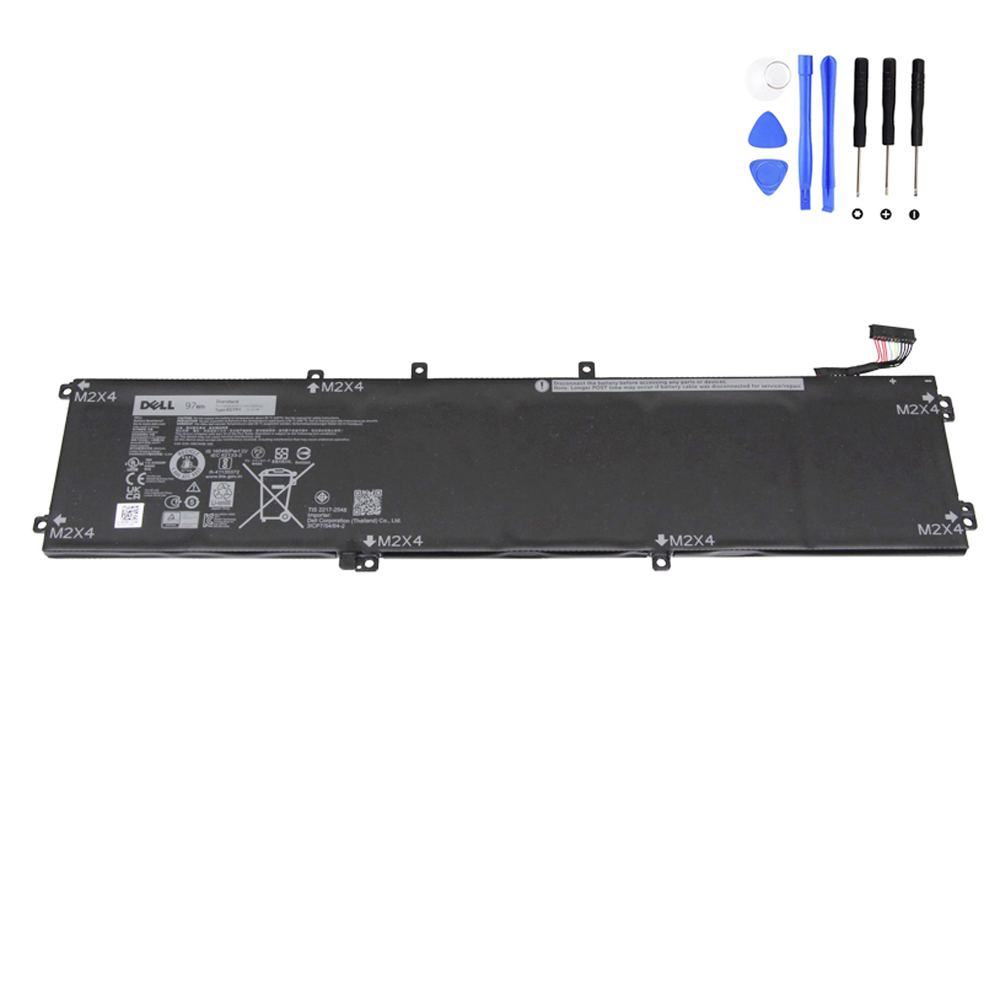
One common XPS 15 replacement battery part number is 6GTPY in a 97Wh class pack.
Only order it if your Service Tag or battery label confirms 6GTPY.
Where to buy a compatible replacement
Browse Dell replacement batteries here:
https://fixing-tools.store/laptop-parts/product-category/battery/battery-for-dell/
If your Service Tag / battery label confirms 6GTPY, you can view the compatible replacement below:
FAQ
Is a swollen battery always an emergency?
It should always be treated as a safety concern. Even if nothing “bad” happens immediately, swelling means the battery is compromised.
The safest plan is to stop using/charging it and replace it as soon as possible.
Can I keep using my XPS 15 while I wait for a replacement?
If swelling is visible or the chassis/trackpad is being pushed, continued use is not recommended.
Prioritize shutdown, unplugging, and safe replacement planning.
How do I make sure I buy the correct replacement battery?
Match by Dell Service Tag and/or the battery part number on the original label, then confirm Wh rating and connector/layout.
Avoid buying by “XPS 15 model name” alone.
and are not affiliated with or endorsed by Dell Inc.