The fastest way to buy the correct replacement HP battery is to match the battery part number.
But HP laptops don’t always show that number in the same place—some models have removable batteries,
while many modern HP notebooks use internal batteries where the label is hidden under the bottom cover.
In this guide, you’ll learn the three reliable ways to find your HP battery part number:
(1) the battery label, (2) BIOS/HP System Information, and (3) Windows tools.
After you find the part number (or battery model code), you’ll be able to match it on Fixing-Tools and order with confidence.
The most reliable “battery part number” is usually printed on the battery label (often as a battery model code like
HT03XL, LK03XL, WK06XL or a “Replace with HP Spare” number).
If you can’t access the battery label, use your laptop’s serial number/product number in HP parts lookup to find the compatible battery part.
- What counts as an HP “battery part number”?
- Method 1: Find the part number on the battery label (best)
- Method 2: BIOS / HP System Information (when supported)
- Method 3: Windows methods (what they can and can’t tell you)
- How to match the battery on Fixing-Tools
- Popular HP battery examples (clickable)
- FAQ
What counts as an HP “battery part number”?
People use “part number” in a few different ways. When you’re buying a replacement battery, these are the identifiers that matter most:
-
Battery model code (most useful for shopping): examples include
HT03XL, AE03XL, MU06, WK06XL.
This is often the quickest search term on a battery store. -
HP Spare / Replace number (excellent for confirmation): sometimes shown on the battery label as
“Replace with HP Spare” followed by a number. - Laptop serial/product number (not a battery number, but it helps you look up the correct battery in HP parts catalogs).
That eliminates most wrong-battery orders caused by similar-looking models.
Method 1: Find the part number on the battery label (best)
The battery label is the most direct source because it identifies the battery itself, not just the laptop family.
Depending on your HP model, you’ll see one of these situations:
A) Removable battery (older HP laptops)
- Shut down the laptop and unplug the charger.
- If your battery is removable, slide the latch and remove the battery.
- Read the label and look for a code like MU06 or an HP spare/replace number.
- Write down: battery code, voltage (V), and any HP spare/replace number.
B) Internal battery (most modern HP laptops)
Many HP models have an internal battery under the bottom cover. If you’re comfortable opening the laptop:
- Shut down the laptop completely and unplug the charger.
- Work on a clean, static-safe surface (avoid carpets).
- Open the bottom cover carefully (some models have hidden screws or clips).
- Locate the battery label and record the battery model code and “Replace with HP Spare” number (if present).
On the label, you’re typically looking for:
- Battery model code (often ends in XL for internal batteries)
- Replace with HP Spare number (if shown)
- Voltage (V) and capacity (Wh)
Method 2: BIOS / HP System Information (when supported)
HP laptops sometimes expose useful device identifiers via built-in system information screens.
While BIOS/firmware screens don’t always show the battery model code directly, they can reliably show
the laptop’s serial number and product number—which you can use to look up the correct battery part.
Option 1: HP System Information shortcut
- Turn on the laptop and sign in.
- Press Fn + Esc (many HP models support this).
- Copy the Serial Number and Product Number.
Option 2: BIOS startup screen (varies by model)
On many HP laptops, you can enter BIOS/setup during startup (the exact key varies by model).
Once inside, locate the system information page and record the serial number and product number.
If you can’t read the battery label, your serial/product number is the next-best way to identify the correct replacement battery using HP parts listings.
Method 3: Windows methods (what they can and can’t tell you)
Windows is excellent for showing battery health and usage data, but it often does not reveal the exact HP battery model code.
Still, Windows can help you collect supporting identifiers and confirm symptoms.
Windows method A: System information (device identifiers)
Open Windows Settings → System → About. You can usually find device model and sometimes identifiers
that help you cross-check the laptop family.
Windows method B: Battery report (health and runtime trend)
Windows can generate a battery report that helps confirm whether replacement is needed.
It’s not a perfect “part number finder,” but it’s useful to verify capacity loss and abnormal behavior.
battery label (battery model code) or the laptop’s serial/product number for parts lookup.
How to match the battery on Fixing-Tools (and order)
-
If you found a battery model code (like HT03XL),
use that as your main search term. -
Open our HP category page:
Battery for HP
- Confirm the product page matches your key identifiers (battery code and/or HP spare/replace number) and that voltage fits your battery family.
- Add to cart and checkout.
site:fixing-tools.store/laptop-parts HT03XL
Popular HP battery examples (clickable)
Here are some popular HP battery listings (click an image to view the product page).
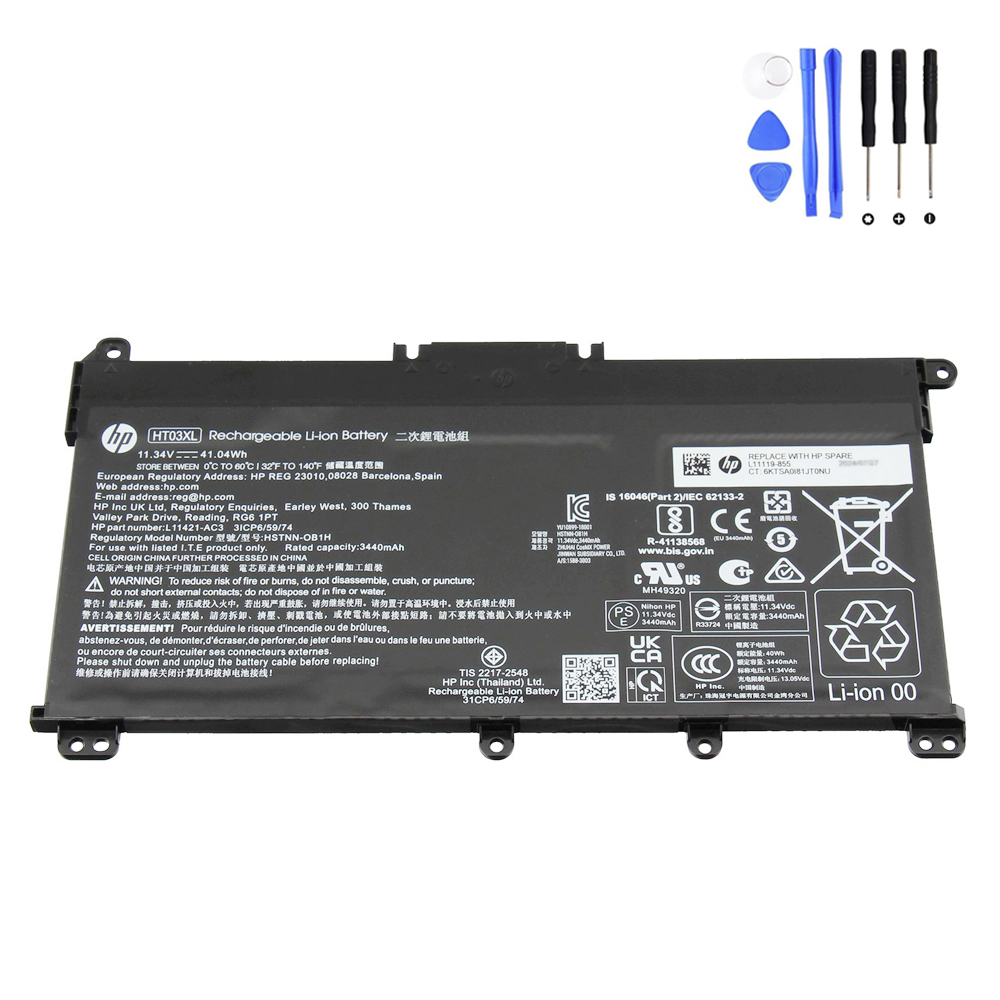
HP HT03XL Battery (41.04Wh)
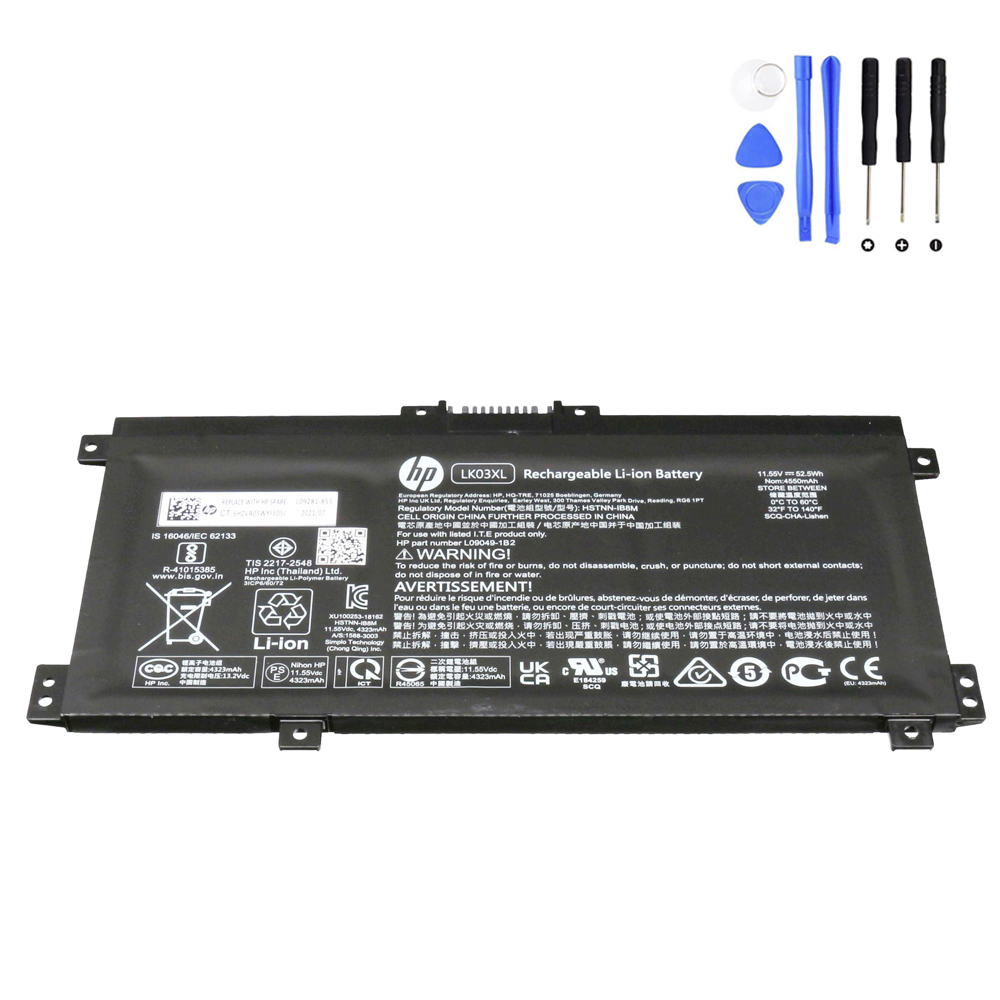
HP LK03XL Battery (52.5Wh)
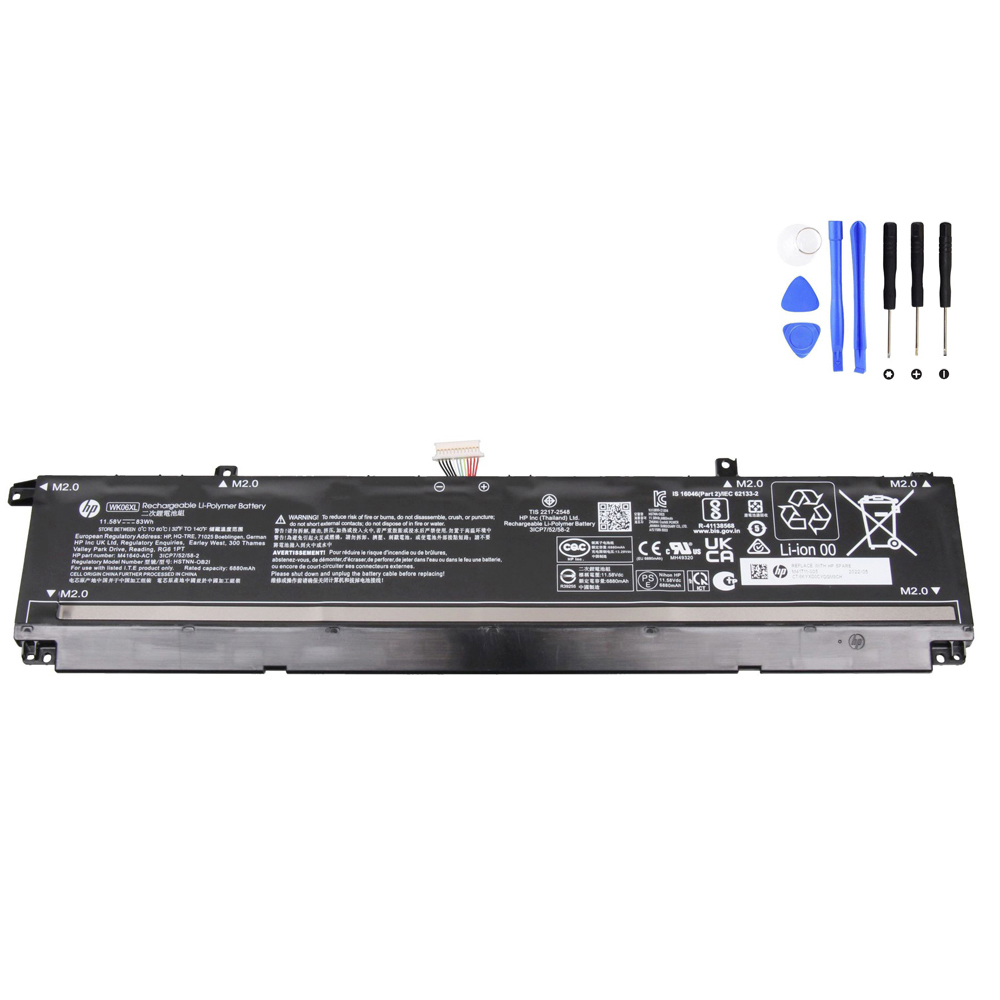
HP WK06XL Battery (83Wh)
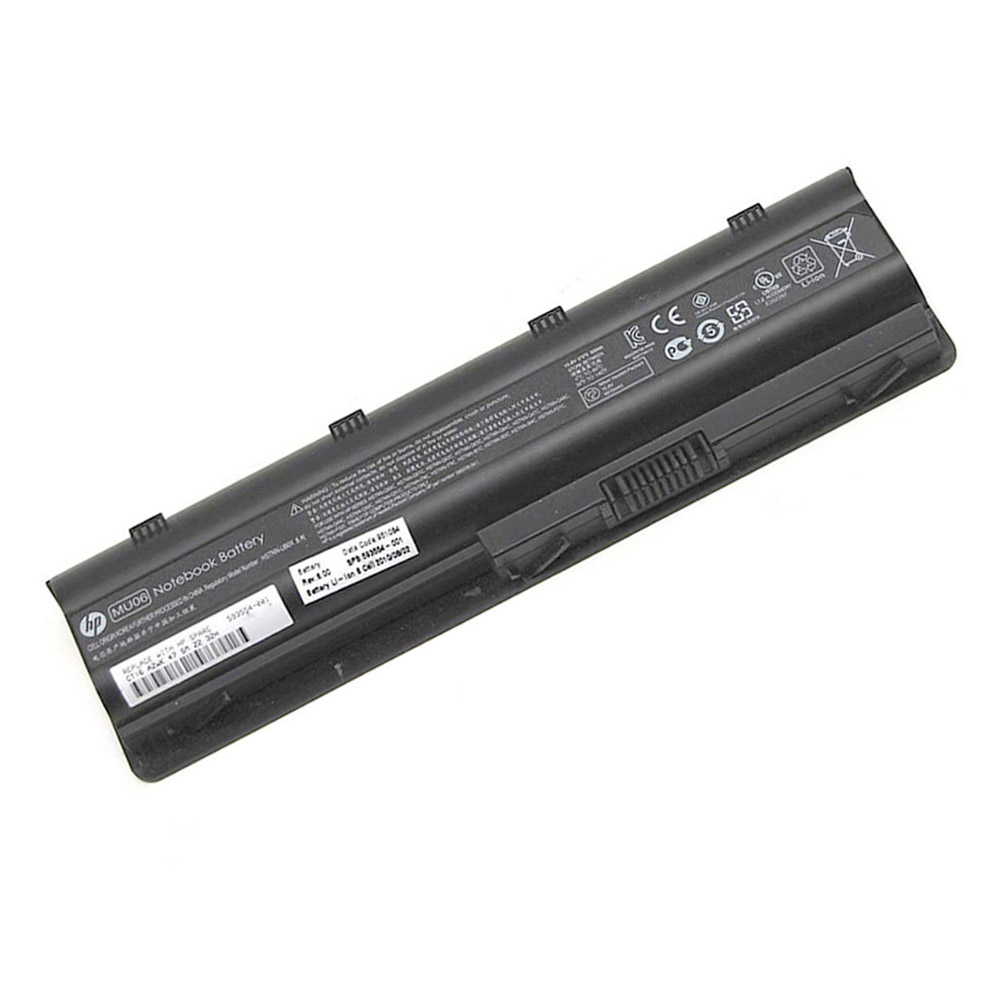
HP MU06 Battery (47Wh)
FAQ
Where can I find my HP battery part number?
The most reliable place is the battery label. Look for a battery model code (often ending in XL for internal batteries)
and/or a “Replace with HP Spare” number. If you can’t access the battery label, use your laptop’s serial/product number to find the correct battery in HP parts listings.
Does Windows show the HP battery model code?
Usually not. Windows is more useful for battery health and runtime data. For shopping, the battery label (model code) or serial-number parts lookup is more reliable.
Why do I see multiple batteries for the same HP laptop name?
HP often has sub-model variations with different internal layouts. That’s why matching by battery model code or HP spare/replace number helps you order the correct one.