If your HP Spectre x360 suddenly feels “tethered” to the charger, you’re not alone.
Because Spectre x360 models are premium thin-and-light 2-in-1s, battery wear becomes obvious fast:
short runtime, percentage drops, or unexpected shutdowns.
This guide is built to answer one question first: Is it worth replacing the battery?
Then it shows you how to confirm battery health, how to match the correct part number, and where to find compatible replacements.
The fast answer: when it’s worth it (and when it’s not)
| Your situation | Worth replacing the battery? | Why this matters for Spectre x360 |
|---|---|---|
| Laptop still runs smoothly, but battery life collapsed | Yes | Battery is the #1 “quality-of-life” upgrade on premium 2-in-1s |
| Shuts down at 20–40% or the % jumps suddenly | Usually yes | Thin designs + aging cells = unstable readings under power spikes |
| Battery swelling (bulge / tight trackpad / bottom cover not flush) | Replace immediately | Safety + prevents chassis/touchpad damage |
| Multiple costly failures (hinge, screen, motherboard, charging port) | Maybe not | If repairs stack up, upgrading the laptop may make more sense |
Why battery wear feels more dramatic on a Spectre x360
-
Premium displays draw more power: many Spectre x360 configurations use high-resolution panels, and some use OLED.
When capacity drops, the “gap” between expected vs real runtime feels bigger. -
Thin chassis = heat cycles: repeated warm/cool cycles accelerate aging and can reduce peak power delivery.
That’s when you notice drops during video calls, streaming, or multitasking. -
Modern standby + background sync: Spectre owners love instant-wake behavior.
A worn battery makes standby drain more noticeable.
The 5-minute battery health check (do this before buying)
- Open Command Prompt (Admin)
- Run:
powercfg /batteryreport - Open the report and compare Design capacity vs Full charge capacity
If full charge capacity is much lower than design capacity and you see real symptoms (fast drain, drops, early shutdown),
a replacement is usually worth it.
- Many HP systems include HP PC Hardware Diagnostics with a battery test.
- Some models also show battery status inside BIOS/UEFI (wording varies).
Use diagnostics to confirm the battery is detected and whether health is reported as acceptable.
Replace now if you see these Spectre x360 patterns
- Swelling (bulge, tight trackpad, case gaps): stop using the laptop on battery and replace the pack.
- Shutdown above 10–20% (for example, at 25–35%): common sign of aging cells.
- Big percentage jumps: fuel gauge + aging pack behavior under load spikes.
- Battery drains unusually fast even after lowering brightness and closing background apps.
Spectre x360 model notes that change the decision
-
13/14-inch Spectre x360: designed for portability. If you travel or study/work away from outlets,
battery replacement usually restores the main reason to keep the device. -
15/16-inch Spectre x360: larger displays and higher performance options can increase power draw.
A fresh battery often has an even bigger “everyday usability” impact. -
High-resolution / OLED setups: the display can be a major power consumer,
so capacity loss becomes visible earlier (battery replacement often feels very noticeable).
How to choose the correct Spectre x360 replacement battery (don’t skip this)
- Find the part number on your original battery label (examples: PK03XL, RR04XL, SP04XL).
- Match the physical shape and connector (internal batteries must fit exactly).
- Confirm your exact Spectre x360 model ID from the bottom label or Windows System Information.
- Don’t shop by “Spectre x360” name alone—that family includes many hardware revisions.
If you see “plugged in, not charging,” check power settings and the charger first.
But if health is poor and capacity is low, a new battery is often the fastest fix.
Where to shop: HP battery collection + three common Spectre-compatible examples
Start with the full HP battery collection, then narrow down by your battery part number and Spectre x360 model.
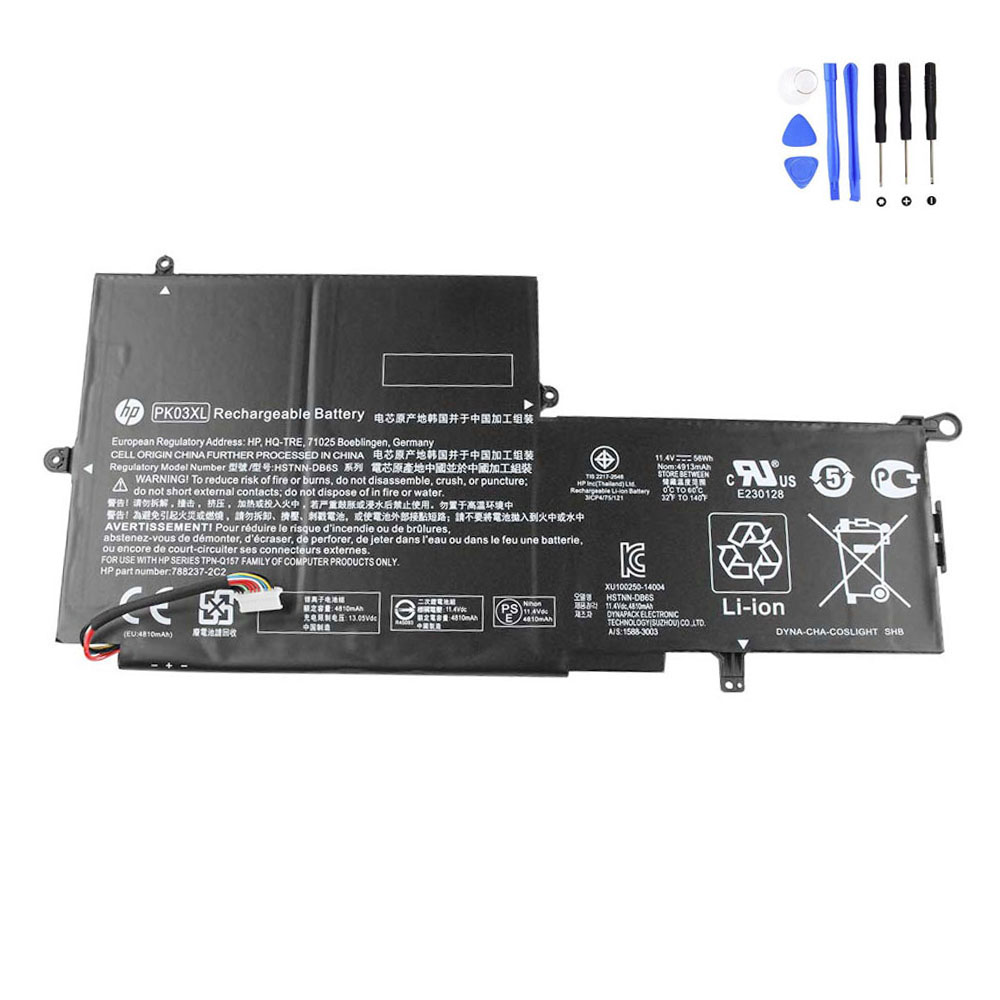
Choose this direction if your original battery label shows PK03XL. Match part number first for fit and connector accuracy.
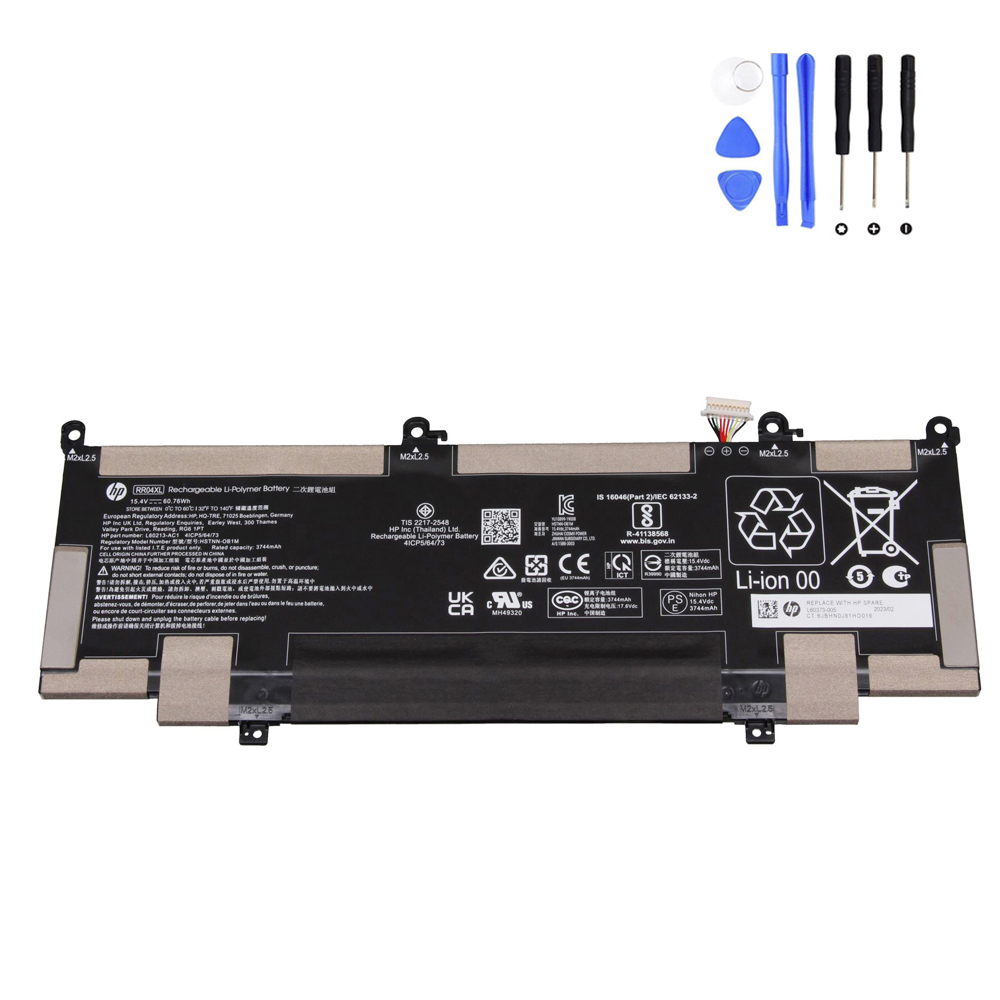
A higher-capacity option for compatible models using RR04XL, especially helpful for high-resolution display configurations.
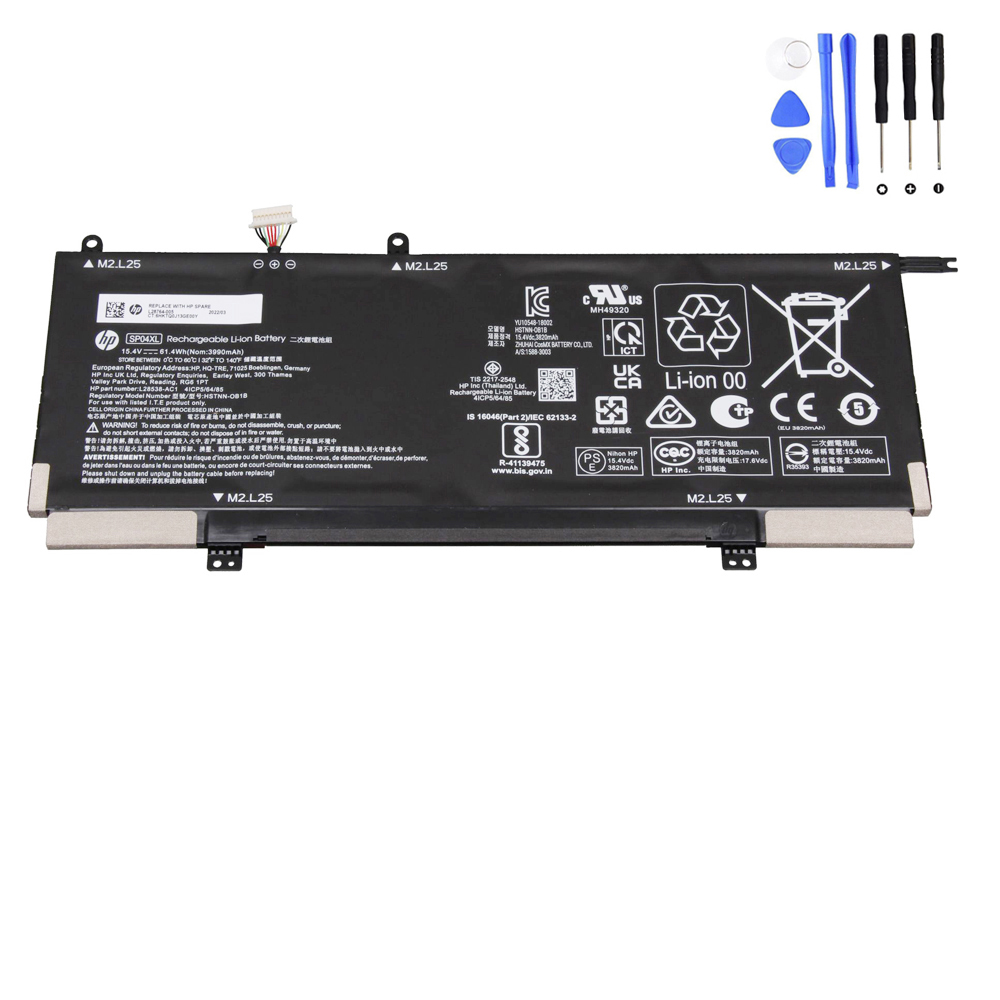
Pick this direction if your battery is labeled SP04XL. Part-number match is the safest way to avoid compatibility mistakes.
After you replace the battery: a quick “commissioning” checklist
- Detection: confirm the battery is recognized in Windows (and BIOS/UEFI if you check there).
- Charging test: start around 20–40%, plug in, and confirm the percentage increases steadily.
- Heat-aware first cycle: for thin x360 laptops, avoid heavy workloads during the first charge test.
- Calibration (only if needed): if the % reading is clearly inaccurate, do one cycle (100% → ~10–15% → 100%). Don’t repeat often.
FAQ
How do I find my Spectre x360 model ID?
Check the bottom label, Windows System Information, or HP support info. The exact model series matters for battery compatibility.
Will a new battery fix “plugged in, not charging”?
Sometimes, but not always. That message can also come from charger/power settings/firmware behavior. If capacity is low and symptoms match,
battery replacement is still often the right move.
What’s the most common buying mistake?
Shopping by “Spectre x360” name only. Always match by the battery’s printed part number:
PK03XL, RR04XL, or SP04XL (plus your exact laptop model).
If your Spectre x360 is still a great laptop on AC power, a battery replacement is usually the best-value way to bring back portability.