The Lenovo ThinkPad T480 is known for its reliability and excellent dual-battery design. But if one day you plug in the charger and see no charging light, no battery icon change in Windows, and the laptop doesn’t respond, it’s easy to panic.
This is exactly the situation many users describe as “lenovo t480 not charging no light”. In this guide, we’ll walk through what that usually means, how to diagnose the problem step by step, and when it’s time to replace the charger or the batteries.
1. What does “Lenovo T480 not charging, no light” usually mean?
The T480 normally shows power/charging status using:
- A small power / charging LED (near the DC-in port or on the lid/keyboard area, depending on model and settings).
- The battery icon in Windows (plug symbol when charging).
When you experience “lenovo t480 not charging no light”, it typically looks like this:
- You plug in the adapter, but no LED turns on.
- The laptop may not power on at all, or it runs on battery but does not detect AC power.
- Windows does not show “plugged in, charging” – it behaves like the charger isn’t even connected.
In other words, the laptop is not seeing any power input. That usually points to one of three things:
- Faulty charger or cable
- Problem with the charging port / DC jack / USB-C port
- A more serious issue with batteries or mainboard
2. Step 1 – Basic checks (don’t skip these)
Before diving into advanced diagnostics, rule out the simple stuff:
- Try another wall socket or power strip.
- Unplug the adapter from both the laptop and wall, then plug it back in firmly.
- Check the entire cable length for cuts, twists or burn marks.
- If you’re using a USB-C charger, verify that it’s a 65W (20V 3.25A) USB-C PD power adapter, not a low-power phone charger.
If none of your power LEDs turn on and Windows doesn’t show “plugged in”, the next suspect is the charger itself.
3. Step 2 – Test with a known-good charger
The quickest way to separate a charger problem from a laptop problem is to borrow or use another compatible adapter:
- For traditional charging, the T480 uses a Lenovo Slim Tip (rectangular) adapter, typical ratings 65W or 90W.
- Many T480 units can also charge via USB-C / Thunderbolt 3 using a 65W USB-C PD adapter.
If your original adapter is damaged, missing or clearly not working, replacing it is the easiest fix for the “lenovo t480 not charging no light” issue.
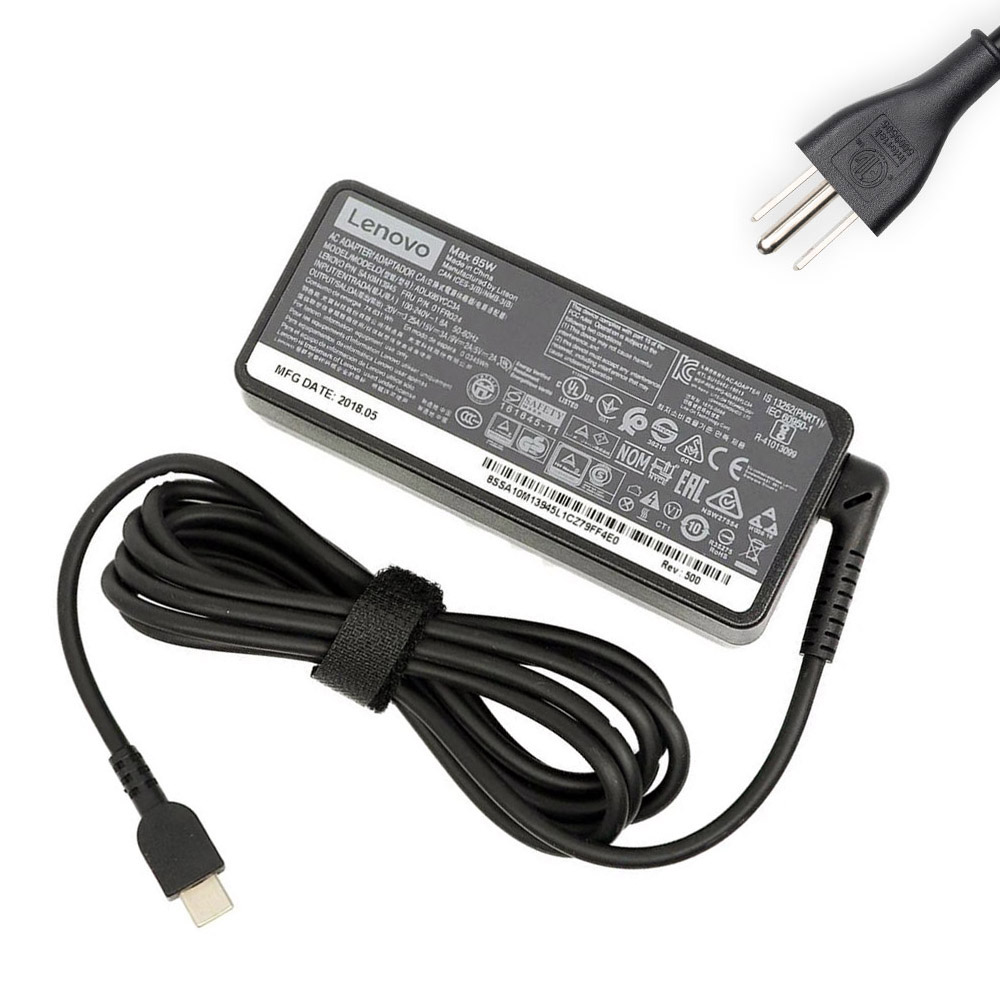
65W Lenovo USB-C AC Adapter (20V 3.25A)
65W USB-C AC adapter suitable for Lenovo laptops that support USB-C charging, including many T480 configurations. A high-quality replacement option if your original charger is faulty, broken or missing.
Test scenario: if the T480 immediately shows a charging light and powers on with a different adapter, then your old charger is the problem, not the laptop.
4. Step 3 – Inspect the charging port
If even a known-good adapter doesn’t turn on any light, take a close look at the laptop’s power input:
4.1 DC-in port (Slim Tip)
- Check for bent plastic, damaged contacts or foreign objects inside.
- Make sure the plug fits firmly and doesn’t feel loose or wobbly.
4.2 USB-C charging port
- Look for dust, lint or corrosion inside the USB-C port.
- Use a soft, dry brush or compressed air (carefully) to clean it – never use metal tools.
If the port is cracked, badly worn or the plug only works at a specific angle, the “lenovo t480 not charging no light” problem might be caused by a damaged DC jack or USB-C port, which usually requires professional repair.
5. Step 4 – Check the batteries (internal + external)
The T480 uses Lenovo’s Power Bridge system with two batteries:
- Internal battery: 24Wh pack inside the laptop
- External battery: removable rear pack (24Wh / 48Wh / 72Wh)
If the laptop still has some charge and can boot, but you see no charging light when you plug in, you should:
- Open Lenovo Vantage (or Commercial Vantage).
- Check if both batteries are detected (Battery 1 & Battery 2).
- Look at full charge capacity and health status (Good / Fair / Poor).
If a battery shows 0% all the time, “not detected”, or extremely low capacity, it may be failing and can contribute to charging problems – especially if the laptop turns off as soon as AC power is removed.
Internal T480 battery (24Wh)

Internal ThinkPad T480 Battery – 24Wh (01AV421)
Standard 24Wh internal battery for the T480. If your internal pack is very old or no longer detected properly, replacing it can stabilise power and make charging behaviour more predictable.
External T480 battery options (61 series)
If the external battery is worn out or faulty, you may see strange percentage jumps, no charging indication, or the laptop dying instantly when unplugged. The T480 supports several external 61-series packs:

24Wh External Battery – ThinkPad 61 (01AV423)
Slim 24Wh external battery that keeps your T480 light and compact. Good choice if you’re mainly near power and your original slim pack no longer charges correctly.
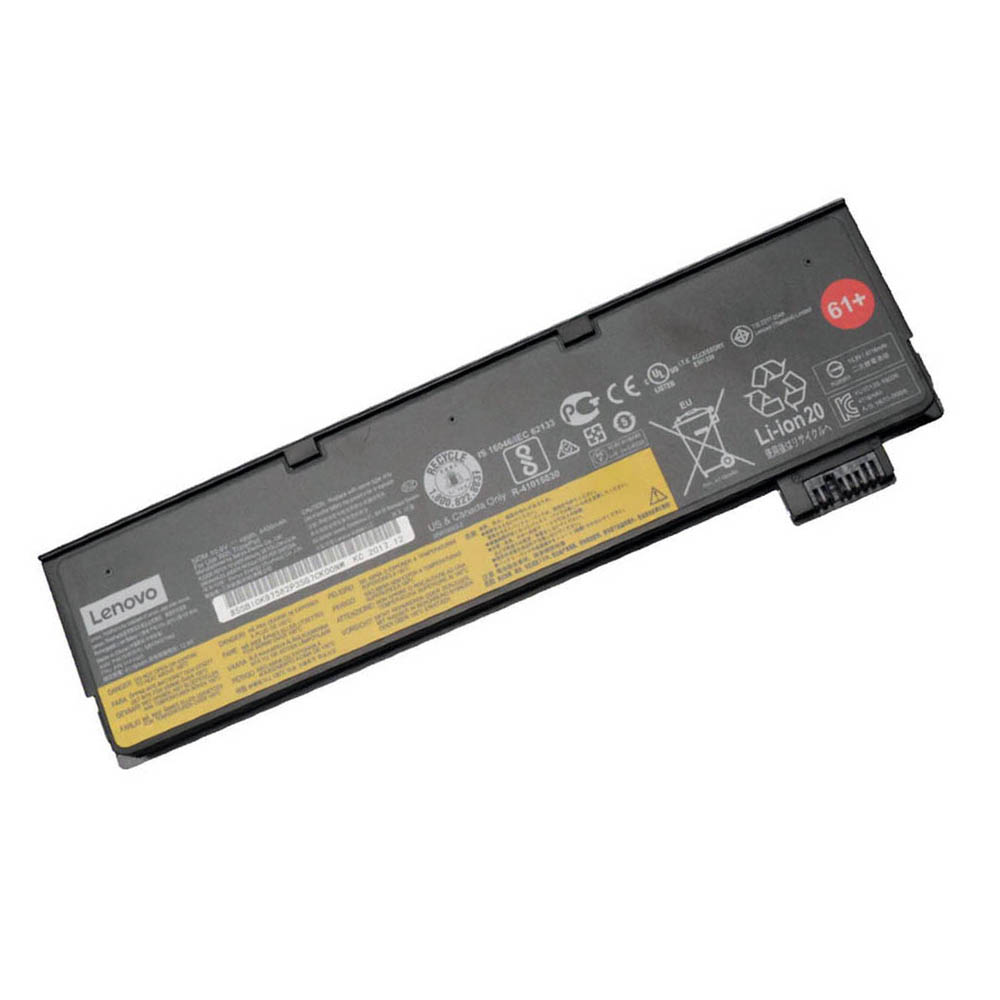
48Wh External Battery – ThinkPad 61+ (01AV427)
48Wh 6-cell external battery that offers a big step up in runtime compared to the slim pack. Ideal if your old battery doesn’t charge and you want longer unplugged time at the same time.
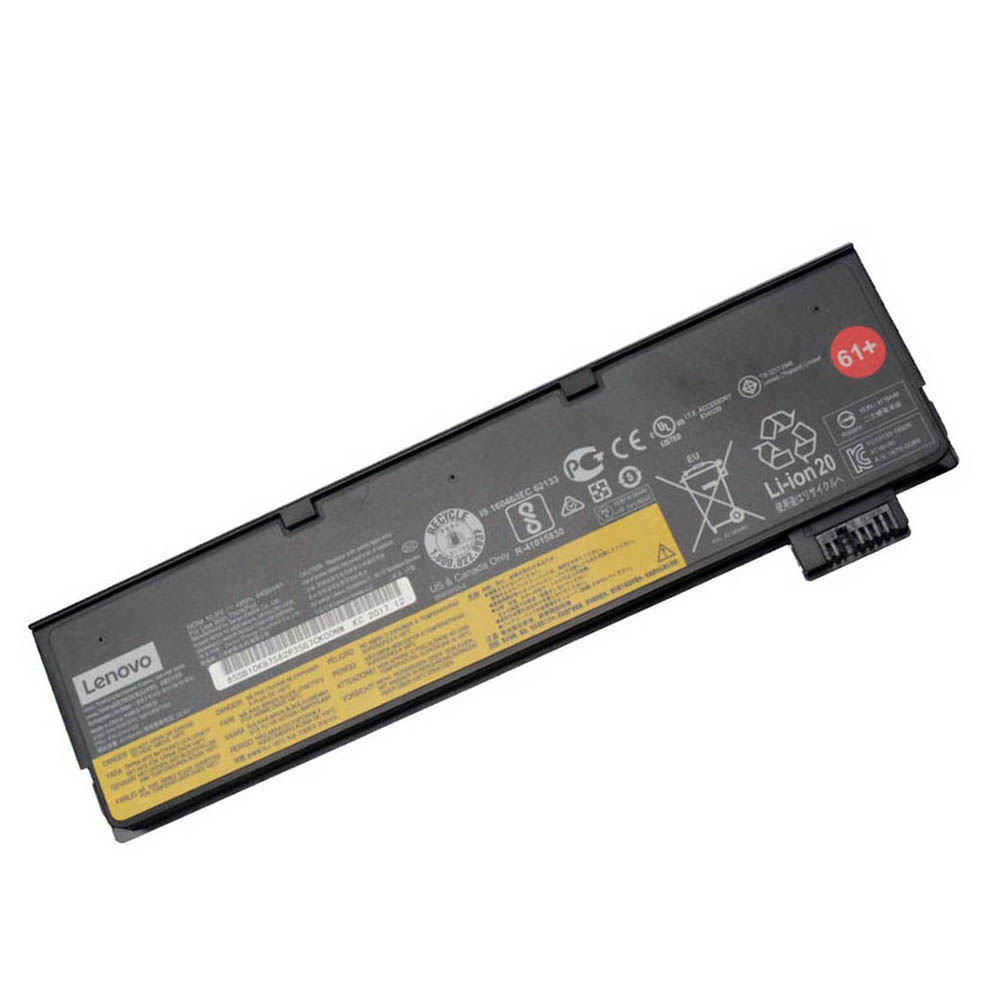
72Wh External Battery – ThinkPad 61++
72Wh extended external battery for maximum runtime. A great option if you’re replacing a dead pack and want your T480 to last all day on battery again.
6. Step 5 – Perform a power reset (EC reset)
Sometimes the “lenovo t480 not charging no light” symptom is caused by a stuck embedded controller (EC) or static in the power circuitry. A hard reset can help:
- Shut down the laptop completely.
- Unplug the charger.
- Remove the external battery.
- Press and hold the power button for 20–30 seconds to discharge residual power.
- Reconnect the charger (without the external battery) and try to power on.
- If successful, shut down again, reinstall the external battery, and test charging behaviour once more.
If the laptop still shows no charging light and will not power on even with a known-good adapter, you may be facing a hardware fault beyond the battery or charger.
7. When it’s not the battery or charger
After testing with a good adapter, checking ports, resetting power and reviewing battery health, there are still cases where a T480 will not charge and shows no light because of:
- A damaged DC-in jack or USB-C port soldered to the board
- Failure in the charging IC or power circuitry on the motherboard
Symptoms in these cases include:
- No LED light with any known-good charger
- No reaction when pressing the power button, even with batteries removed and AC connected
- Occasional flicker of the LED if the connector is pressed in a certain direction
At this point, the issue is almost certainly hardware-level. The best next step is to contact a qualified laptop repair service or Lenovo support to evaluate the DC jack or mainboard. Replacing batteries or chargers alone will not fix a physically broken power circuit.
8. Summary – fixing “Lenovo T480 not charging, no light”
When your Lenovo T480 shows no charging light and appears completely unresponsive, work through these steps:
- Test a different wall socket and adapter (ideally a known-good 65W Lenovo Slim Tip or USB-C charger).
- Inspect and clean the power ports (Slim Tip and/or USB-C).
- Check battery health in Lenovo Vantage if the laptop can still boot.
- Perform a power reset (remove external battery, hold power, reconnect).
- Replace failing internal or external batteries and a faulty charger if needed.
In many cases, “lenovo t480 not charging no light” is ultimately caused by a simple adapter failure or worn-out battery – both of which you can replace. Once the power path is healthy again, the T480’s dual-battery design can deliver the long, stable runtime that made this ThinkPad so popular in the first place.