Buying an HP replacement battery sounds simple—until you discover that “HP Pavilion 15” (or “Envy x360”, “Omen”, “ProBook”, etc.)
can ship with multiple battery variants that look similar but are not interchangeable.
That’s exactly why we built Fixing-Tools as the best third-party HP battery finder:
a straightforward way to match the right battery using the identifiers that actually matter.
- Why HP battery matching is harder than it looks
- The 5 things you must verify (in the right order)
- How to find your exact HP battery in minutes
- Common mistakes that cause “wrong battery” returns
- After installation: first power-on & calibration tips
- Clickable best-selling HP batteries (image gallery)
- FAQ
Why HP battery matching is harder than it looks
HP uses many overlapping laptop families and sub-models. Two laptops with nearly identical names can use different batteries due to:
- Regional variants (same series, different internal layout or connector routing).
- Multiple battery options from the factory (different Wh capacity, same chassis).
- Design revisions mid-generation (the “same model” over different production runs).
- Internal vs external batteries (ultrabooks vs older removable packs).
The result: searching only by laptop name often shows the wrong part. A reliable HP battery finder must support matching by the
real identifiers—the battery code and the HP spare/part numbers.
The 5 things you must verify (in the right order)
1) Battery model code (most important)
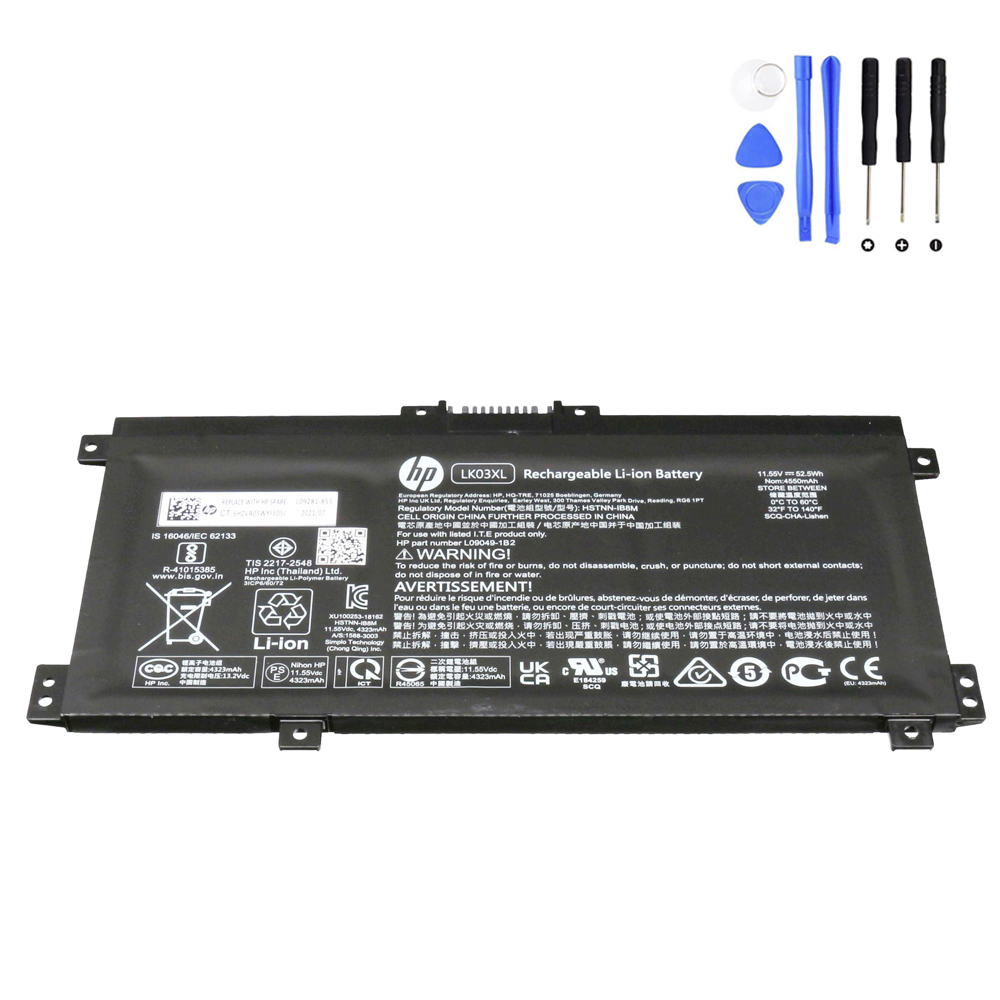
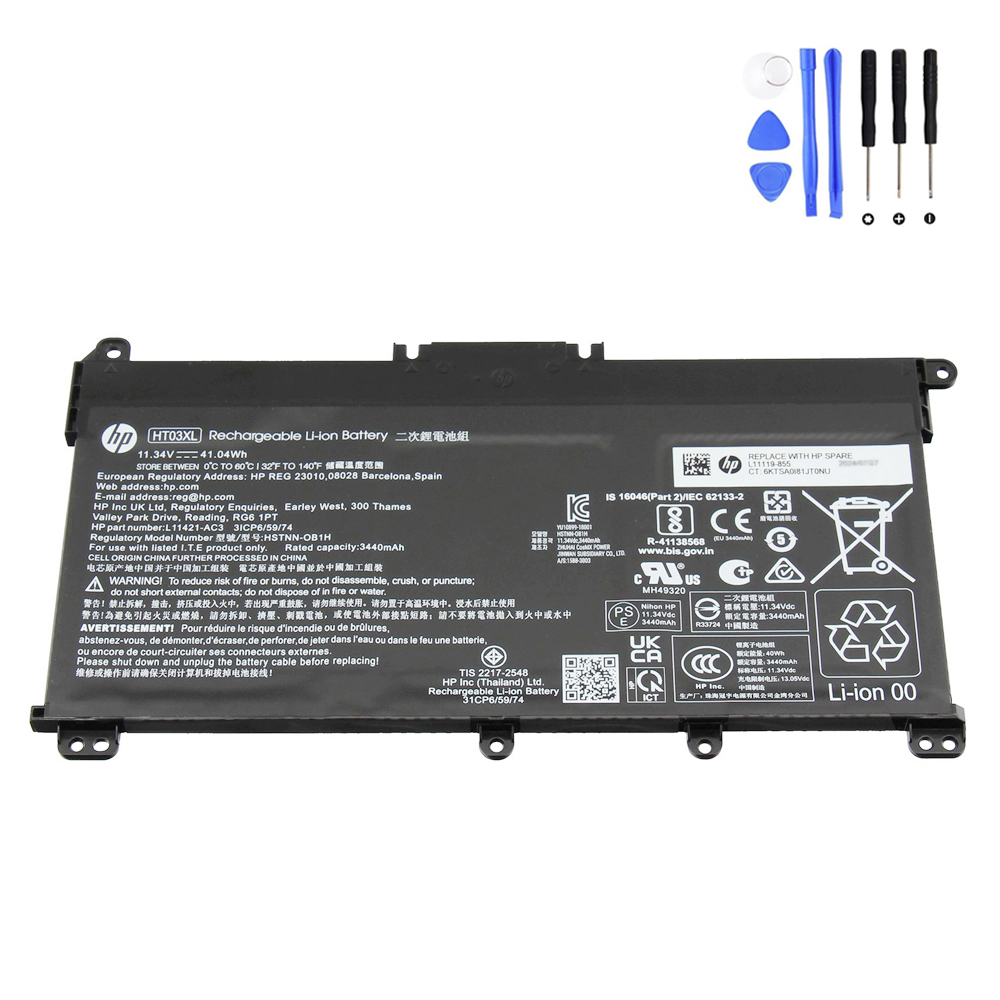
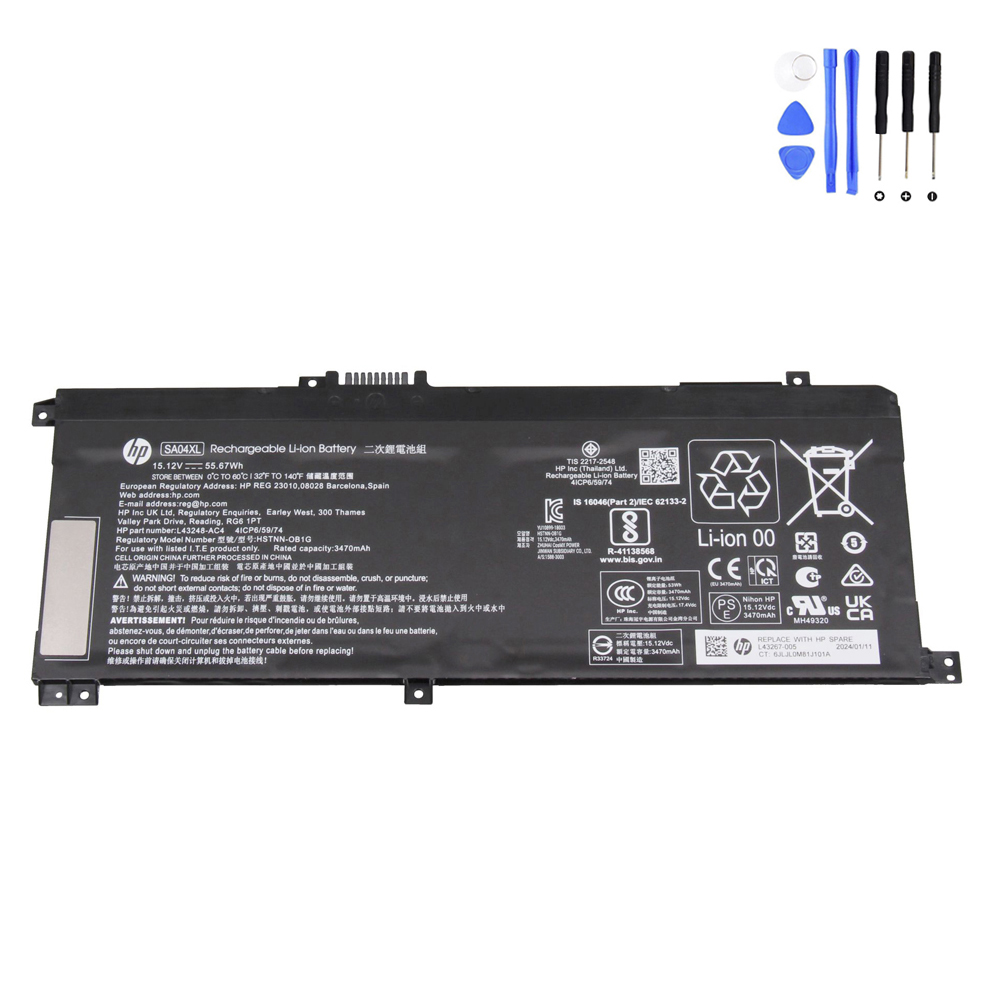
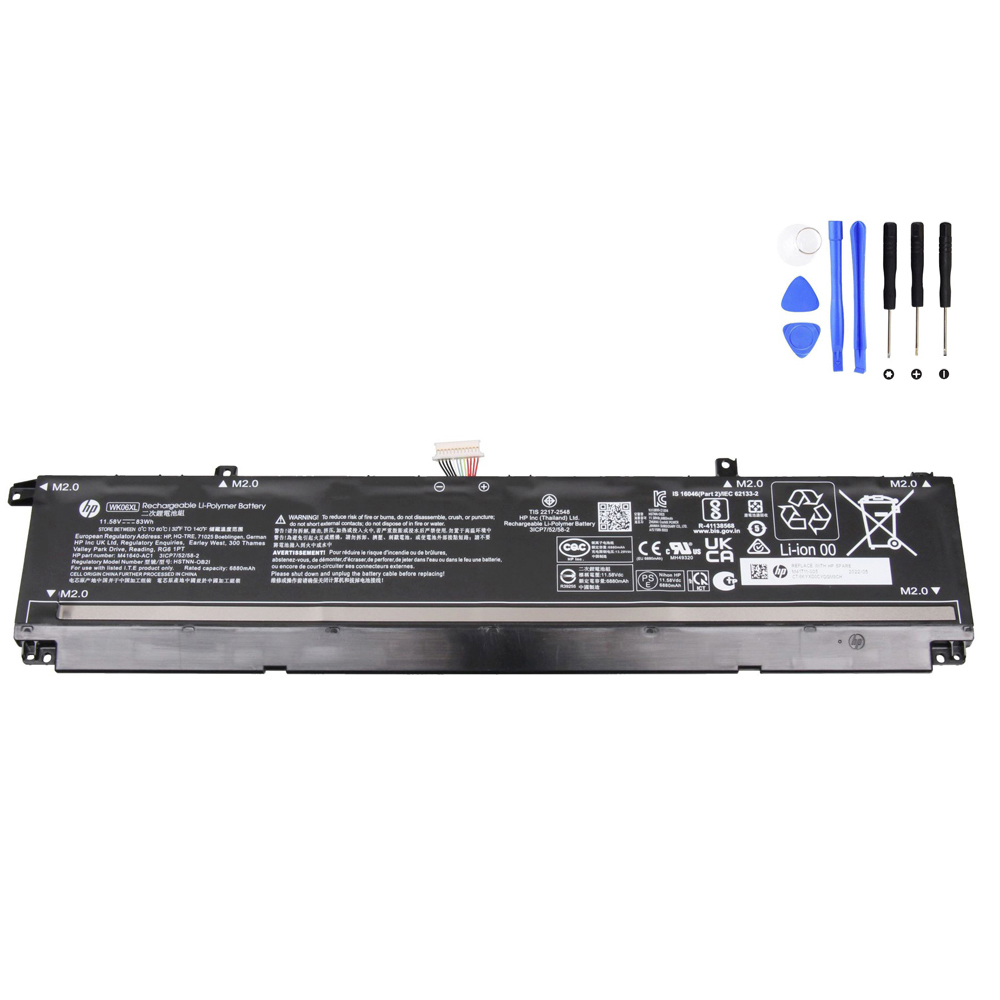
Look for codes like HT03XL, LK03XL, WK06XL.
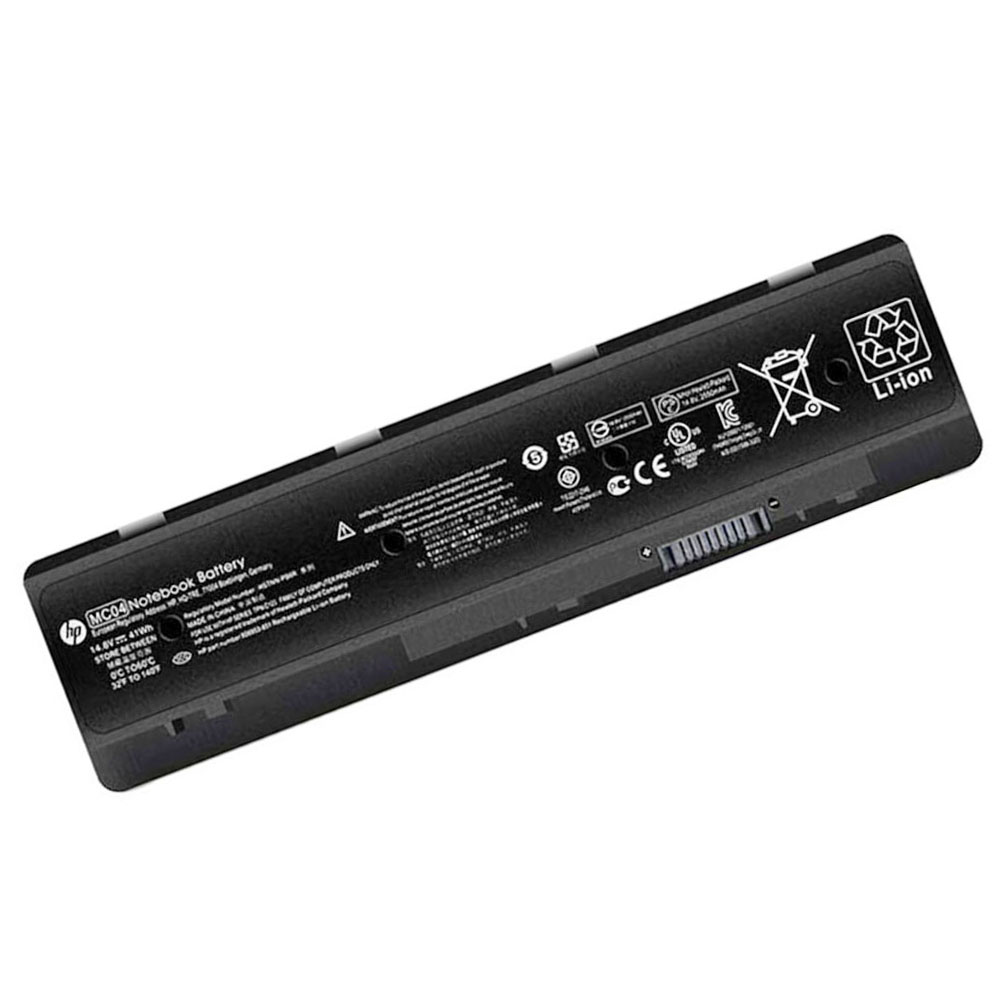
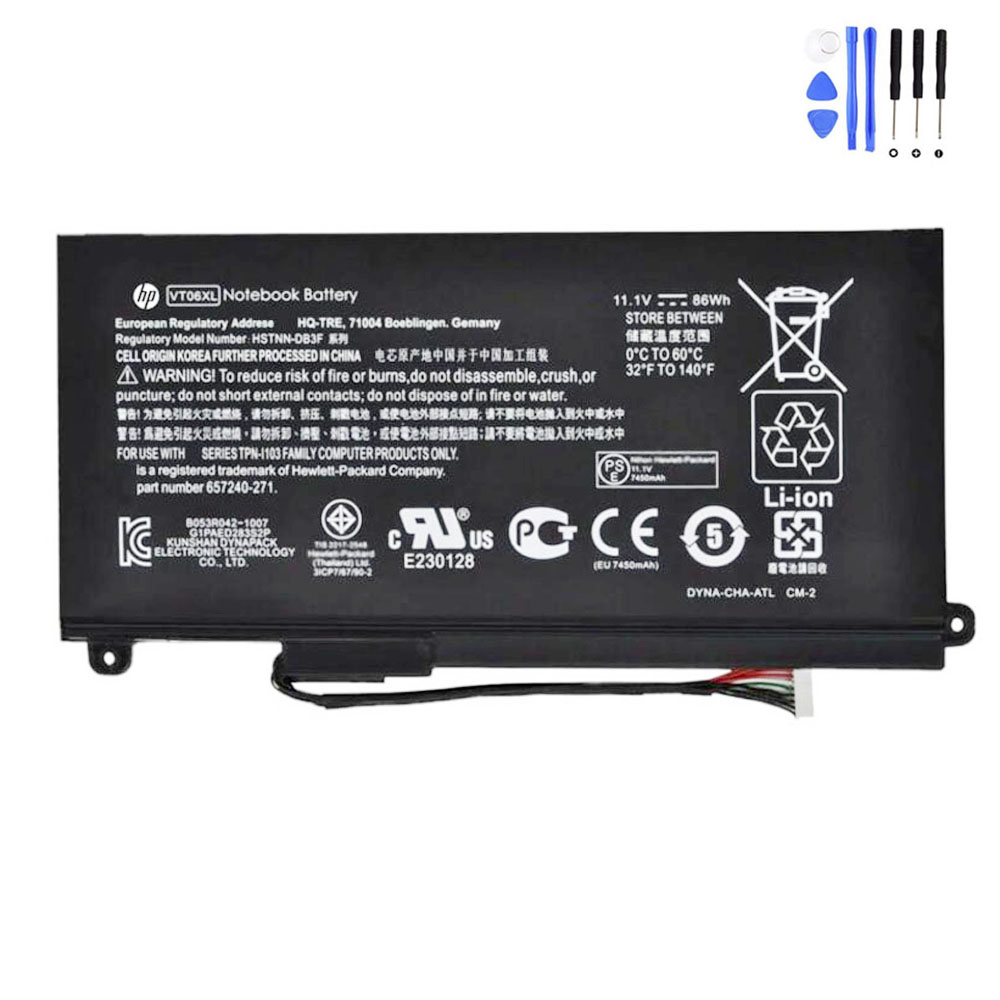
This is usually printed on the battery label and is the fastest way to match correctly.
2) HP spare / replace number
HP often prints a “Replace with HP Spare” number on the battery label. Matching this is one of the most reliable confirmation steps.
3) Voltage (V)
Small differences matter. Always confirm that the replacement battery voltage matches the original battery label.
4) Physical shape + screw points
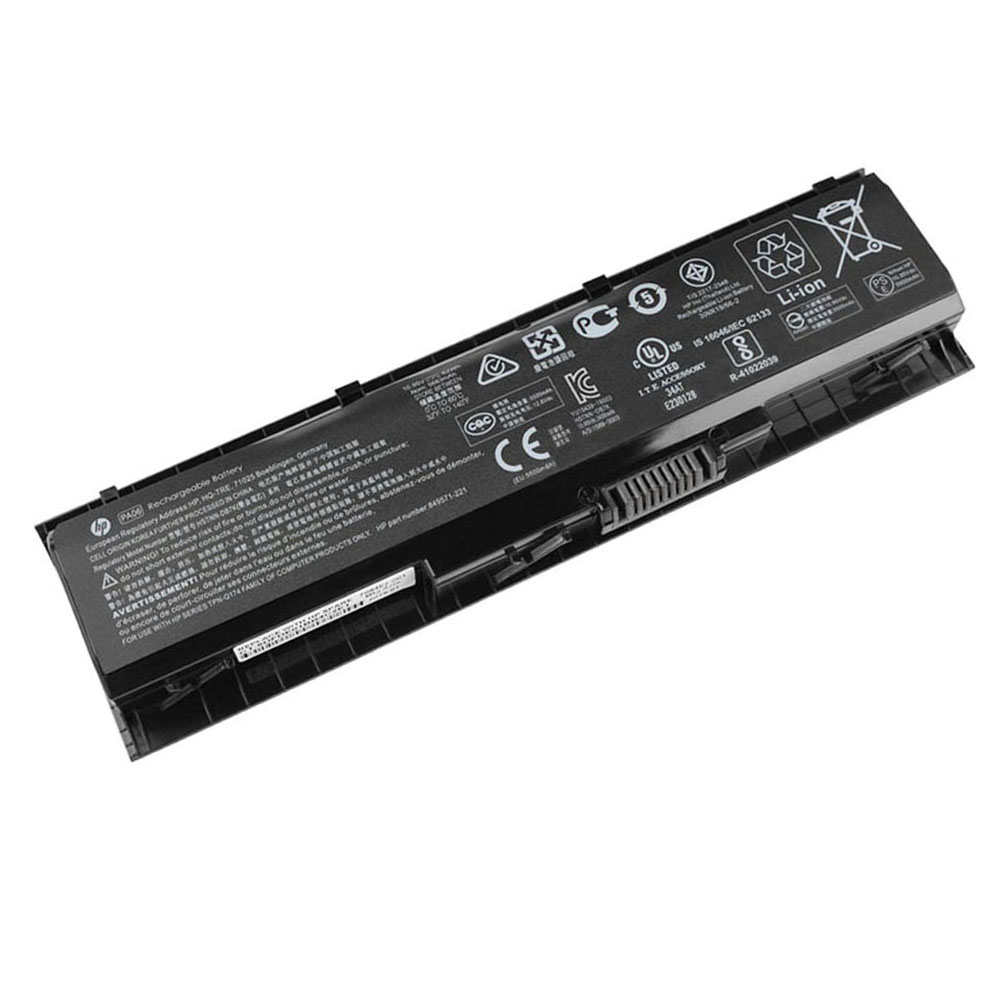
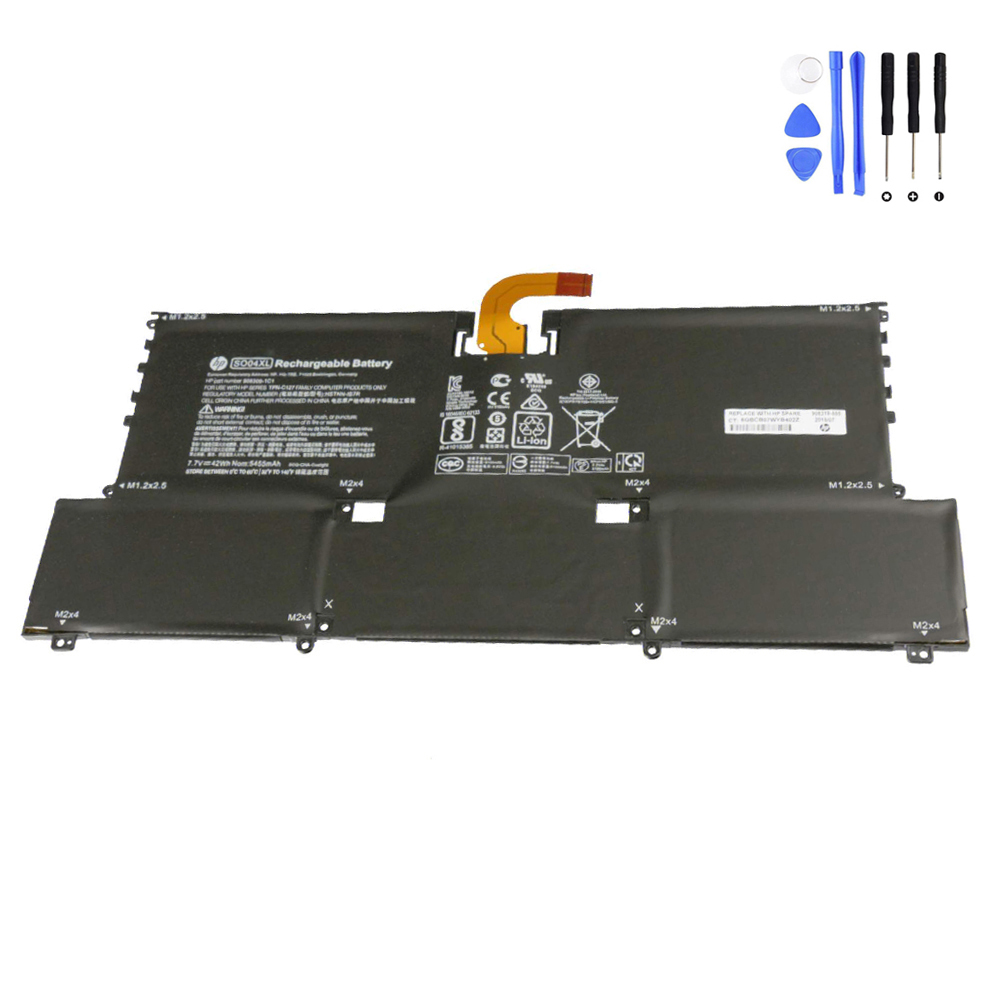
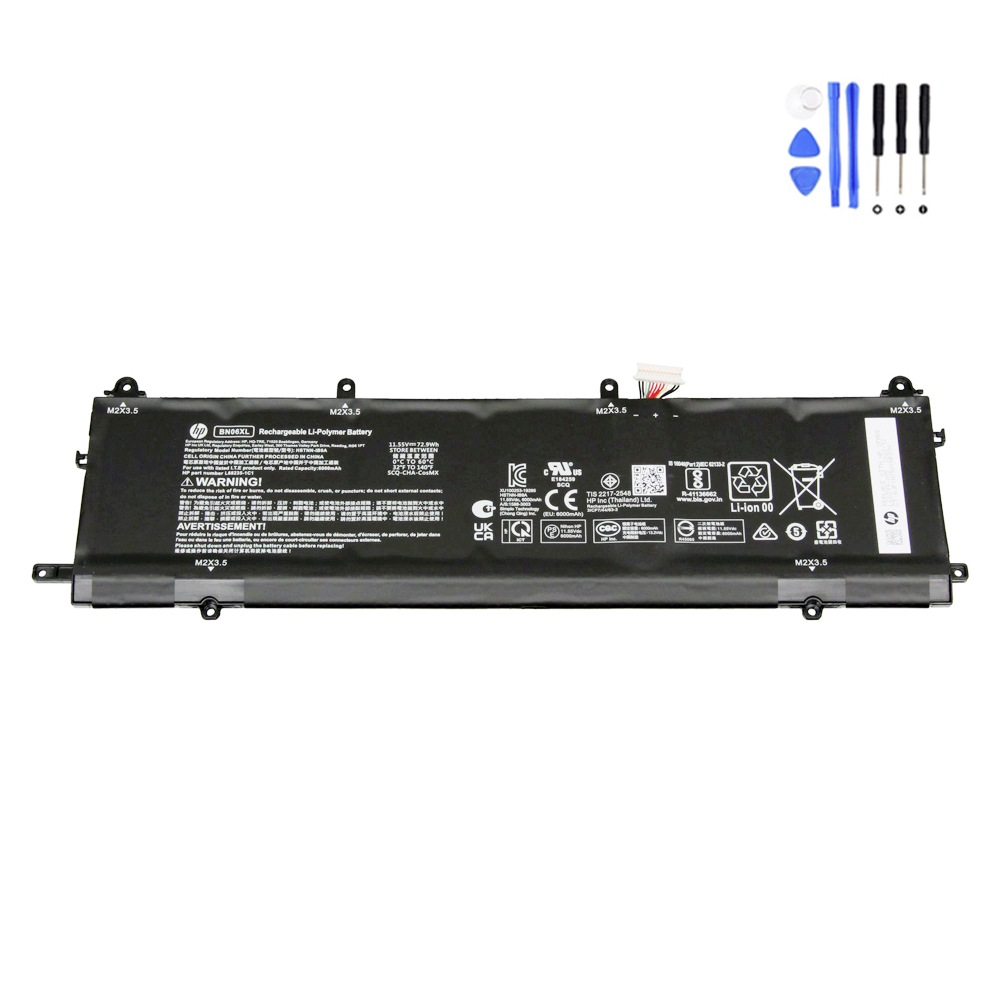
Even if the code is close, the battery may be a different “short line / long line” form factor or have different mounting points.
5) Connector type + cable position
Internal HP batteries can have similar connectors but different cable lengths/locations—this is a common cause of wrong orders.
How to find your exact HP battery in minutes
Method A (best): Match by the battery code on your existing battery
- Power off the laptop completely and unplug the charger.
- Open the back cover (if you’re comfortable doing so) and locate the battery label.
- Write down the battery code (example: AE03XL, TF03XL).
- Search or browse our Battery for HP category and open the matching product page.
- Confirm voltage and compare the product photo with your battery’s shape and connector position.
Method B: Match by HP spare / part number (when the code is hard to read)
- Look for “Replace with HP Spare” on the battery label.
- Search that spare number on our site (or send it to our support for a compatibility check).
- Confirm the battery code listed on the product page matches your label.
Method C: Match by laptop product number (when you can’t open the laptop)
- Find the laptop “Product” or “P/N” label (often on the bottom cover or in BIOS/System Information).
- Send that product number to us via the contact page for a guided match.
- When you receive candidates, confirm the physical battery shape before ordering.
If you’re choosing between two “almost identical” options, the product photos and mounting layout are usually the tie-breaker.
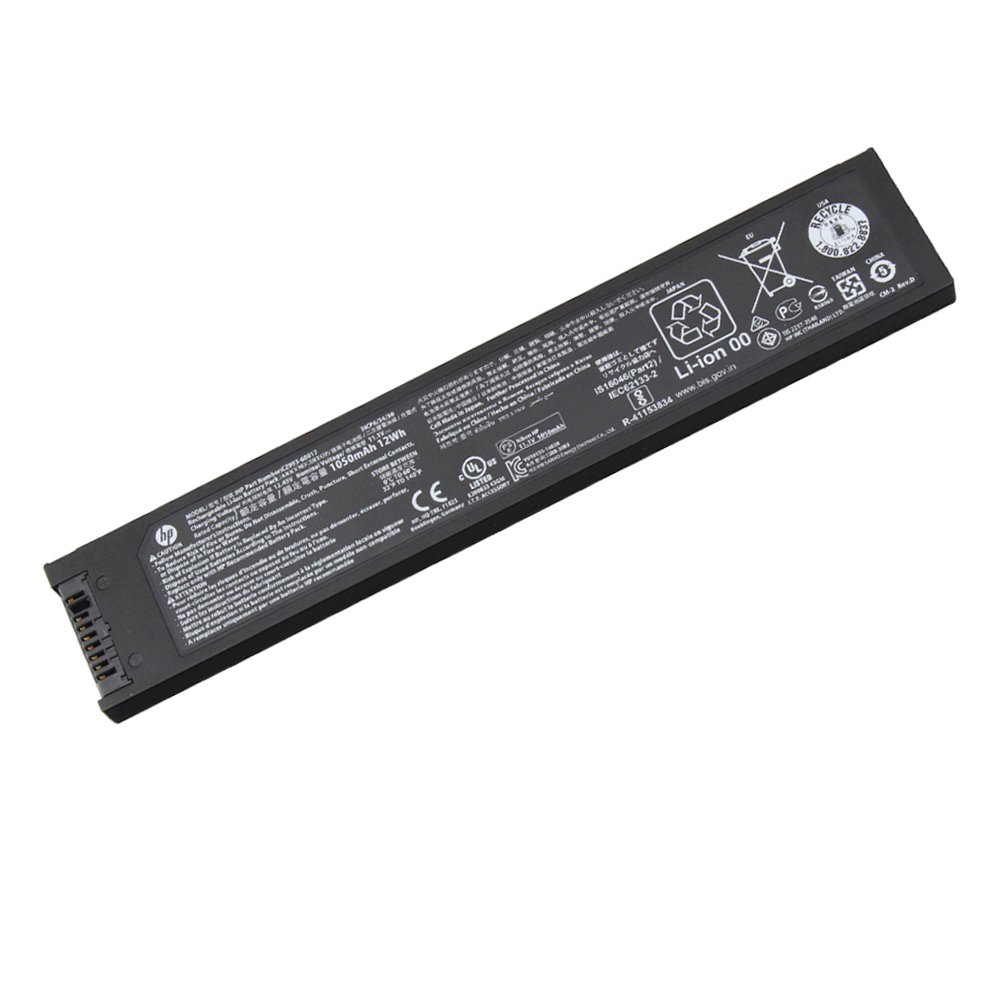
Our listings include clear images so you can visually confirm shape and connector placement.
Common mistakes that cause “wrong battery” returns
- Ordering by laptop series name only (e.g., “Envy 15 battery”) without verifying the battery code.
- Ignoring “short line / long line” variants that look similar in text but differ physically.
- Matching by Wh only (capacity) and skipping voltage/connector position checks.
- Assuming higher Wh always fits—some chassis cannot accept a larger pack.
- Not comparing the photo—mounting holes and cable exit points matter.
After installation: first power-on & calibration tips
After replacing an HP battery, it’s normal for Windows to take a short time to “learn” the new battery’s reporting behavior.
For the best experience:
- Charge to 100%, then use the laptop normally (avoid doing repeated quick plug/unplug tests).
- If the percentage seems jumpy at first, perform 1–2 normal charge/discharge cycles.
- Keep airflow clear—heat is the #1 enemy of battery lifespan.
Clickable best-selling HP batteries (image gallery)
Below is a best-seller gallery sorted by popularity. Click any image to open the product page.
Top Best Sellers (Page 1)
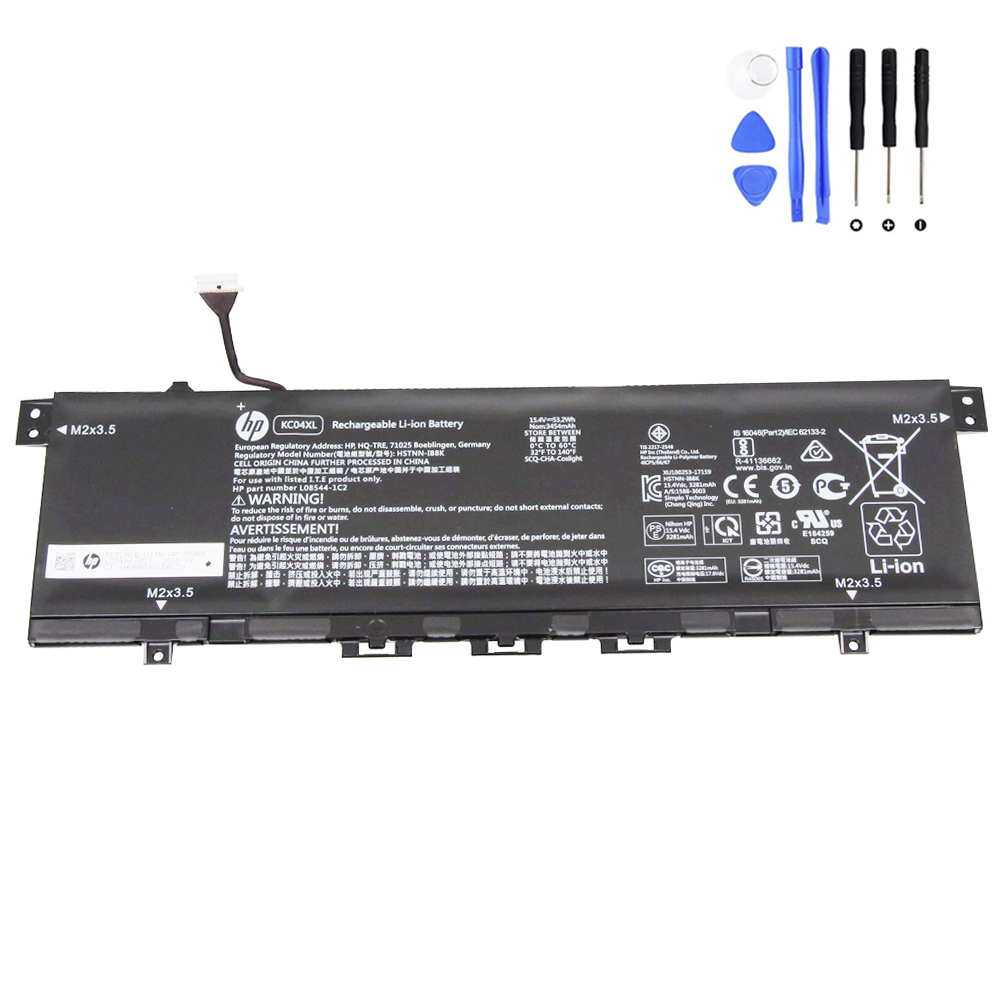
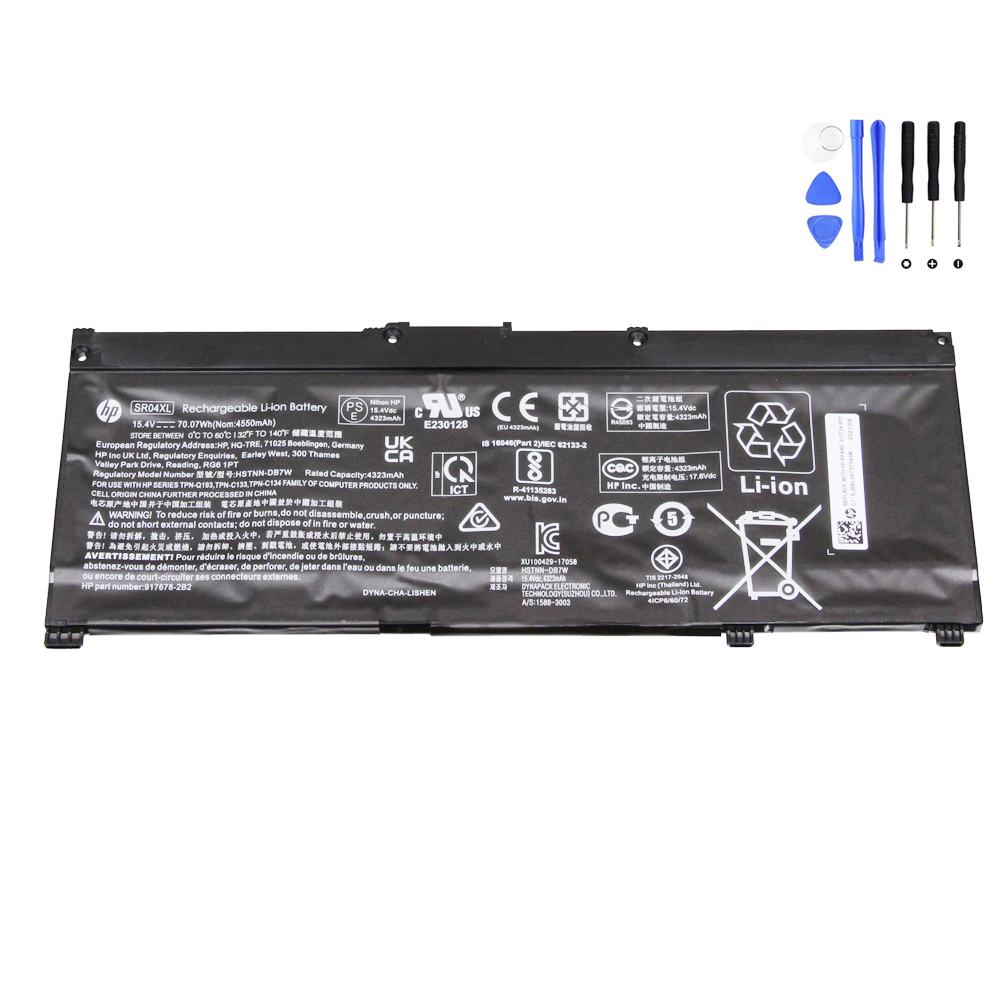
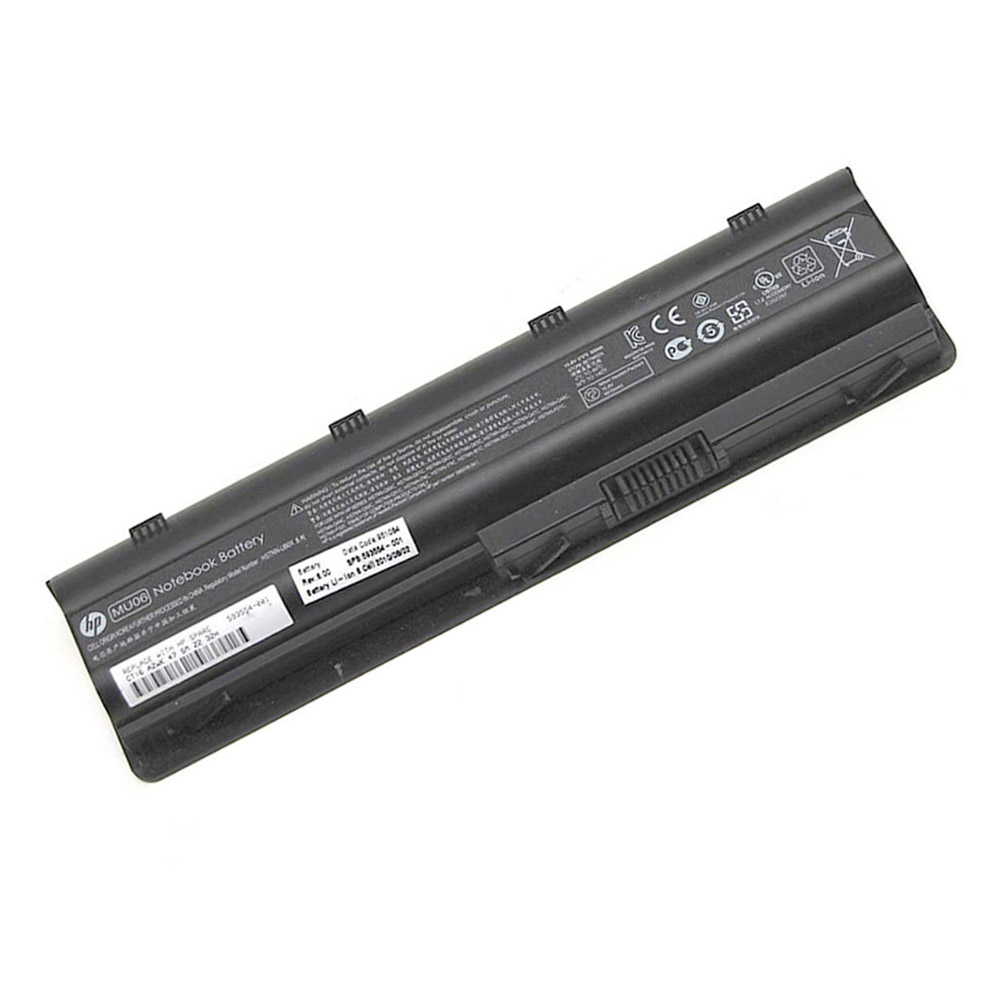


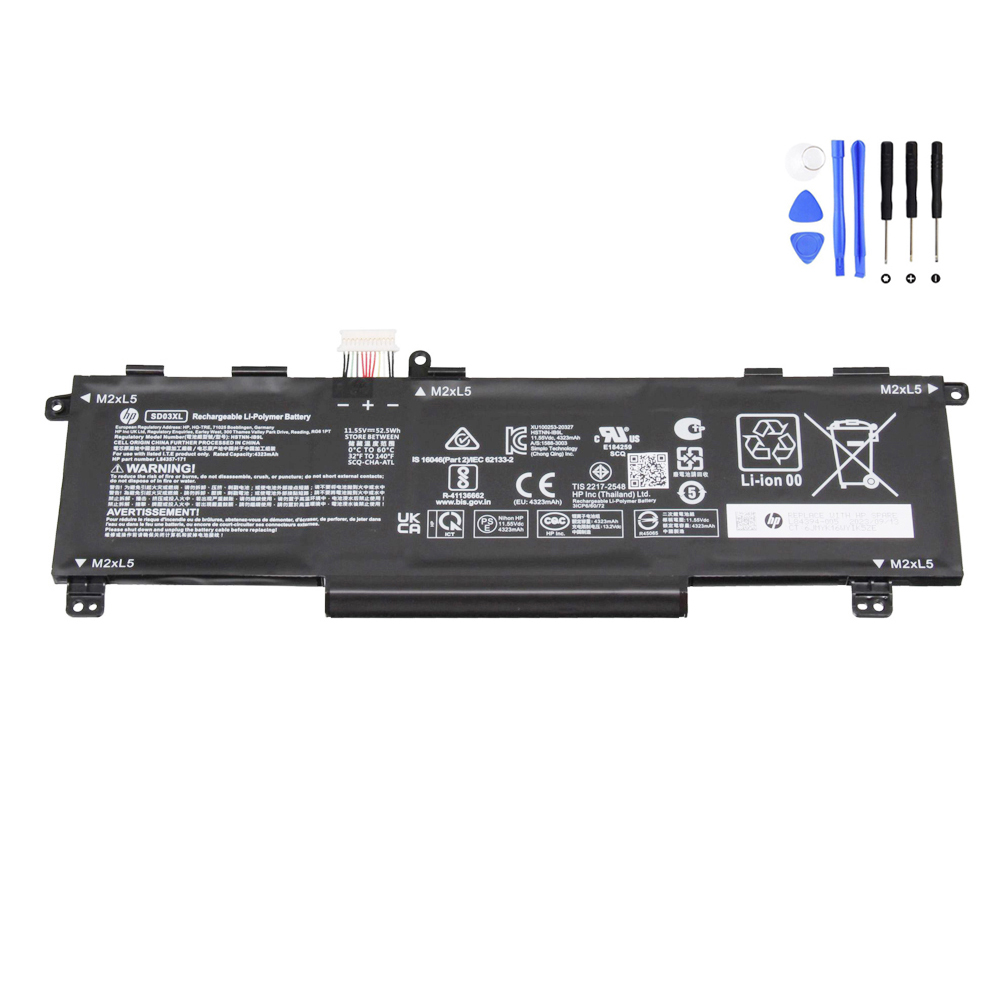
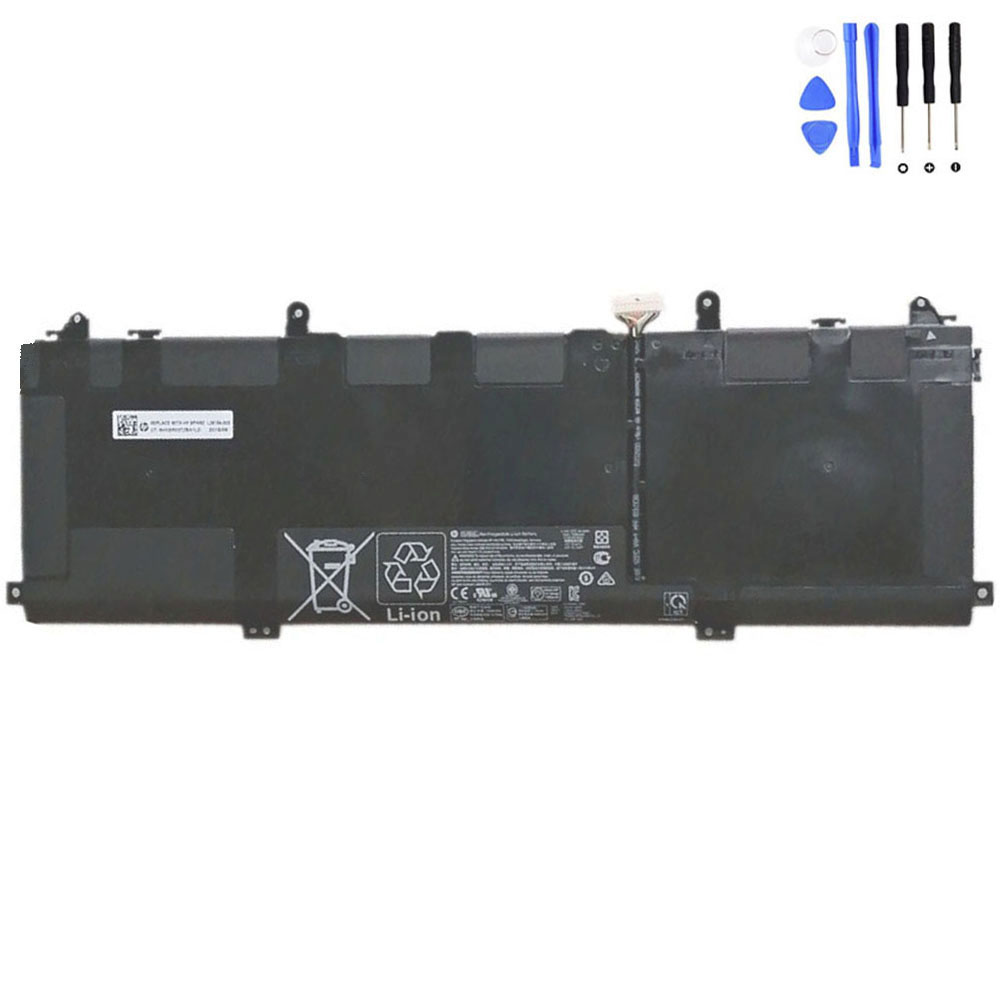
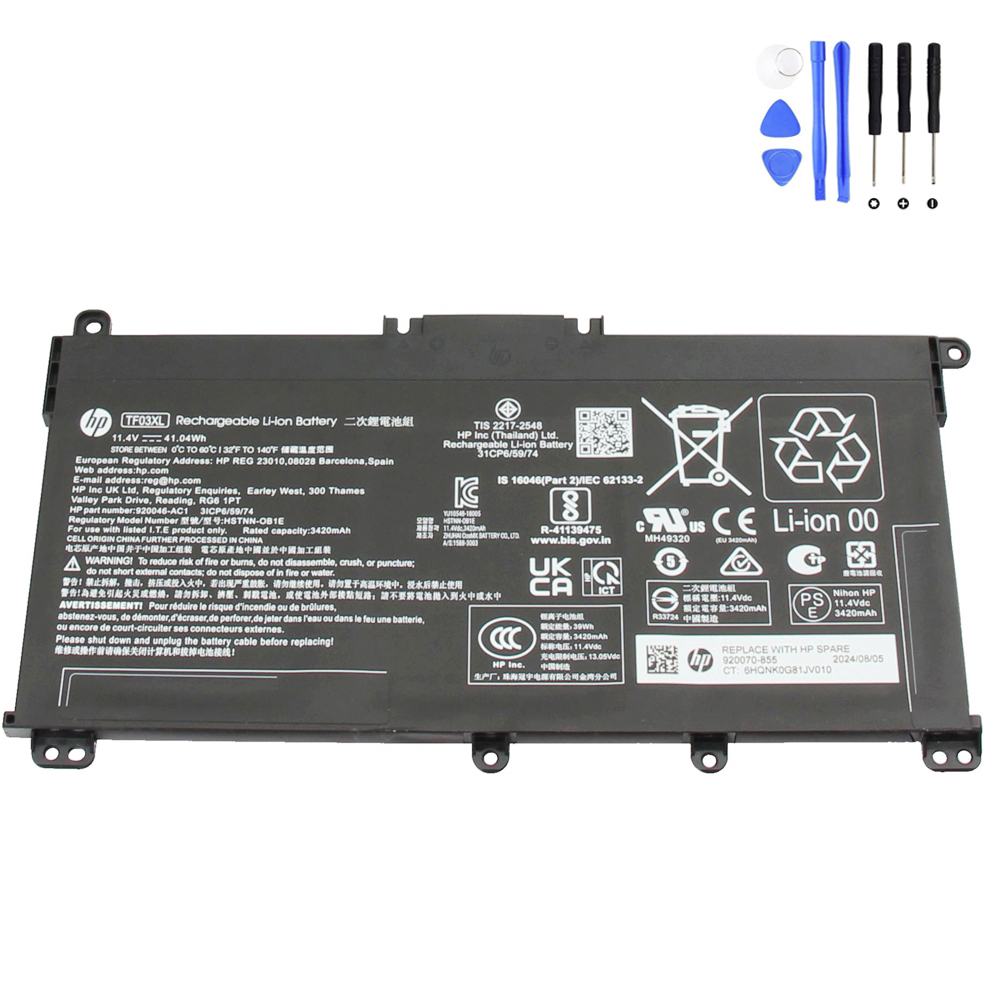
More Best Sellers (Page 2)
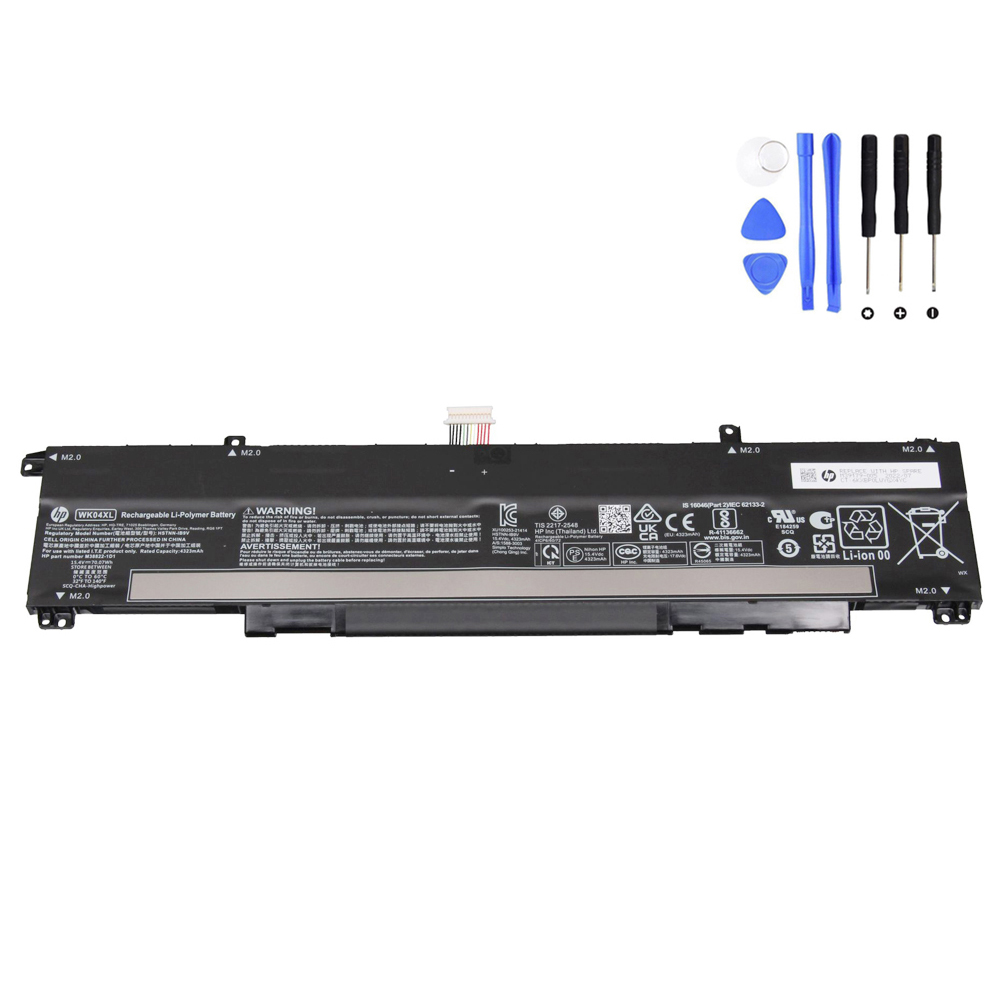

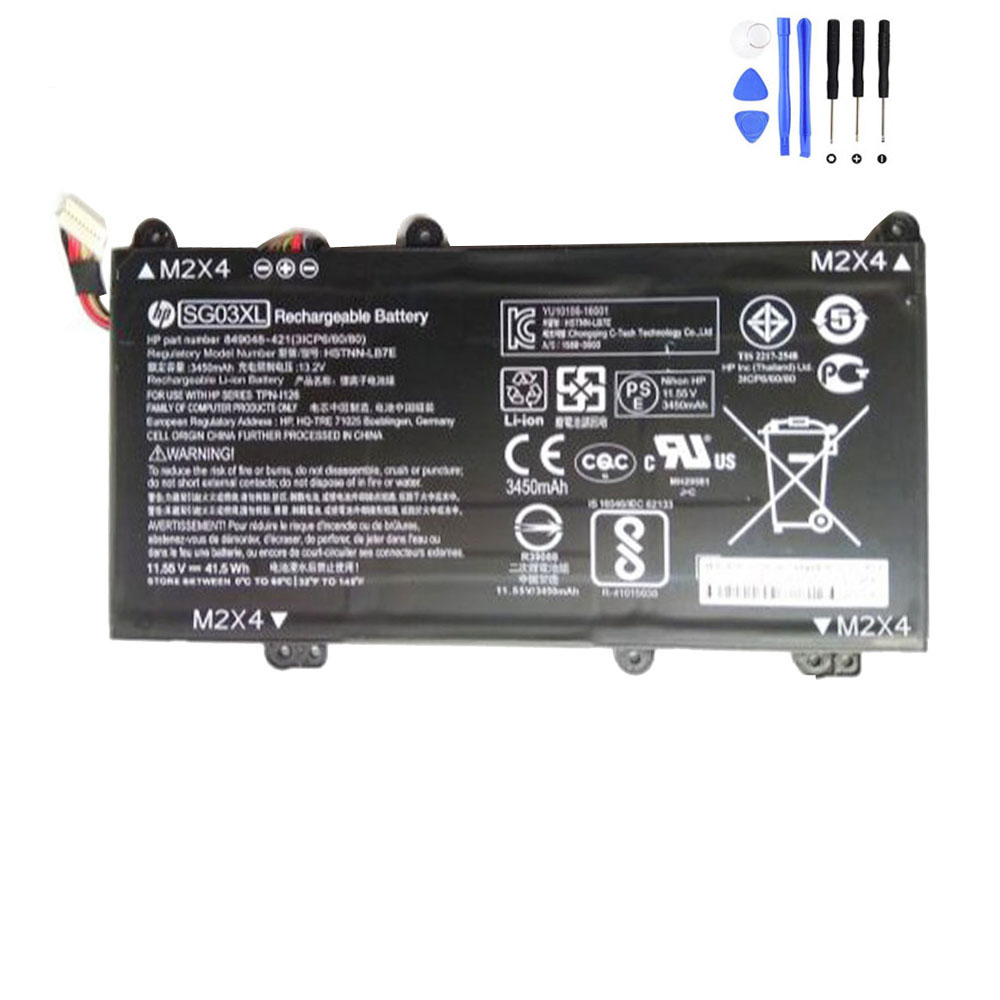



FAQ
Is it safe to use a third-party HP replacement battery?
A good replacement battery should match the original battery’s key specs (battery code, voltage, form factor, connector position)
and include built-in protection. Always verify compatibility first, and avoid “close enough” guesses.
Should I choose a higher Wh battery for longer runtime?
Only if it’s listed as compatible for your exact chassis and matches the physical layout. In many HP models, a higher-capacity pack
may not fit due to different internal clearances or mounting points.
My HP laptop name is the same, but the battery looks different—why?
HP often has multiple internal layouts within the same family name. That’s why matching by the battery code (and confirming by photo)
is more reliable than matching by the marketing name alone.
What information should I send for a perfect match?
- Battery code (example: HT03XL)
- HP spare/part number (if shown)
- Laptop product number / P/N (if you can’t open the laptop)
- A clear photo of the battery label (best)
affiliated with or endorsed by HP Inc.