It’s common for a 130W laptop charger to feel warm or even quite hot—especially on Dell XPS 15 and other high-performance laptops. A 130W adapter is basically a compact power converter, and power conversion always produces heat.
The key is knowing what’s normal heat versus unsafe heat. This guide explains why your charger gets hot, what factors make it hotter, and the warning signs that mean you should stop using it immediately.
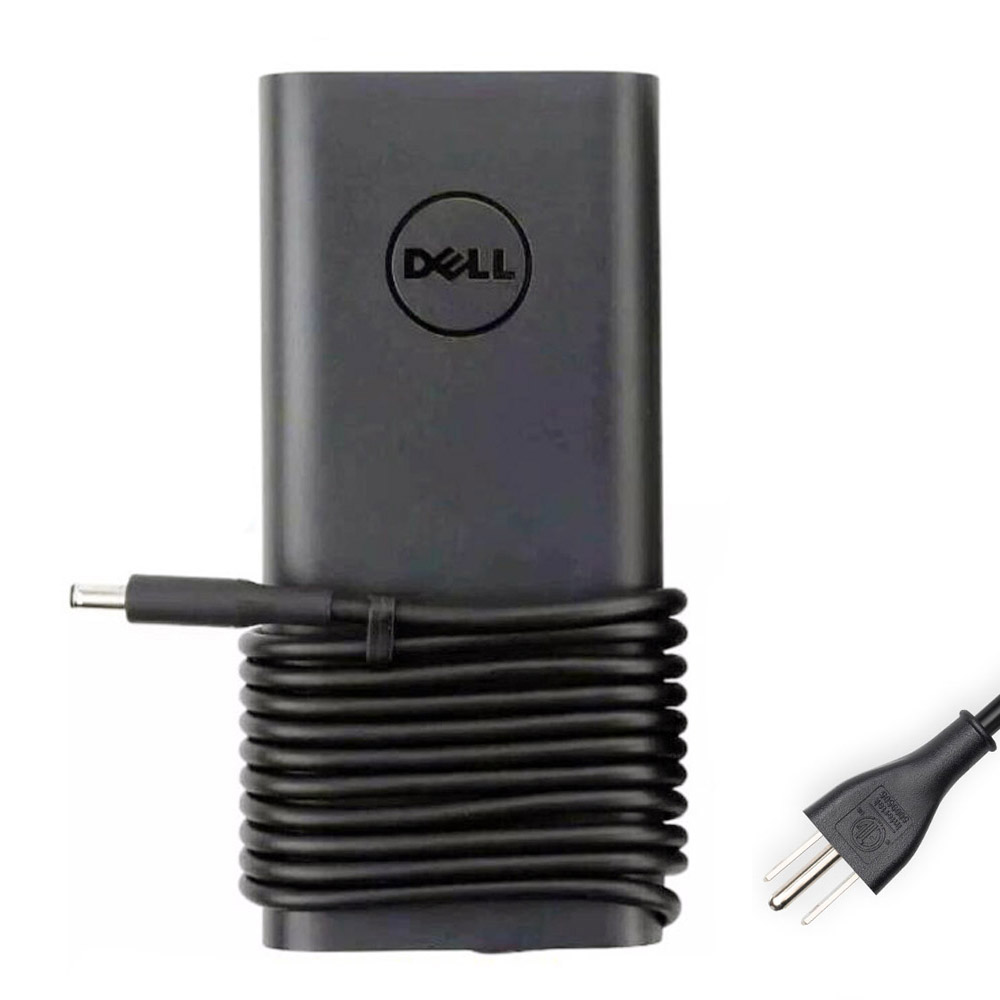
High-power adapters can get hot under heavy load.

USB-C 130W charging can also run warm/hot depending on load and airflow.
1) Why a 130W charger gets hot (normal reasons)
- Power conversion heat: The adapter converts AC (wall power) into DC (laptop power). Even efficient adapters release heat during conversion.
- High load: 130W is a lot of power for a small brick. When your laptop is working hard (gaming, editing, rendering), the adapter works harder and gets hotter.
- Charging + running at the same time: If you’re using the laptop while charging, the adapter may be supplying system power and charging the battery simultaneously.
- Low battery to high battery: Charging from a low battery often pulls more power than maintaining a mostly full battery.
- Warm room or poor airflow: Heat builds up quickly if the adapter is in a hot room, on thick fabric, or trapped behind a desk with no ventilation.
2) When the heat is “normal”
In many everyday cases, it’s normal if:
- The adapter feels warm to hot, but there is no burning smell.
- There is no buzzing, crackling, or arcing.
- The charging is stable (no constant connect/disconnect).
- The plastic case shows no melting, warping, or discoloration.
Typical pattern: it gets hottest during heavy use or fast charging, then cools down once the battery is high and the workload drops.
3) When it’s unsafe (stop using it)
Unplug the charger and stop using it if you notice any of these warning signs:
- Burning smell (plastic or electrical smell)
- Visible melting, warping, bubbling, or discoloration on the adapter or connectors
- Sparking at the wall plug, cable, or laptop connector
- Loud buzzing / crackling (more than a faint normal electronic hum)
- Intermittent power (charging starts/stops when the cable is still)
- Cable damage: cuts, exposed wire, crushed sections, or a loose connector head
- Too hot to safely handle (for example, you cannot comfortably hold the brick for more than a brief moment)
If any of the above happens, it’s safest to replace the charger and avoid further use.
4) Common reasons a 130W charger becomes hotter than normal
A) Poor airflow (the most common)
- Adapter on a bed/sofa/carpet
- Hidden under blankets or piled with cables
- Pressed against a wall or inside a tight cable box
B) Heavy continuous load
- Gaming + charging
- Video export/rendering + charging
- External displays + high CPU/GPU usage
C) Connector/cable resistance
A worn cable or loose connector can create extra resistance and heat at the connection point. This is especially important for:
- Barrel chargers (watch the DC tip and laptop jack fit)
- USB-C chargers (use a good-quality cable rated for high power)
D) Incorrect or low-quality charger
Low-quality or mismatched chargers can run hotter, deliver unstable power, or trigger “slow charger” warnings.
5) Simple safe-use tips (reduce heat, extend adapter life)
- Keep it in open air: place the adapter on a hard surface with airflow around it.
- Avoid fabric surfaces: beds/blankets trap heat.
- Uncoil the cable: tightly coiled cables can trap heat and strain the wires.
- Don’t bend the cable sharply near the connector or strain relief.
- Keep connectors clean and snug: debris or a loose fit can cause heat at the tip.
6) Quick checks if your charger feels “too hot”
- Test with a lighter workload: if it cools down during web browsing, high load was likely the cause.
- Try a different wall outlet: a loose outlet can cause poor contact and heat at the plug.
- Charge directly (no dock/hub): for USB-C models, hubs/docks can add complexity and heat.
- Inspect the cable carefully: look for kinks, crushed sections, and frayed insulation.
Need a compatible 130W replacement?
Tip: match your XPS 15 charging port type first (USB-C vs round DC-in). Using the correct connector is essential for safe, stable charging.