The Lenovo ThinkPad T480 is a workhorse business laptop, and one of its best features is the dual-battery Power Bridge design: a built-in internal battery plus a removable external battery. But when you suddenly see messages like “ThinkPad T480 battery not charging” or “0% available, plugged in, not charging”, that flexibility can become confusing.
This guide walks you through the most common causes of a ThinkPad T480 battery not charging and shows you how to fix them step by step. We’ll cover quick checks, software settings, BIOS options, and what to do when it’s time to replace the internal or external battery packs.
1. How the T480 battery system works (and why this matters)
Before you troubleshoot any ThinkPad T480 battery not charging issue, it helps to understand the battery layout:
- Internal battery – 3-cell, 24 Wh pack inside the laptop (usually FRU 01AV421).
- External battery – removable rear pack from the ThinkPad 61 series, typically:
- 24 Wh (Battery 61 – slim, 3-cell)
- 48 Wh (Battery 61+ – 6-cell)
- 72 Wh (Battery 61++ – extended 6-cell)
Windows and Lenovo Vantage usually show these as Battery 1 and Battery 2. When you see that your ThinkPad T480 battery is not charging, you need to check whether the problem is with:
- Only the external battery
- Only the internal battery
- Or both, which may point to the charger, the power jack or the mainboard
2. Quick hardware checks for “ThinkPad T480 battery not charging”
2.1 Confirm the charger and power source
- Make sure you’re using a genuine Lenovo charger with the correct wattage (65W or 90W for most T480 setups).
- Try another wall socket or power strip.
- If possible, test with a second known-good charger. If the battery starts charging with another adapter, your original charger is the problem.
2.2 Check the power jack and cable
- Inspect the charging plug and the port on the laptop for damage, bent pins or debris.
- Gently wiggle the connector. If the charging light flickers or drops, the jack or cable may be loose or worn.
2.3 Reseat the external battery
- Shut down the laptop and disconnect the charger.
- Turn the T480 over, slide the latches and remove the external battery.
- Check the contacts for dust or corrosion; gently clean with a dry cloth.
- Reinsert the battery until it clicks firmly into place.
- Reconnect the charger and boot the laptop.
After these steps, check again if the ThinkPad T480 battery not charging symptom persists for one or both batteries.
3. Check Windows and Lenovo Vantage for charging status
3.1 Use the Windows battery icon
- Click the battery icon in the taskbar.
- Look for messages like:
- “Plugged in, charging” – normal
- “Plugged in, not charging” – could be settings, thresholds or battery wear
- “0% available (plugged in, not charging)” – battery may be failing or not detected correctly
3.2 Use Lenovo Vantage / Commercial Vantage
Lenovo’s tool can show detailed status for both batteries:
- Open Lenovo Vantage > Device > Power or Battery.
- Check each battery’s:
- Charge level
- Condition / Health (Good, Fair, Poor)
- Cycle count (if available)
- Whether it’s currently charging, discharging or “not charging”.
If Vantage shows that one pack is “Not detected” or has extremely low full charge capacity, your ThinkPad T480 battery not charging issue may simply be a worn-out battery that needs replacement.
4. Common software causes and fixes
4.1 Battery charge thresholds / conservation mode
One of the most common reasons users see “ThinkPad T480 battery not charging” even with a good battery is charge thresholds. Lenovo allows you to set a maximum charge (e.g. 55–60%) to extend battery lifespan.
In Lenovo Vantage, check for options like:
- Conservation Mode or “Battery charge threshold”
- Settings such as “Start charging at 50%, stop at 60%”
If your battery is already at or above the stop threshold, Windows will show “plugged in, not charging” – this is normal behaviour, not a fault. To test:
- Temporarily disable conservation mode or reset thresholds to 100%.
- Unplug, wait a few seconds, then plug the charger back in.
- See if the battery starts charging again.
4.2 Power cycle the laptop
A simple power reset can clear minor firmware or EC (embedded controller) glitches:
- Shut down the laptop completely.
- Disconnect the charger.
- Remove the external battery.
- Press and hold the power button for 20–30 seconds to discharge residual power.
- Reconnect the external battery and then the charger.
- Power on the laptop and check charging status.
4.3 Update BIOS and power drivers
- Use Lenovo Vantage or Lenovo’s support website to:
- Update to the latest BIOS for the T480.
- Install the latest power management and chipset drivers.
- After updates, restart the system and test charging again.
4.4 Run a battery calibration
Some charging issues come from inaccurate battery calibration rather than a hardware fault. Use Lenovo Vantage’s battery gauge reset (if available) or allow a full discharge/charge cycle under supervision to recalibrate the battery electronics.
5. BIOS settings: internal battery disabled?
The T480 BIOS has a “Disable built-in battery” option used for servicing. If this option was triggered and not re-enabled, your internal battery may appear as not charging.
To check:
- Shut down the laptop.
- Turn it on and press F1 repeatedly to enter the BIOS.
- Navigate to the Configuration or Power section (wording can vary by BIOS version).
- Look for any setting related to Internal battery or “Disable built-in battery”.
- Ensure the internal battery is enabled.
- Save changes and reboot.
If the internal battery was disabled, re-enabling it may immediately resolve part of your ThinkPad T480 battery not charging problem.
6. When the battery itself is the problem
If you’ve tried the steps above and your T480 battery still won’t charge properly, it’s time to look at battery wear and hardware failure.
Signs your T480 battery needs replacement
- Lenovo Vantage shows Poor or “Battery needs to be replaced”.
- Full charge capacity is much lower than design capacity (for example, 10–15 Wh left out of 24 Wh or 48 Wh).
- Battery never charges above a low percentage (e.g. stuck at 5–10%) even after hours on AC.
- The battery is physically swollen or the case is bulging (in this case, stop using it immediately).
In these situations, no amount of software tweaking will solve the ThinkPad T480 battery not charging symptom. The safest and most reliable fix is to replace the failing battery.
7. Replacement options for ThinkPad T480 batteries
7.1 Internal T480 battery – 24Wh 01AV421
The internal 24 Wh pack is your base battery. If it’s worn out, you may experience fast drops when unplugging or failed hot-swaps.

Internal ThinkPad T480 battery – 24Wh (01AV421)
Standard 24 Wh internal battery for the T480. Replacing this pack helps if your internal battery no longer charges properly or can’t support hot-swaps.
7.2 External slim 24Wh battery – Battery 61 (01AV423)
If your slim external battery no longer charges, or discharges rapidly, replacing it restores the original portable setup.

External T480 battery – 24Wh Battery 61 (01AV423)
Slim 24 Wh external battery that keeps your T480 light. Ideal if you mostly work near power and just need a fresh pack to replace one that no longer charges.
7.3 External 48Wh battery – Battery 61+ (01AV427)
If you’re replacing a failing external battery anyway, this is a great time to upgrade capacity. The 48 Wh 61+ option offers much better runtime.
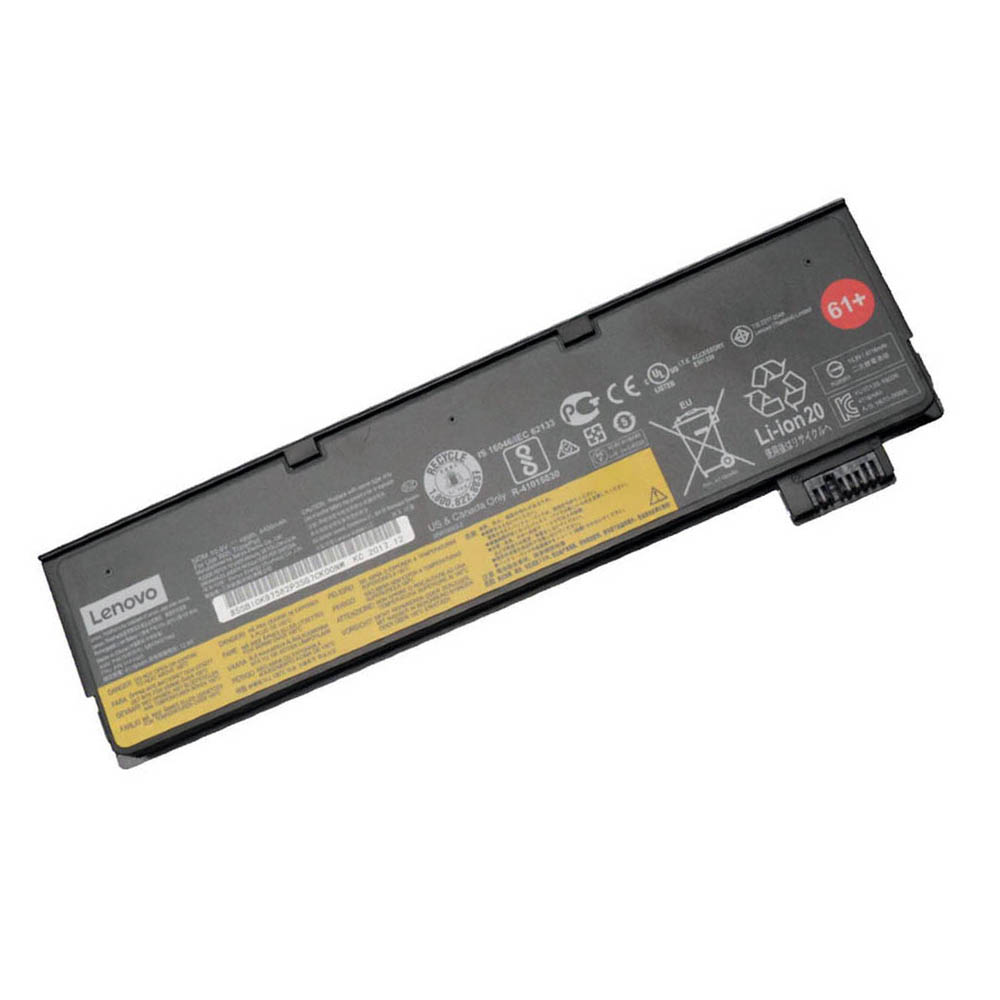
External T480 battery – 48Wh Battery 61+ (01AV427)
48 Wh 6-cell external battery that significantly extends runtime compared to the slim 24 Wh pack, while keeping the laptop manageable for daily carry.
7.4 External 72Wh extended battery – Battery 61++
For maximum runtime, especially if you’ve been fighting a weak old battery, the 72 Wh extended 61++ pack is the best choice.
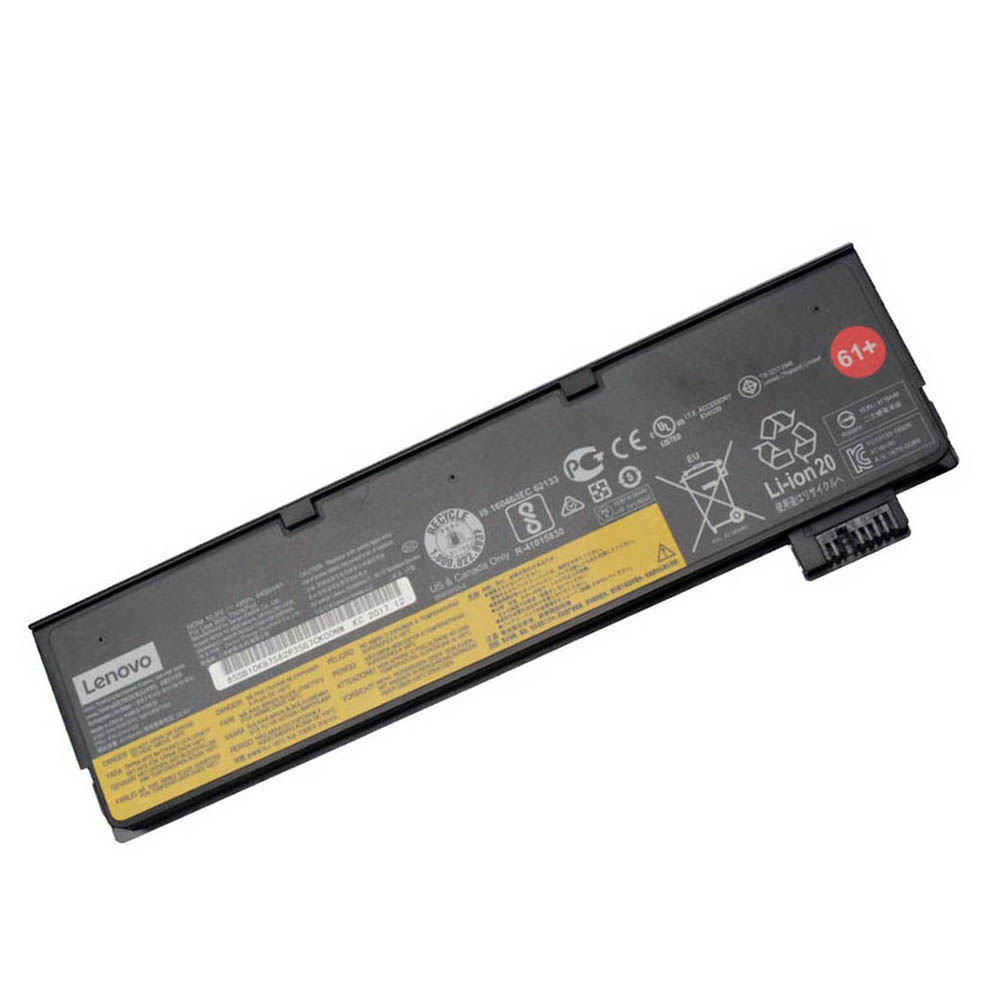
External T480 battery – 72Wh Battery 61++
72 Wh extended external battery that turns your T480 into a true all-day machine again, ideal for travel and long work sessions off the grid.
8. When it’s not the batteries: adapter, DC jack or mainboard
If:
- You’ve tried another known-good charger, and
- Both internal and external batteries refuse to charge or are not detected properly, even after BIOS and driver updates,
then the issue may be with:
- The DC-in jack (loose or damaged)
- The charging circuitry on the motherboard
At that point, the ThinkPad T480 battery not charging problem is no longer a simple DIY battery swap. It’s best to get help from a qualified repair shop or Lenovo service partner to test the power jack and mainboard.
9. Summary
When you see a ThinkPad T480 battery not charging error, don’t panic. Work through these steps in order:
- Check the charger, cable and power jack.
- Reseat the external battery and check charging status in Windows and Lenovo Vantage.
- Look for charge thresholds or conservation mode that intentionally stops charging.
- Update BIOS and power drivers, and perform a power reset.
- Check battery health; if capacity is very low, replace the failing battery (internal, external or both).
With fresh, compatible batteries and correct power settings, the ThinkPad T480 remains one of the most flexible and reliable 14″ business laptops you can own—delivering long runtimes and hot-swappable power long after many other machines would need a full replacement.