The Razer Blade 14 (2021–2022) is a powerful gaming and creator laptop, but even the best hardware
feels frustrating if the battery can’t keep up. Maybe your Blade 14 dies halfway through a match,
drains from 70% to 20% in minutes, or shuts down the moment you unplug the charger. These are common
signs that the original RC30-0370 battery is reaching the end of its life and needs to be replaced.
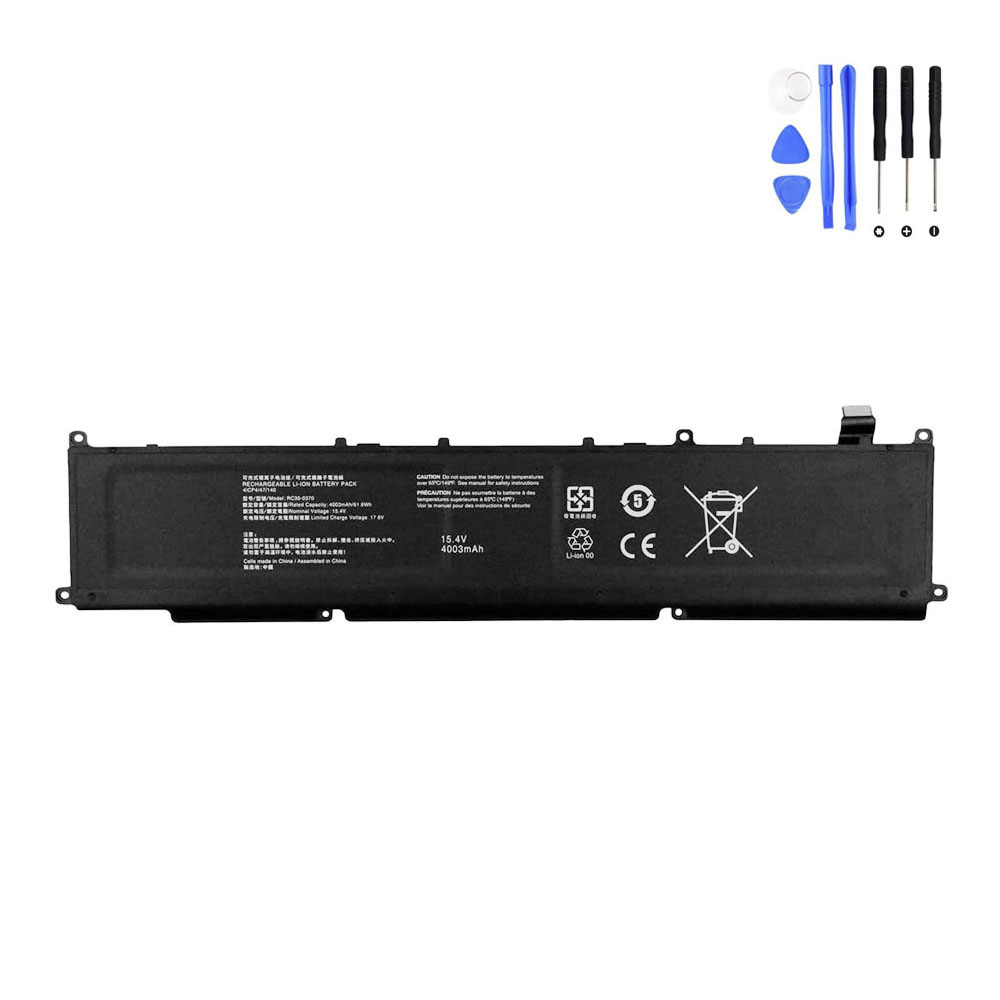
61.6Wh Razer RC30-0370 Replacement Battery for Razer Blade 14 (2021–2022)
Brand new 61.6Wh (4003mAh, 15.4V) battery designed for Razer Blade 14 models such as
RZ09-0370 and RZ09-0427 series, replacing RC30-0370 and related part numbers.
If you use another Razer laptop, you can also browse our
Battery for Razer
category to find the right battery for your system.
This guide focuses on real-world symptoms you may notice when your Blade 14 battery is failing,
how to confirm the problem, and why a proper replacement such as the 61.6Wh RC30-0370 battery is
the best way to restore reliable battery life and performance.
Quick navigation
- 1. Common symptoms of a failing Razer Blade 14 battery
- 2. How to confirm your battery is the problem
- 3. About the 61.6Wh Razer RC30-0370 replacement battery
- 4. Is it safe to keep using a weak or swollen battery?
- 5. Replacement options: DIY vs professional service
- 6. How to care for your new Razer Blade 14 battery
1. Common symptoms of a failing Razer Blade 14 battery
Gaming laptops like the Razer Blade 14 draw more power than typical ultrabooks. As the battery
ages, its capacity and stability gradually decline, and you start to notice issues in everyday use.
Here are the most common warning signs Blade 14 owners report:
1.1 Fast battery drain during normal tasks
-
Your Blade 14 used to last several hours on office work or web browsing; now it only survives
1–2 hours, even with low brightness. - You see the percentage dropping quickly once it goes below 50%.
- Small tasks (email, streaming) suddenly consume a large chunk of the remaining battery.
This suggests the actual usable capacity of the cells has dropped well below the original 61.6Wh.
The laptop still “thinks” it has more energy than it really does, so estimates become inaccurate.
1.2 Sudden shutdowns as soon as you launch a game or heavy app
- The laptop powers off instantly when you start a game, 3D application or stress test on battery.
-
Windows might still show 20–40% remaining just before the shutdown, especially if the GPU ramps up
and power draw spikes. - After rebooting and plugging in, the battery percentage jumps to a much lower value.
Under high load, a weak cell can’t maintain stable voltage and the safety electronics cut power to
protect both the battery and system. This is very typical on performance laptops with aging
batteries.
1.3 “Plugged in, not charging” or stuck at a certain percentage
- Windows shows “Plugged in, not charging” even though the AC adapter is connected.
- The battery seems stuck at, for example, 60–80% and never reaches 100%.
- The laptop works fine when plugged in, but runtime is extremely short if you unplug the cord.
Sometimes this is caused by software settings or a faulty adapter, but once those are ruled out,
it often means the battery controller is limiting charge to protect worn-out cells.
1.4 Fan running more often and extra heat around the chassis
- You notice the fan spinning up more than before during light workloads.
- The underside of the laptop or palm rest feels warmer, even when simply browsing or watching videos.
A severely degraded battery can generate additional heat during charge/discharge cycles. Of course,
CPU/GPU and dust buildup also affect temperature, but when increased heat is paired with poor
runtime, the battery should be considered suspect.
1.5 Battery swelling or trackpad/touchpad issues
- The touchpad feels raised, uneven or harder to click than before.
- You may notice a slight bulge on the bottom panel or difficulty closing the lid.
Swelling is a serious warning sign. If the pack inside your Blade 14 begins to expand, it can put
mechanical stress on the touchpad, keyboard and internal frame. In that case, you should replace
the battery as soon as possible and avoid further use on battery power.
1.6 Battery health warnings in software
- Battery health reports show “Very poor” or similar warnings.
-
Tools or Windows reports indicate a big difference between the original design capacity and the
current full charge capacity.
These messages typically appear later in the battery’s life, but combined with the symptoms above
they confirm that replacement is the logical next step.
2. How to confirm your battery is the problem
Before ordering a new RC30-0370 battery, it’s smart to rule out other hardware and software causes.
Here are practical checks you can do at home:
2.1 Verify your charger and power settings
- Use the original Razer power adapter or a high-quality, compatible replacement.
- Check the plug, cable and port for damage, looseness or discoloration.
-
Temporarily reset any advanced power profiles or “battery saver” tweaks to default to see if
behavior changes.
If a known-good charger doesn’t improve charging behavior or runtime, the battery is the more
likely culprit.
2.2 Generate a Windows battery report
On Windows 10/11:
- Open Command Prompt as Administrator.
- Type
powercfg /batteryreportand press Enter. - Open the generated HTML report (usually saved in your user directory).
Compare Design Capacity and Full Charge Capacity. If full charge
capacity has dropped far below design capacity (for example, less than 60–70%), your battery has
experienced significant wear.
2.3 Check BIOS and any Razer tools
- Enter BIOS/UEFI and look for battery status or health information.
- Use any Razer diagnostics tools that can read battery condition (if available).
Combined with the runtime symptoms you see in daily use, this information will confirm whether it
is time to replace your RC30-0370 pack.
3. About the 61.6Wh Razer RC30-0370 replacement battery
The Razer Blade 14 (2021–2022) uses a high-performance internal battery designed to support its
powerful CPU/GPU in a compact chassis. When replacing it, you want a pack that matches the original
electrical characteristics and layout as closely as possible.
3.1 Key specifications
| Item | Specification |
|---|---|
| Condition | Brand New replacement battery |
| Color | Black |
| Capacity | 61.6Wh / 4003mAh |
| Voltage | 15.4V |
| Cell type | High-quality lithium-ion pack, engineered for Blade 14 chassis |
| Warranty | 12-month warranty with 30-day return policy |
| Package includes | 1 × battery for Razer Blade 14 |
3.2 Compatible part numbers (selection)
A properly designed replacement battery will list compatibility with original Razer identifiers,
including (not limited to):
- Razer RC30-0370
- Razer RZ09-0368
- Razer CS-RZB142NB
- Razer 4ICP4/47/140
3.3 Compatible Razer Blade 14 models (partial list)
- Razer Blade 14 (2021) RZ09-0370A
- Razer Blade 14 (2021) RZ09-0370B
- Razer Blade 14 (2021) RZ09-0370C
- Razer Blade 14 (2022) RZ09-0427E
- Razer Blade 14 (2022) RZ09-0427N
- Razer Blade 14 (2022) RZ09-0427P
- Other Razer Blade 14 2021–2022 variants in the RZ09-0370x and RZ09-0427x series
If your model number matches one of these RZ09 codes, a 61.6Wh RC30-0370 compatible battery is the
correct class of replacement. For a different Razer notebook series, you can explore the full
Battery for Razer
category.
Check compatibility and order the 61.6Wh RC30-0370 battery
4. Is it safe to keep using a weak or swollen battery?
It is tempting to keep using your Blade 14 purely as a “desktop replacement” by leaving it plugged
in, but this has several drawbacks:
- Unexpected shutdowns can corrupt game files, project files and system updates.
-
Swelling or overheating can physically damage the touchpad, keyboard and internal
frame. -
A severely degraded pack can place extra stress on charging circuitry and lead to
further hardware issues.
If you notice heat, bulging or cracks in the chassis, stop using the laptop on battery and plan a
battery replacement as soon as possible for safety reasons.
5. Replacement options: DIY vs professional service
The Razer Blade 14 is compact and tightly assembled. Replacing the RC30-0370 battery is possible at
home if you are comfortable opening laptops and have the right tools, but many users prefer to
combine a high-quality replacement battery with professional installation.
5.1 Typical steps in a Blade 14 battery replacement
- Shut down the laptop completely and disconnect the power adapter.
- Remove the bottom screws (often Torx) and gently lift the bottom cover.
- Disconnect the battery cable from the motherboard.
- Unscrew and lift out the old battery pack.
- Place the new 61.6Wh RC30-0370 compatible battery, secure it with screws and reconnect the cable.
- Reattach the bottom case, tighten the screws and test the system on battery power.
If any of these steps make you uncomfortable, take your new battery to a trusted repair shop. You
supply the correct part, they handle disassembly and reassembly.
5.2 Why choose a proper RC30-0370 replacement
- Correct 15.4V operating voltage to match the Blade 14 power design.
- Appropriate 61.6Wh capacity for gaming and creator workloads.
-
Integrated protection for over-charge, over-discharge, short-circuit and temperature, helping to
protect your laptop. -
Backed by a 12-month warranty and 30-day return policy for
additional peace of mind.
6. How to care for your new Razer Blade 14 battery
Once your new RC30-0370 battery is installed, a few simple habits can help maximize its lifespan:
-
Break-in period: For the first few days, use the laptop on battery and cycle
between roughly 20% and 90% to help the controller and Windows calibrate. -
Avoid extremes when possible: It is fine to hit 100% or 0% occasionally, but try
not to leave the laptop fully charged or fully drained for long periods. -
Manage heat: Keep vents clear and avoid gaming on soft surfaces that block
airflow. High internal temperatures accelerate battery wear. -
Storage tips: If you won’t use the Blade 14 for a few weeks, store it at around
40–60% charge in a cool, dry environment.
With a fresh 61.6Wh RC30-0370 battery and healthy charging habits, your Razer Blade 14 can once
again deliver the performance and portability you bought it for—whether that’s gaming on the go,
editing content away from your desk, or simply enjoying a quiet, fan-efficient system on battery
power.
Replace your worn RC30-0370 battery and restore your Razer Blade 14