Is a Laptop Stand Worth Buying?
A laptop stand is one of the simplest upgrades you can make for a better daily setup—whether you work from home,
study, travel, or game. It can improve comfort, reduce neck strain, and make your laptop easier to use for long sessions.
This guide explains when a stand is worth it, what to look for, and how the “best use case” changes by laptop brand and model type.
Quick verdict: who benefits most from a laptop stand?
| Your typical use | Worth it? | Why |
|---|---|---|
| You work/study 2+ hours per day on a laptop | Yes | Better screen height = less neck and shoulder strain |
| You use an external keyboard/mouse | Yes | Stand helps align the laptop screen with your eye level |
| You travel often and want a compact, stable setup | Usually | Portable stands improve comfort in coffee shops, hotels, and shared workspaces |
| You game or edit video and your laptop gets hot | Often | More airflow can help reduce heat buildup (results vary by model) |
| You only use your laptop briefly (emails, quick browsing) | Maybe | If comfort is fine, it’s optional—but still a nice upgrade |
Why a laptop stand can make a bigger difference than you expect
1) Better posture and less neck strain
Laptops force you into a “looking down” posture because the screen is low. Over time, that can create neck and shoulder tension.
A stand raises your screen closer to eye level, which helps your head and spine stay in a more natural position.
Best practice: If you raise the laptop high, pair it with an external keyboard and mouse for comfort.
2) More comfortable typing angle (when you’re not using an external keyboard)
Adjustable stands can tilt the keyboard surface. For short sessions, a slight angle can feel more comfortable than typing flat on a desk.
For long sessions, an external keyboard is still recommended.
3) Improved airflow and desk organization
Many laptops pull air from below or around the chassis. Elevating the laptop can improve airflow and reduce heat buildup in some setups.
It also frees up desk space (for example, you can route cables more cleanly or slide small items underneath).
ambient temperature, and workload.
What to look for in a good laptop stand
- Adjustability: multiple angles/heights make it easier to match your chair and desk.
- Stability: the stand should feel solid and not wobble when typing.
- Compatibility: confirm size range (e.g., 10″–17.3″).
- Material: aluminum stands are popular for strength and a premium feel.
- Portability: if you travel, choose a stand that folds and packs easily.
- Ventilation-friendly design: open structure can support airflow.
Brand-specific tips: how a stand helps different laptop families
Apple MacBook Air & MacBook Pro
- Best for: productivity, writing, coding, and long reading sessions.
- Why it’s worth it: MacBooks are popular for long daily use—raising the screen is one of the easiest comfort upgrades.
- Setup tip: If you use a stand regularly, a compact external keyboard + mouse/trackpad turns your MacBook into a clean desktop-style setup.
Dell XPS / Inspiron / Latitude
- Best for: office work, school, and docking-station setups.
- Why it’s worth it: Many Dell users connect to monitors, docks, and external peripherals—raising the laptop improves screen alignment and ergonomics.
- Setup tip: If you use a dock, place the laptop on the stand and run a single cable to keep the desk tidy.
HP Spectre / Envy / Pavilion
- Best for: everyday productivity and hybrid work.
- Why it’s worth it: Thin designs benefit from a more comfortable viewing angle and potentially better airflow in warm rooms.
- Setup tip: For 2-in-1 devices (x360), use the stand for “laptop mode” and consider a separate tablet/stand position if you use tent mode.
HP OMEN / Victus (gaming laptops)
- Best for: gaming sessions at a desk, streaming, and heavy workloads.
- Why it’s worth it: Extra clearance can help airflow and desk comfort. Many gamers also use external keyboards/mice—perfect for a stand-based setup.
- Reality check: A stand helps airflow, but sustained cooling still depends on the laptop’s internal design and your room temperature.
Lenovo ThinkPad / Yoga / Legion
- ThinkPad: Great for long typing sessions—raise the screen and use a mouse for comfort.
- Yoga (2-in-1): A stand is useful when you want a stable laptop-height screen in clamshell mode.
- Legion (gaming): Similar to OMEN—more clearance can help airflow and cable management on a desk.
ASUS ZenBook / VivoBook / TUF / ROG
- ZenBook/VivoBook: Perfect for travel work—portable stands make laptop screens easier to view in tight spaces.
- TUF/ROG (gaming): Stands are popular for desk gaming to support airflow and a better screen height when using an external keyboard.
- Setup tip: Keep cables routed so the stand doesn’t block side vents or ports.
Acer Aspire / Nitro / Predator
- Aspire: Big comfort improvement for study and daily tasks.
- Nitro/Predator: Desk gaming benefits from better posture and additional clearance for airflow.
Microsoft Surface Laptop / other thin premium laptops
- Best for: meetings, typing, and reading.
- Why it’s worth it: These devices are often used for long sessions—screen height is a major comfort factor.
Razer Blade / other high-performance creator laptops
- Best for: editing, rendering, and gaming at a desk.
- Why it’s worth it: These machines can run warm under load; extra clearance and a comfortable screen height helps long sessions feel better.
How to set up a laptop stand correctly (in 3 minutes)
- Set the height first: aim to bring the top of the screen closer to eye level.
- Check the typing plan: if you type for long sessions, use an external keyboard and mouse.
- Confirm stability: open the laptop fully and test for wobble before long use.
- Manage cables: route charging and USB cables so they don’t pull the laptop sideways.
Featured option: Adjustable aluminum laptop stand (portable and stable)
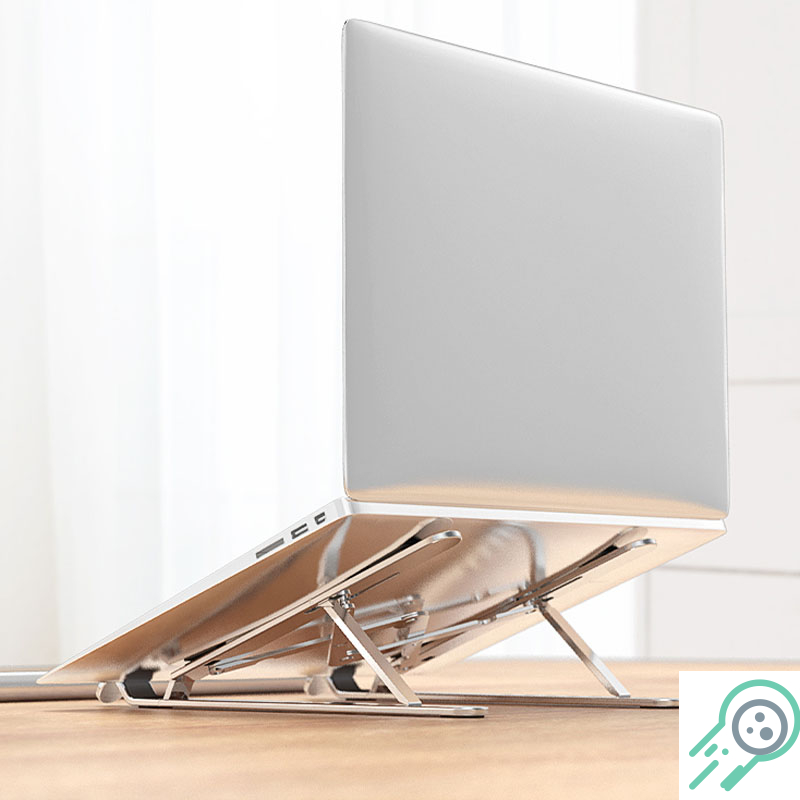
If you want a stand that works with most laptop sizes and is easy to carry, this adjustable aluminum stand is a practical pick for
home desks, classrooms, and travel setups.
- Multiple viewing angles: makes it easy to find a comfortable height
- Wide compatibility: designed for many laptops and tablets (10″–17.3″)
- Strong, stable build: aluminum structure for daily use
- Portable: easy to pack and carry for work or school
FAQ: laptop stands
Will a laptop stand help with overheating?
It can help by improving airflow and reducing heat buildup under the laptop—especially if your laptop pulls air from the bottom.
However, it won’t “fix” internal dust, old thermal paste, or a failing fan.
Do I need an external keyboard and mouse?
If you raise your laptop screen significantly and type for long sessions, an external keyboard and mouse usually improves comfort.
For short sessions, you may be fine typing directly on the laptop with a mild tilt.
Is a stand useful for gaming laptops?
Yes—mainly for comfort (screen height) and sometimes for better clearance/airflow. Many gamers already use external keyboards and mice,
which pairs perfectly with a stand setup.
Will a stand damage my laptop?
A stable stand with good support points should not damage a laptop. The key is to avoid stands that squeeze too tightly, wobble,
or press against vents/ports.
Bottom line: If you use your laptop daily, a stand is often worth it for comfort alone.
The biggest benefit is better screen height (less neck strain), and the bonus is a cleaner, more enjoyable setup.