If you search “HP battery finder,” you’ll quickly notice a problem: the same HP laptop family name (Pavilion, Envy, ProBook, Omen, etc.)
can use multiple different batteries. The fastest way to avoid ordering the wrong battery is to start with your
HP serial number, then convert that into the exact battery identifiers you need to buy a compatible replacement.
Use your HP serial number to look up your device’s supported parts, then record the battery model code
(like HT03XL, LK03XL, WK06XL) and/or the
HP spare/part number, and finally search those identifiers on Fixing-Tools to order the correct replacement.
- What you need to identify (the two codes that matter)
- Step 1: How to find your HP serial number
- Step 2: Use the serial number to find the correct battery info
- Step 3: Confirm compatibility (before you order)
- Step 4: Find the battery on Fixing-Tools and order
- Clickable best-selling HP batteries (image gallery)
- FAQ
What you need to identify (the two codes that matter)
Your serial number is a starting key. What you actually want to end up with is one (ideally both) of these:
-
Battery model code (examples: HT03XL, AE03XL, MU06, WK06XL)
— This is the fastest and most reliable search term for a replacement battery. -
HP spare/part number (often shown on parts lists and sometimes on the battery label)
— Great for cross-checking when multiple batteries look similar.
“HP Pavilion 15” or “HP Envy x360” can have many sub-models and internal layouts. Two laptops that look the same externally may use different batteries.
Serial number lookup reduces guesswork and helps you match the correct battery family.
Step 1: How to find your HP serial number
Method A (most common): Check the laptop label
Look for a label on the bottom or underside of the laptop. The serial number is often marked as S/N or Serial.
If the bottom label is worn, try the next methods.
Method B: Use HP system information (often works on many HP laptops)
- Turn on the laptop and sign in.
- Try Fn + Esc to open a system information window (if supported on your model).
- Find and copy the Serial Number and (if available) the Product Number.
Method C: Use HP Support Assistant (Windows)
If HP Support Assistant is installed, open it and look for your device details on the dashboard (serial number is commonly shown there).
Some HP parts tools will ask for either one.
Step 2: Use the serial number to find the correct battery info
Once you have the serial number, use it to locate your device’s supported replacement parts (including the battery).
HP typically provides product identification and parts catalog resources where you can enter a serial number and view compatible components.
- Battery model code (the “XL” style code is common for internal batteries)
- HP spare/part number (useful for confirmation)
- Voltage (V) and any notes about form factor (helps avoid wrong-fit orders)
If you can access the battery label (best confirmation)
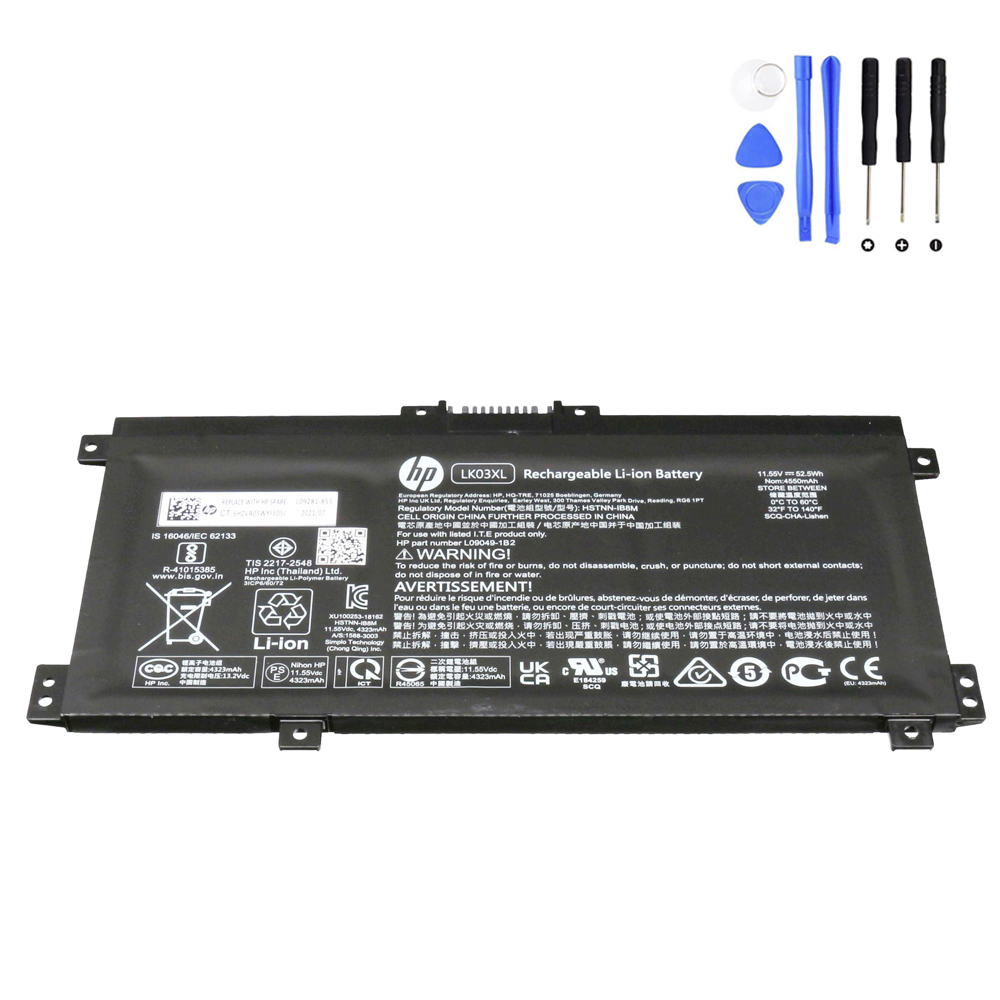
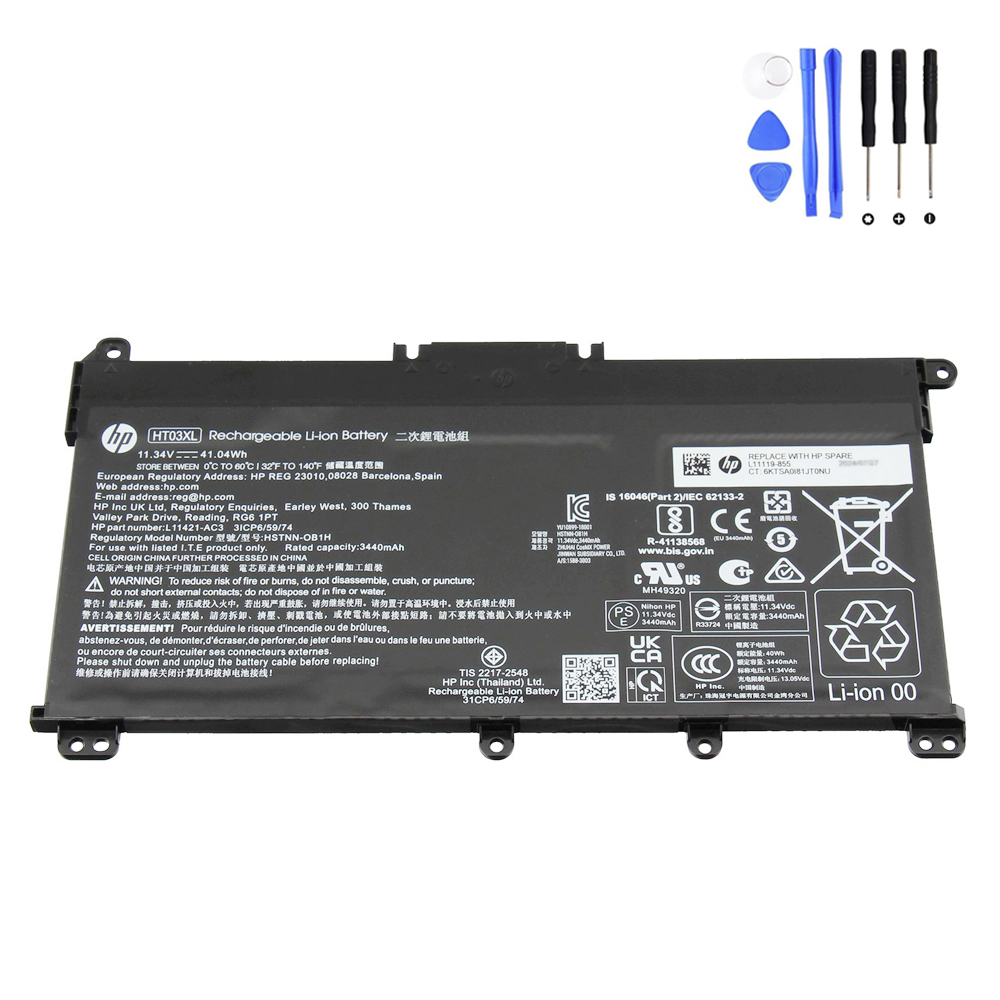
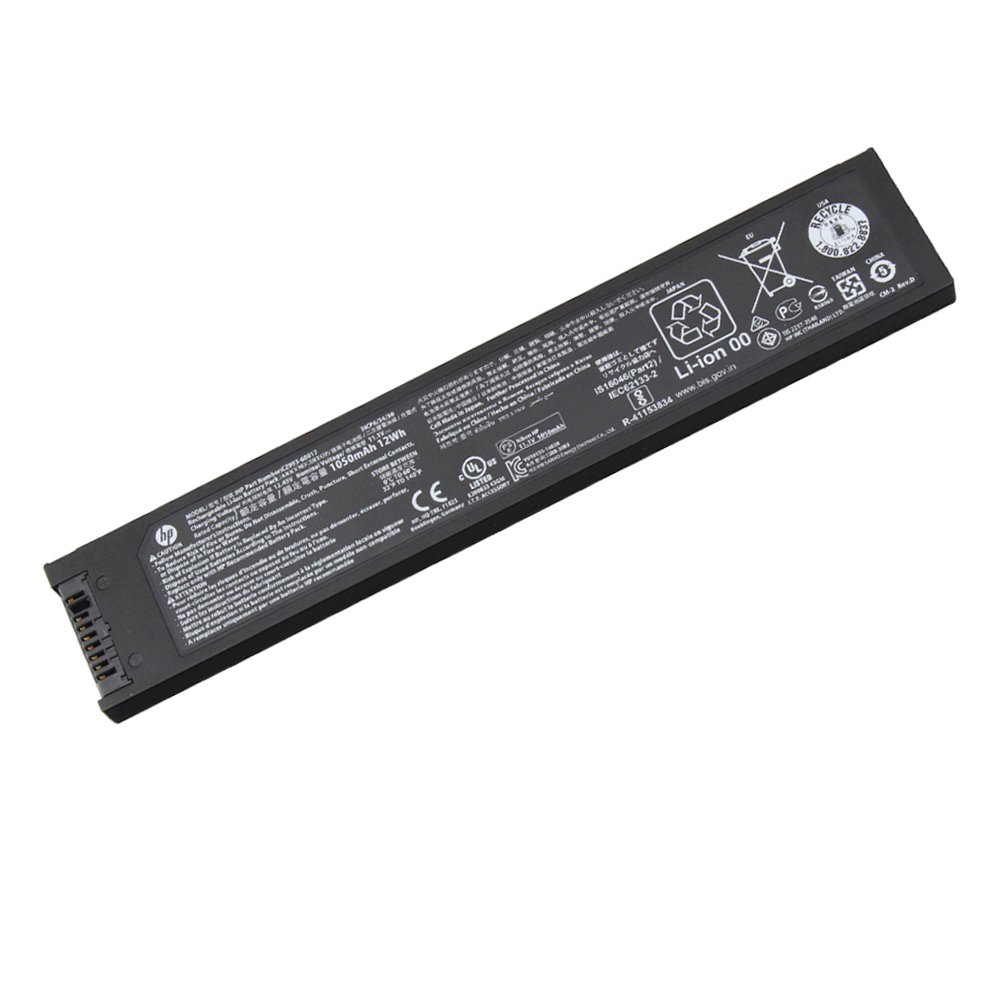
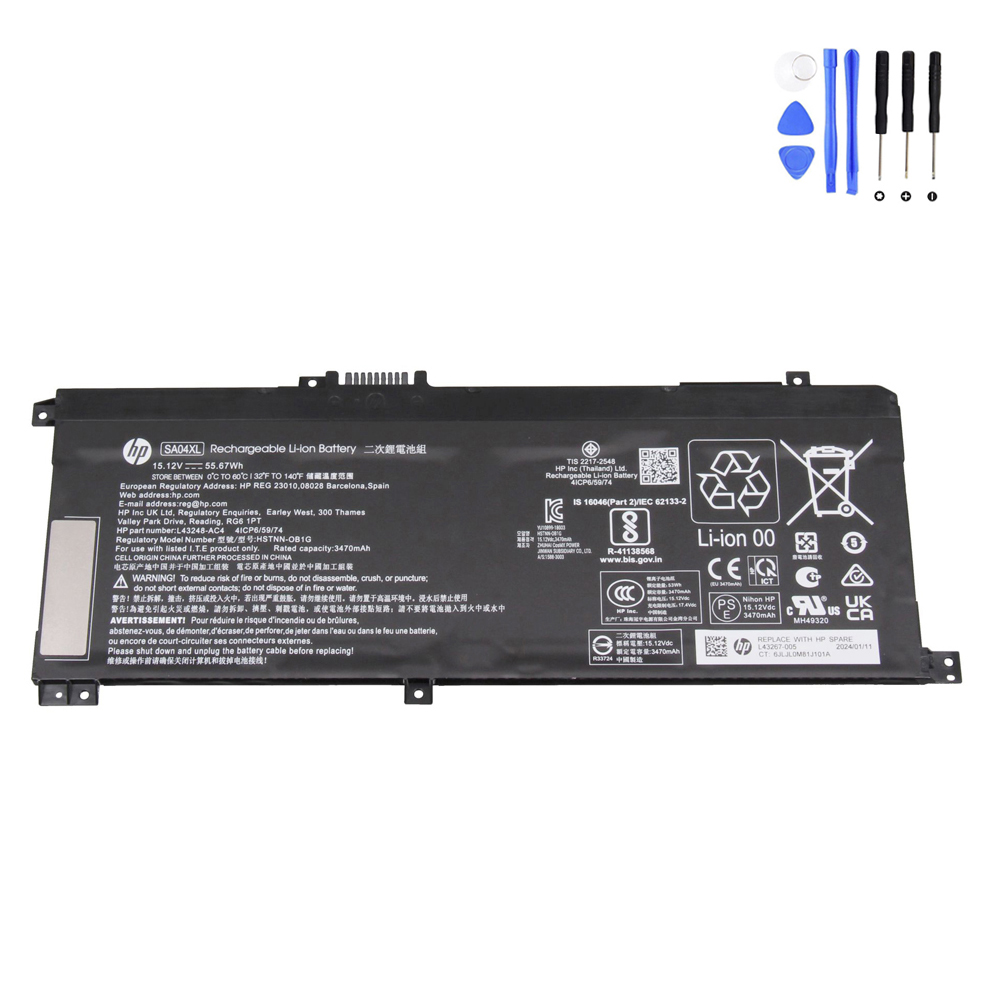
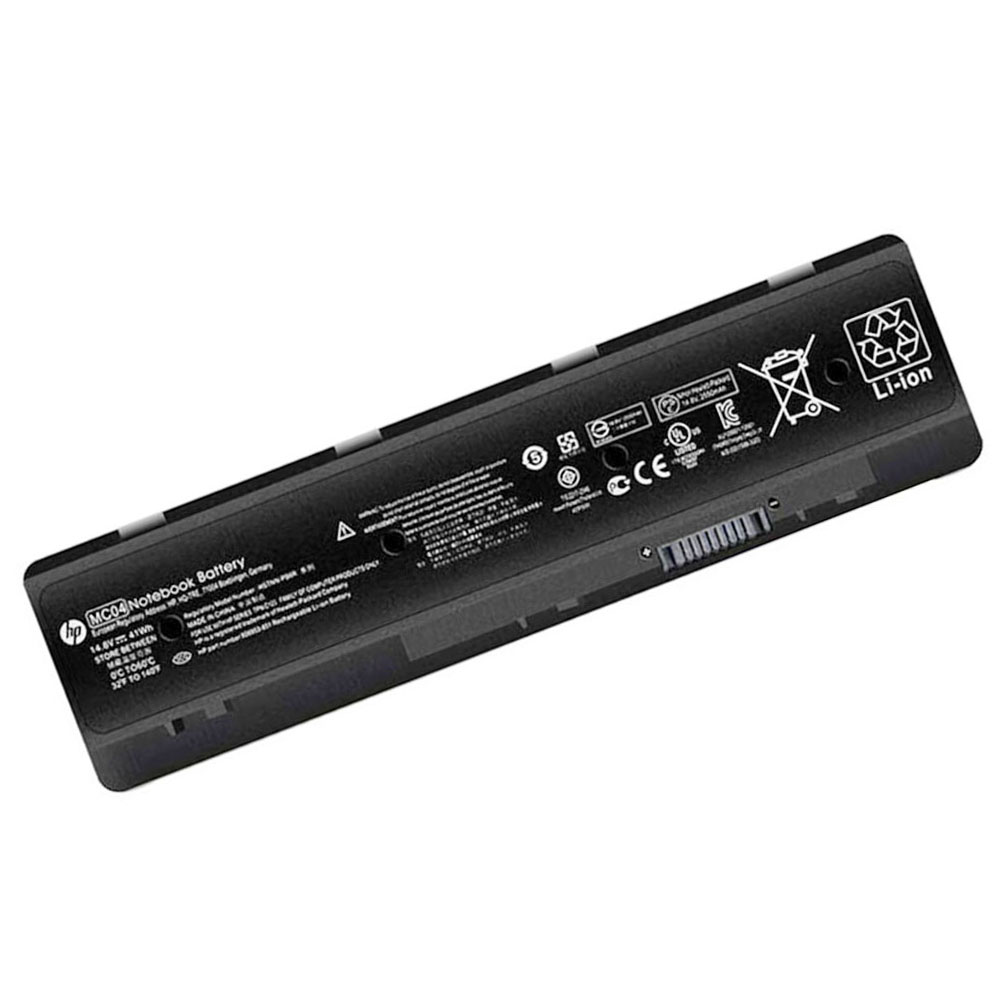
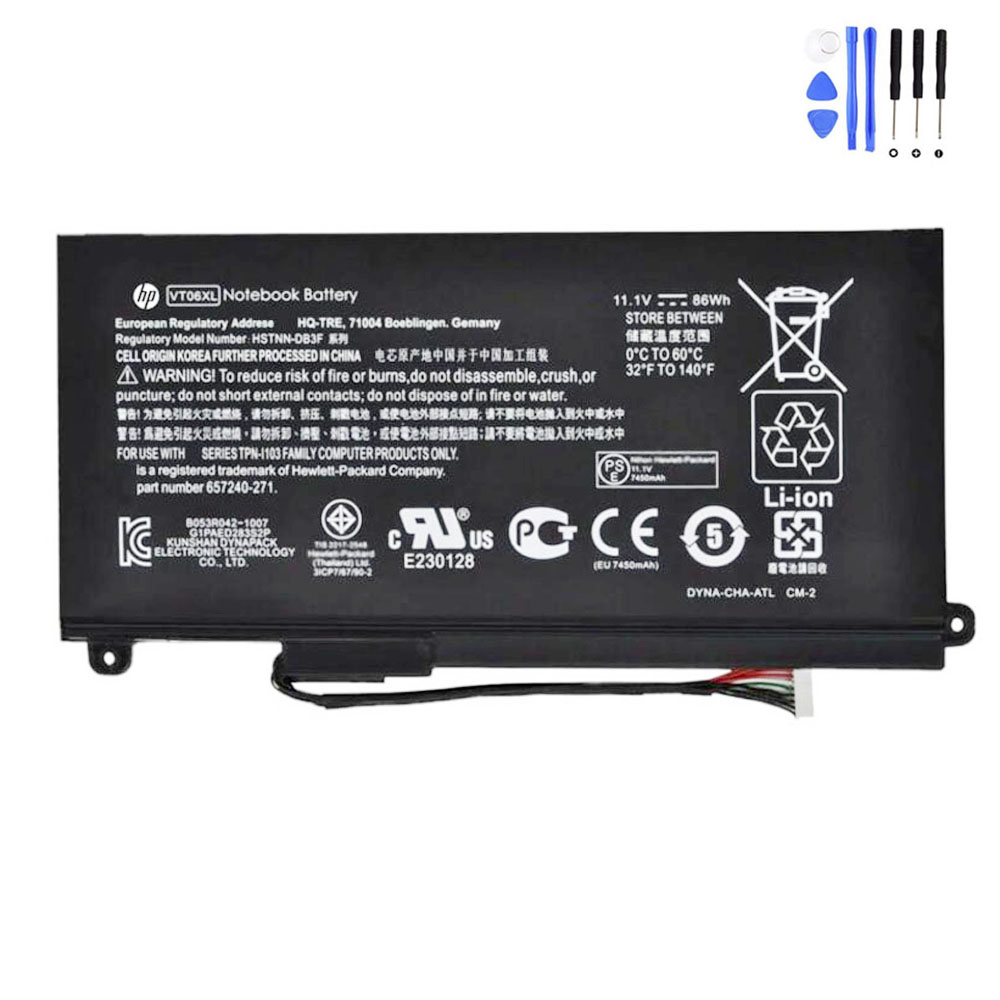
If your HP model has an internal battery, the label on the battery itself usually shows the battery model code
and sometimes a “Replace with HP Spare” number. This is the most direct match.
If you’re not comfortable opening a laptop, it’s completely fine to skip this step and rely on serial-number parts lookup.
For internal batteries, professional installation is always an option.
Step 3: Confirm compatibility (before you order)
Before buying, do a quick checklist to avoid the most common wrong-battery issues:
- Identifier match: Battery model code (best) and/or HP spare/part number matches your lookup result.
- Voltage match: Voltage should match the original battery family (don’t guess).
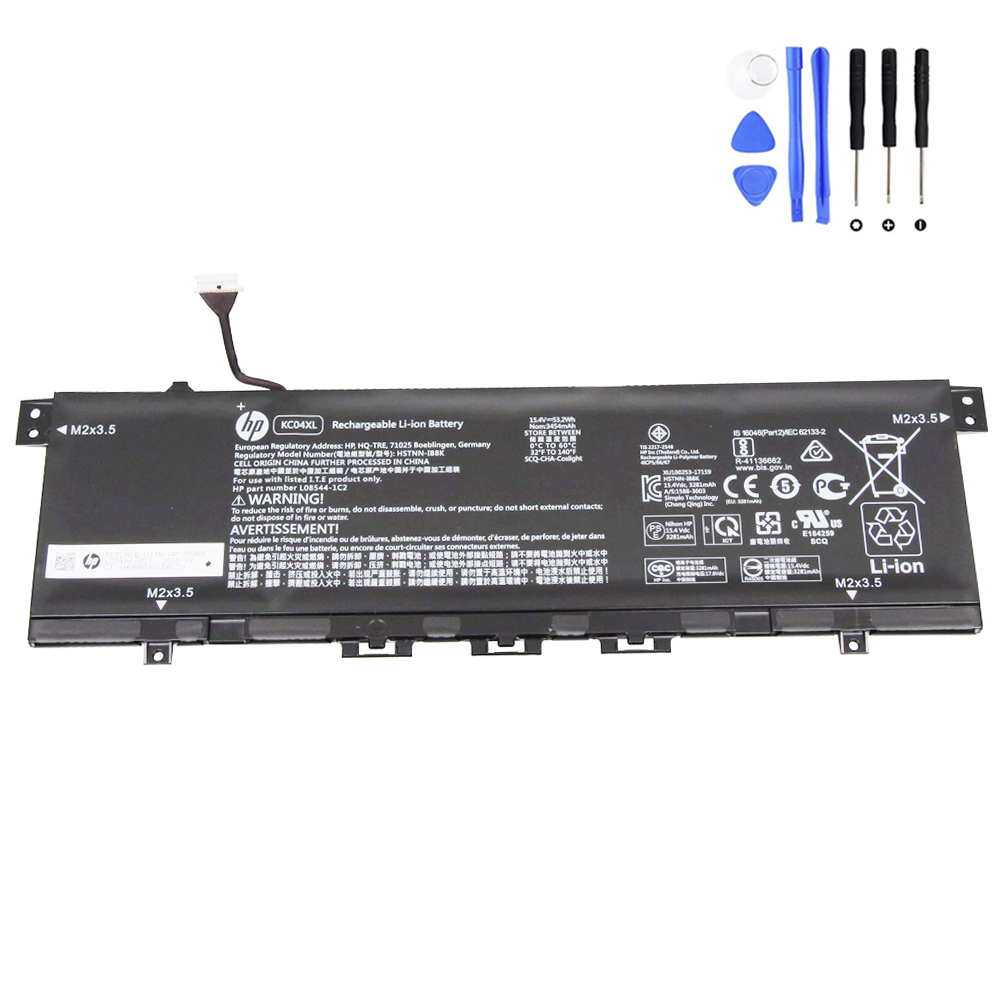
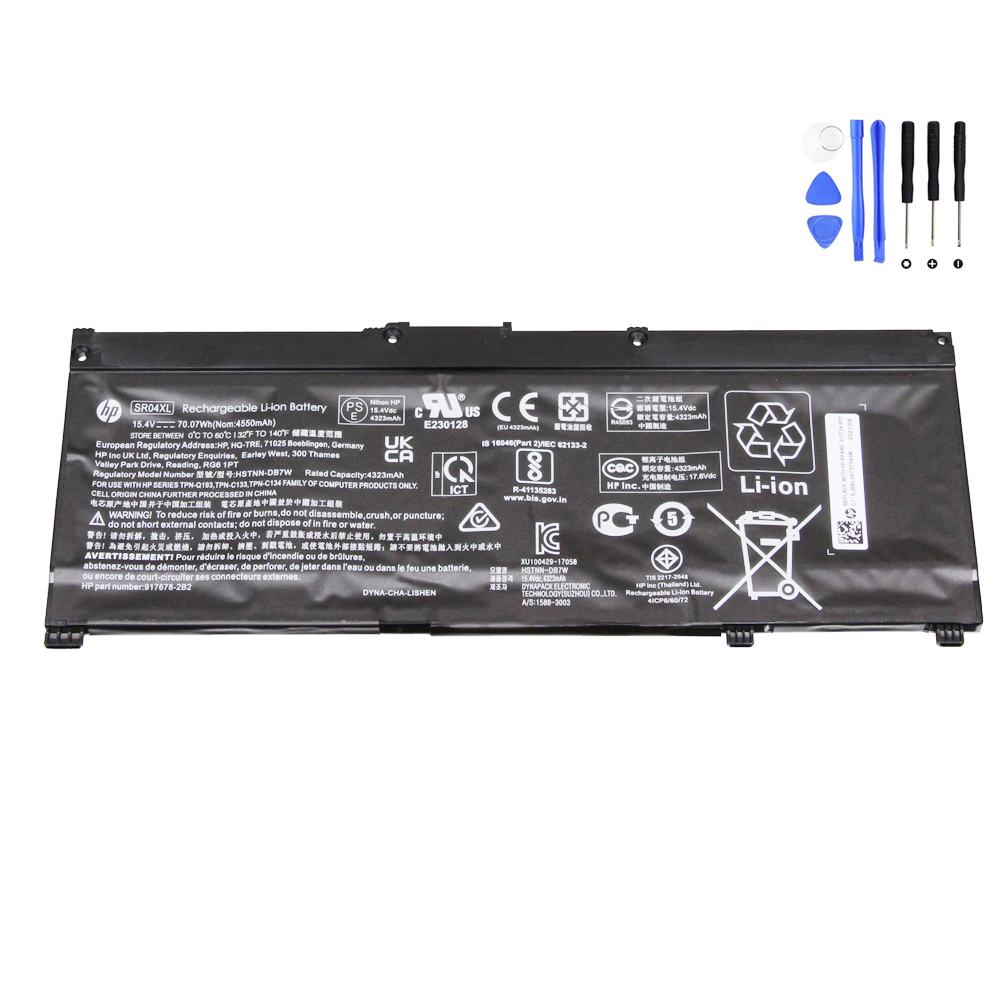
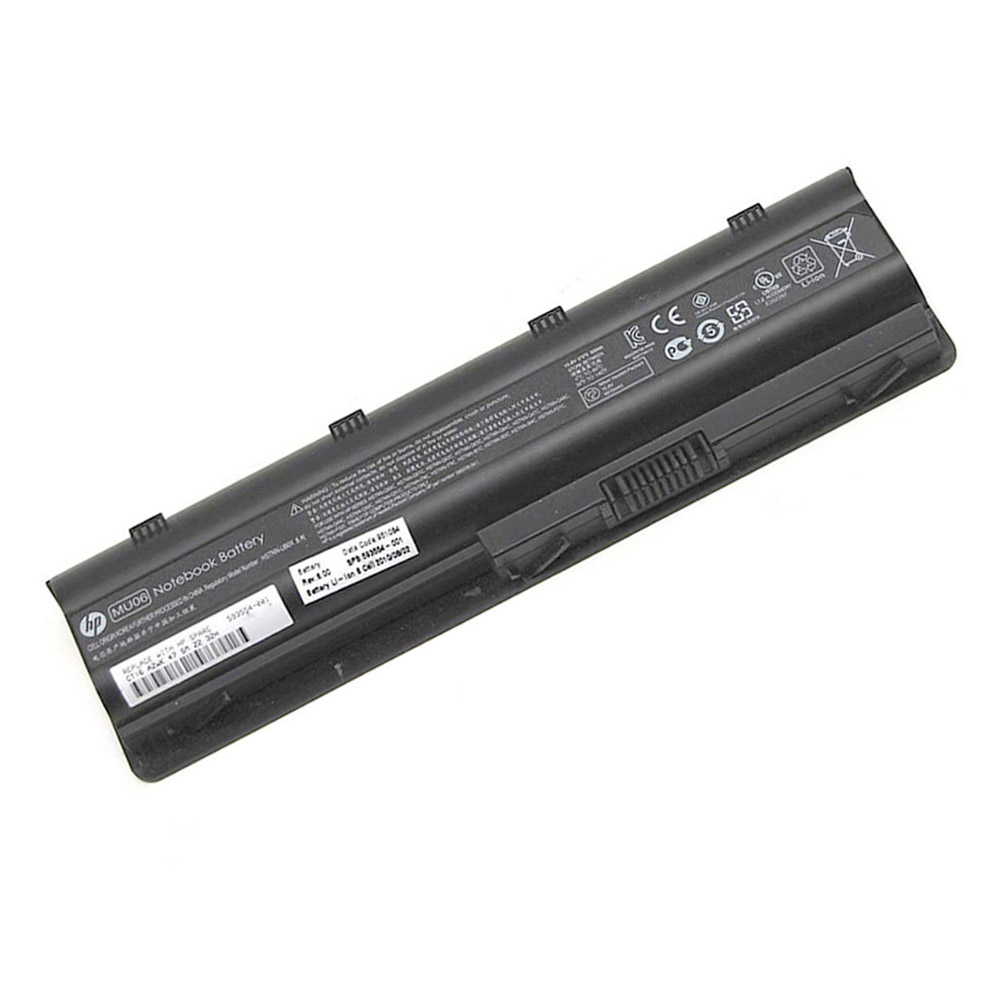
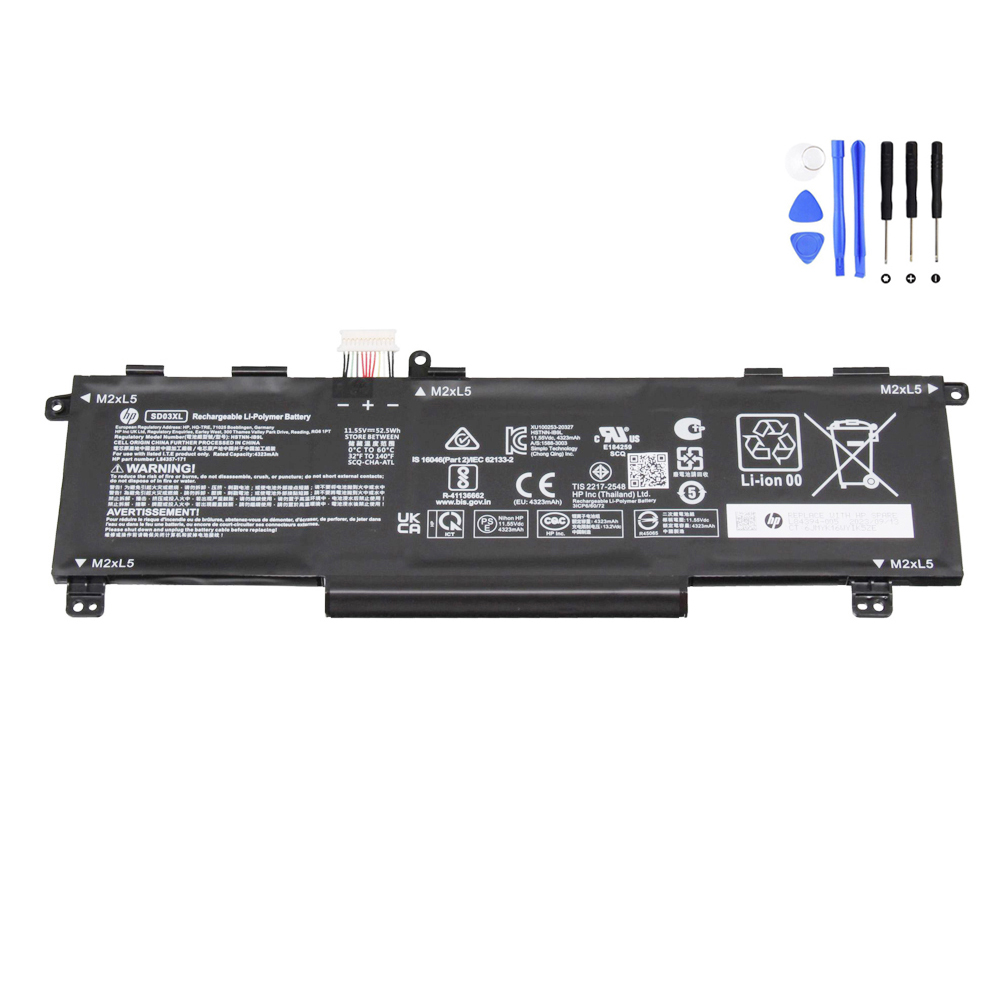
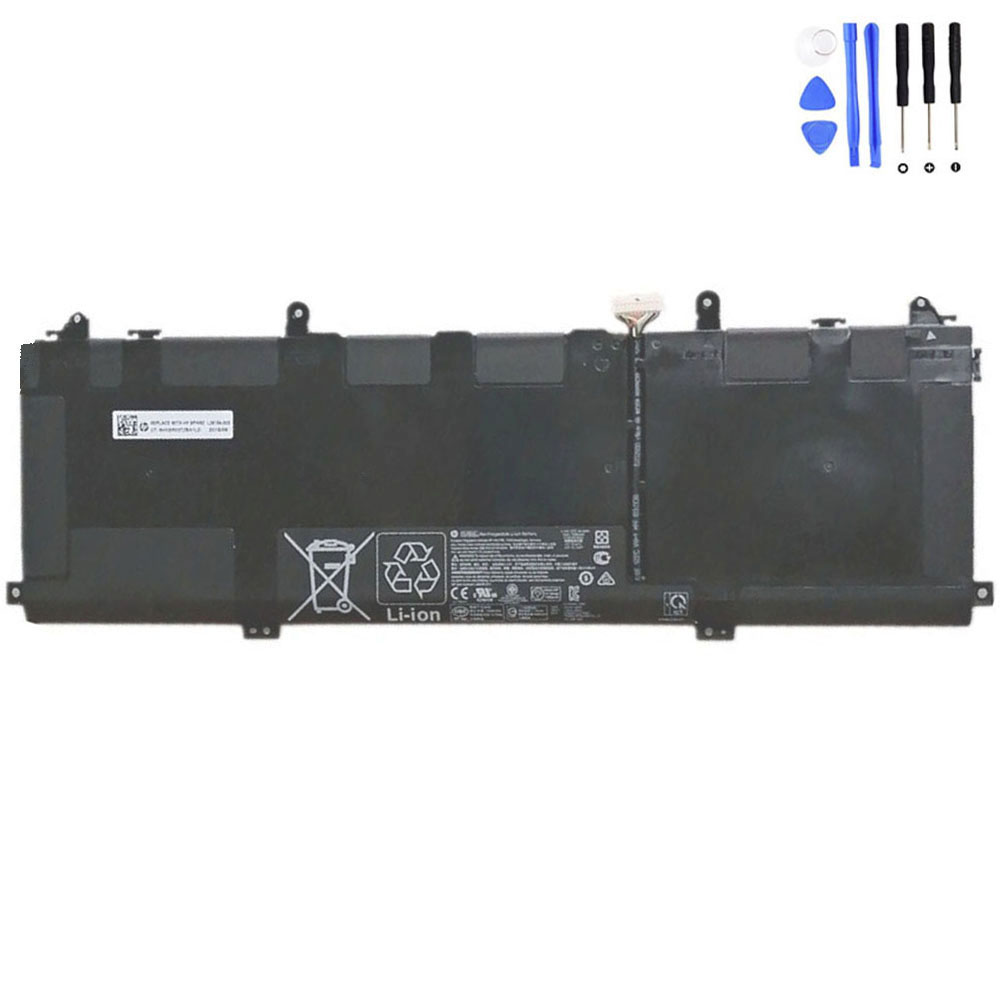
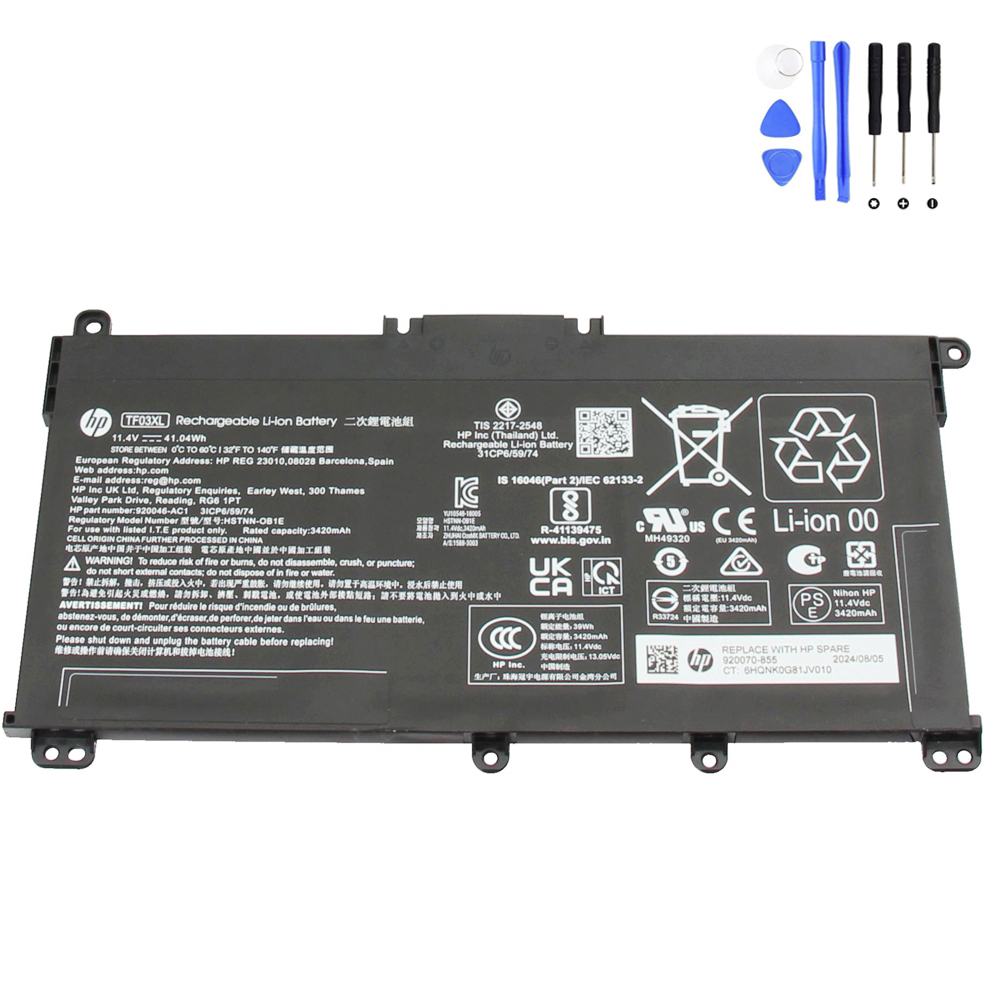
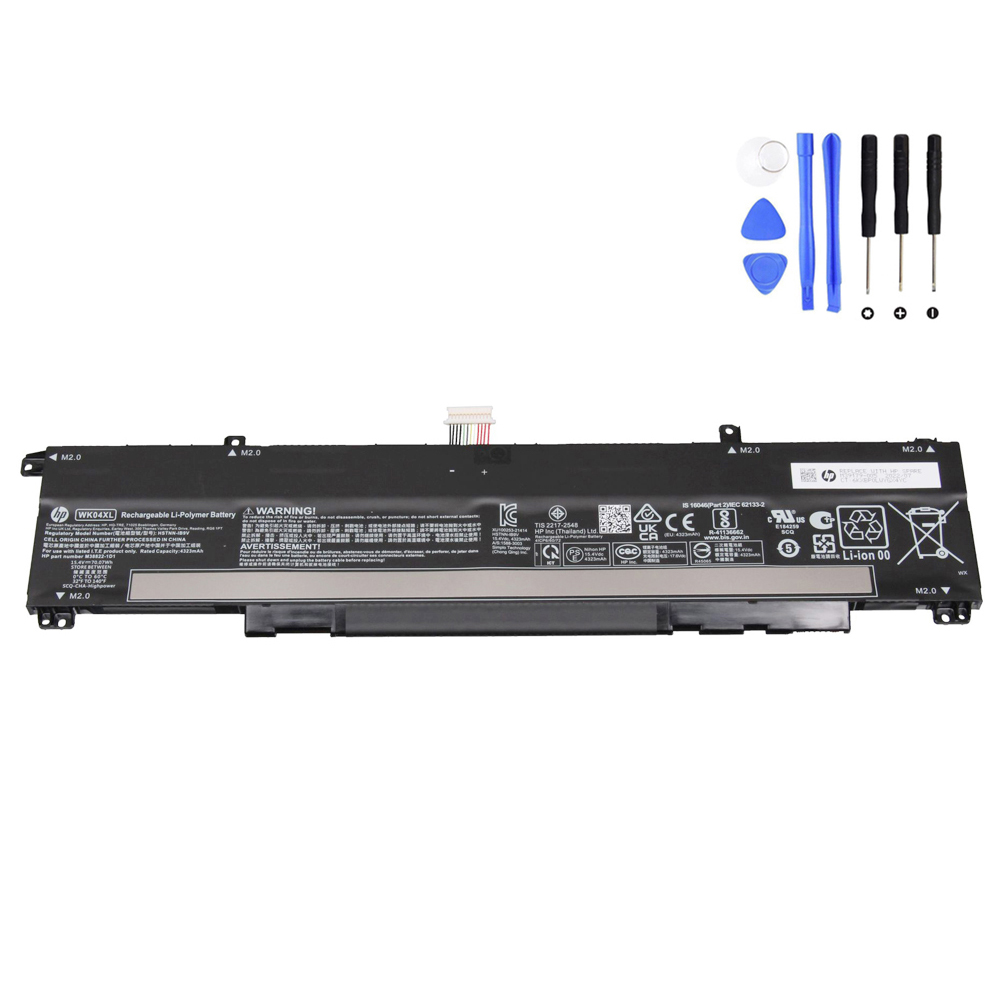
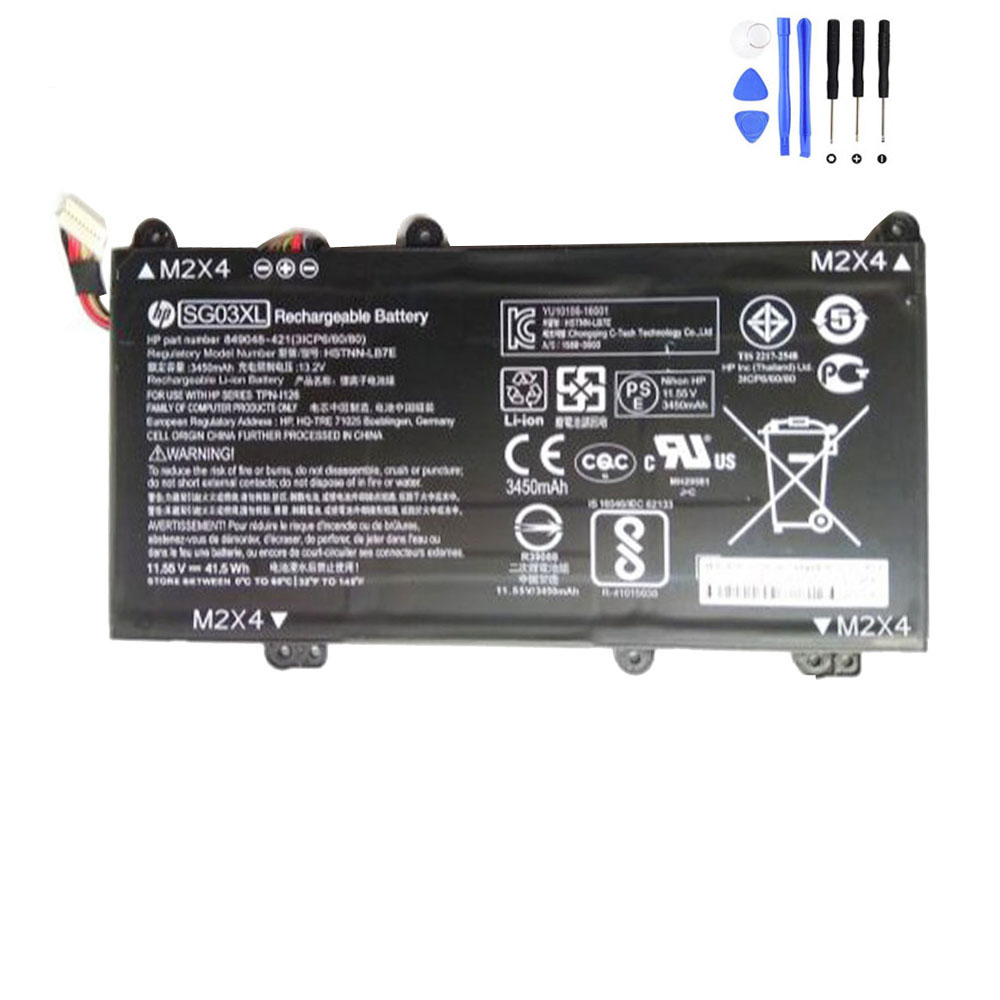
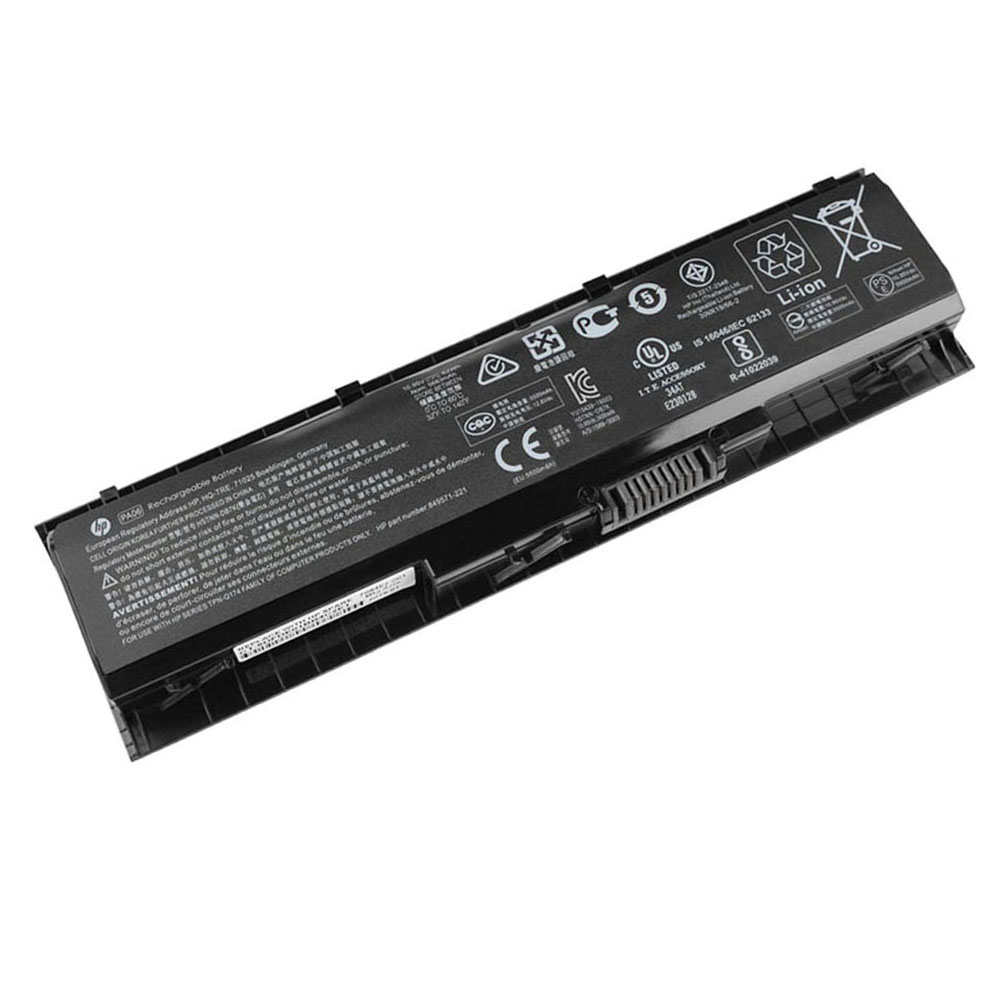
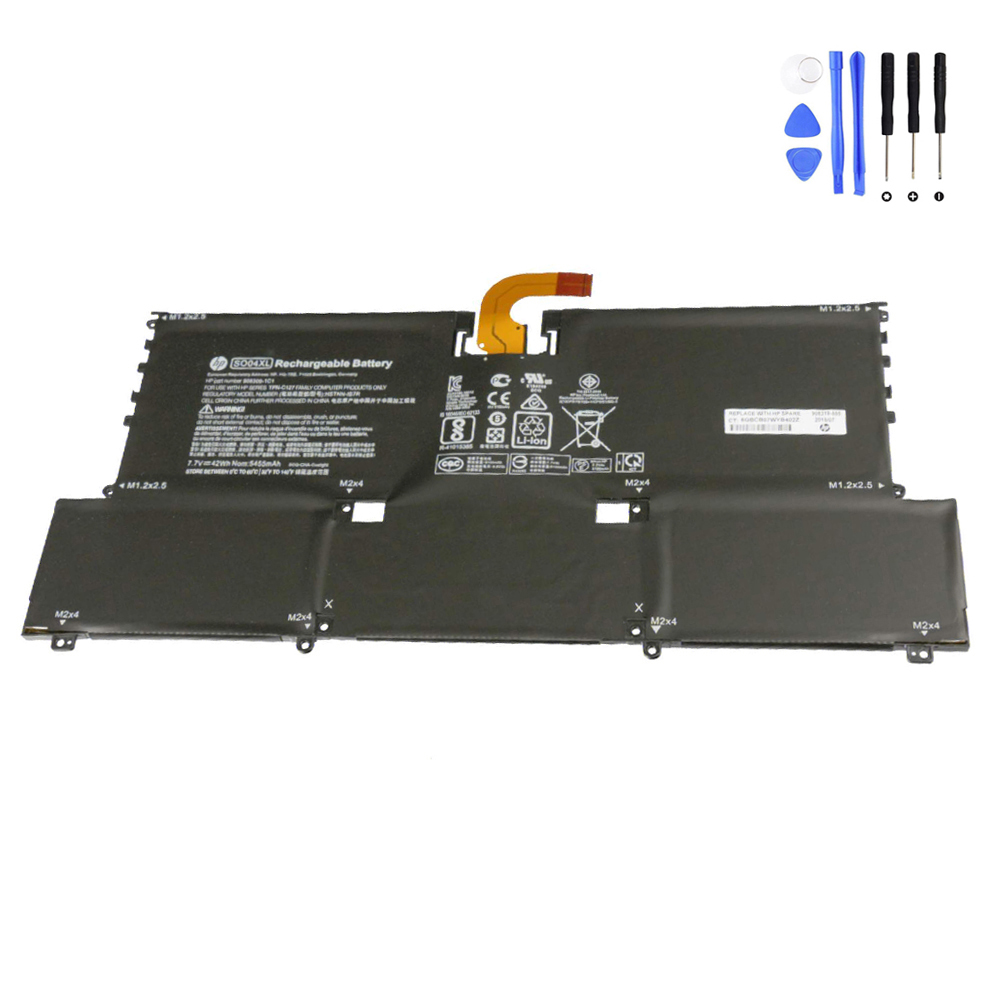
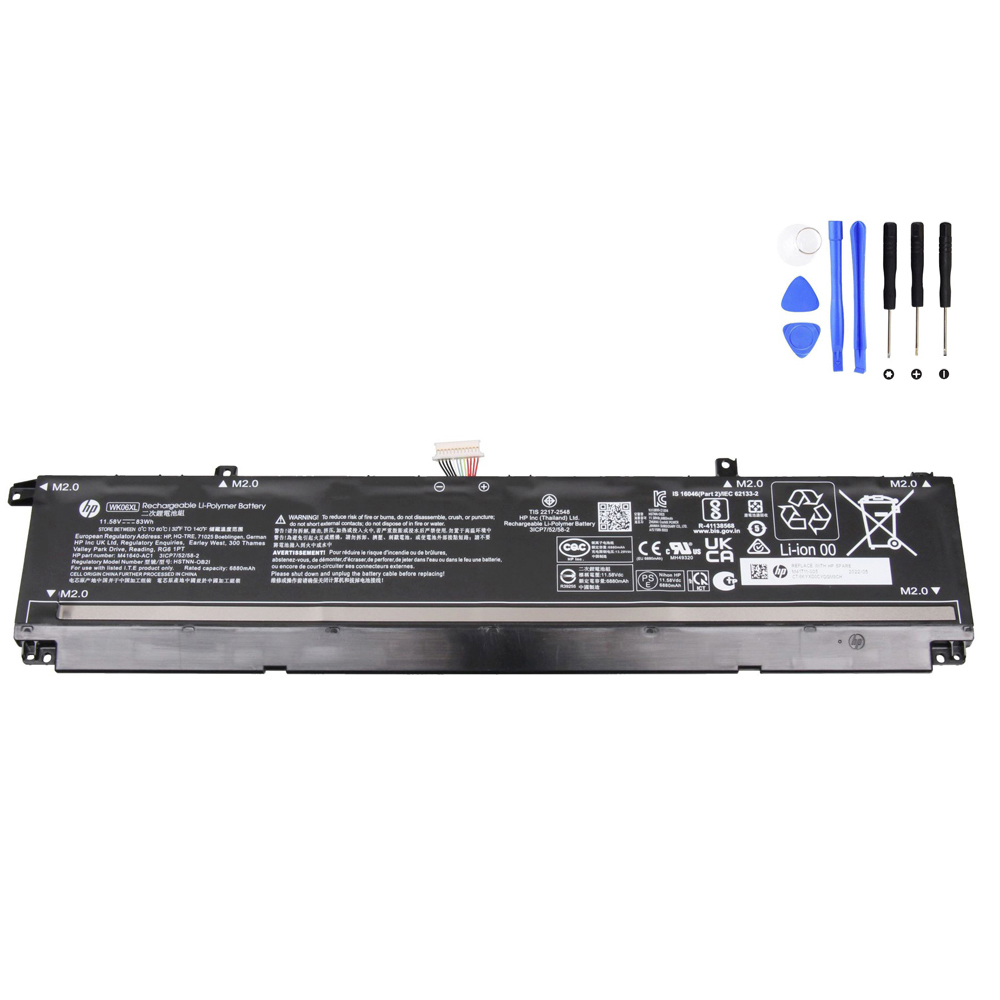
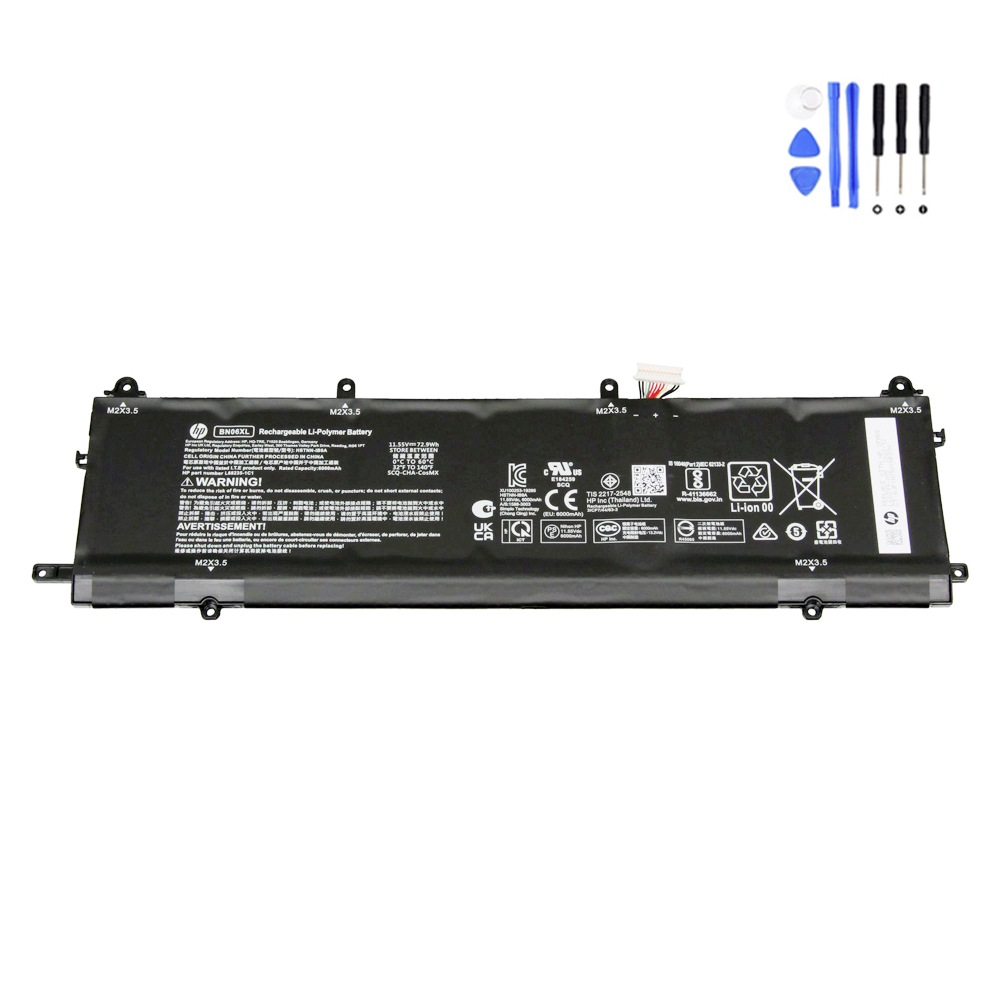
- Shape/layout match: Compare product images to your expected form factor (mounting points and general layout matter).
- Connector position: Similar batteries can differ in connector location/cable routing—product photos help confirm this.
connector position + mounting layout. Always compare photos and identifiers.
Step 4: Find the battery on Fixing-Tools and order
Option A: Search by battery model code (fastest)
- Copy your battery model code (example: HT03XL).
- Open our HP battery category: Battery for HP
- Use your site search (or Google site search below) to find the matching product page.
- Open the product page, verify key specs, then add to cart and checkout.
Option B: Search by HP spare/part number (great for cross-checking)
- Copy the HP spare/part number from your serial-number parts lookup.
- Search it on our site and open the closest matching product page.
- Confirm the battery model code and voltage on the product page match your notes.
Use Google with the format below, replacing the code with yours:
site:fixing-tools.store/laptop-parts HT03XL
Clickable best-selling HP batteries (image gallery)
Want to start from the most popular options? Here are best-selling HP battery listings (click any image to open the product page).






FAQ
How do I find out what battery my HP laptop has?
The most reliable method is: Serial number → HP parts/compatibility listing → battery model code / HP spare number.
If you can safely view the battery label, the battery model code printed on it is the fastest match.
Where can I find my HP battery part number?
It may appear on the battery label (sometimes as “Replace with HP Spare”) and also in HP’s parts listing when you look up your laptop using the serial number.
Why do some HP batteries look similar but don’t fit?
HP often has multiple internal variants for the same laptop family name. Connector position, cable routing, and mounting layout can differ.
That’s why matching by battery model code (and confirming with product photos) is important.
What if I have the serial number but still see multiple battery options?
Use the battery model code + voltage as the tie-breaker. If you’re still unsure, compare the physical layout using images and confirm the connector position.