The Dell XPS 15 is one of the most “charging-sensitive” laptops because it can draw a lot of power under load.
That’s why you’ll see confusing messages like “Plugged in, not charging”, BIOS showing 60W/90W instead of 130W,
or even extreme cases like 5W. This guide consolidates the most searched XPS 15 130W topics that many blogs barely explain:
how 130W over USB-C works, why wattage detection changes, how docks limit power, and what to check first.
use the correct-wattage adapter + a high-quality USB-C cable, then verify BIOS recognition.
- Why XPS 15 can use 130W over USB-C (and why most USB-C chargers can’t)
- What it means when BIOS shows 130W vs 90W vs 60W vs 5W
- Pro troubleshooting workflow (fastest order)
- Docking stations (WD19/WD19TB): why “130W” often turns into 90W
- Third-party GaN 100W/140W chargers: why they may still show 65W/90W
- USB-C cable rules (e-marker, 5A) and the “swap the cable” truth
- Power banks: can 65W/90W charge an XPS 15?
- Is a 130W charger running hot normal?
- When it’s the battery (and when replacement makes sense)
- FAQ
1) Why XPS 15 can use 130W over USB-C (and why most USB-C chargers can’t)
A common question is: “Isn’t USB-C limited to 100W?”
In practice, “USB-C” is the connector, while charging depends on the power negotiation method and compatibility.
Many XPS 15 configurations can pull high power under sustained CPU/GPU load, and some Dell ecosystems support
higher-than-typical power delivery behavior for certain combinations of device/adapter/dock.
- 130W behavior is not guaranteed with every “130W USB-C” charger.
- Your XPS may accept power but display a lower recognized wattage (90W/60W/65W) if negotiation isn’t ideal.
- Under heavy load, undersized or poorly negotiated power often causes battery drain while plugged in.
That’s why the “right charger” problem for XPS 15 is not just about watts on the label—it’s about
recognition, negotiation stability, and cable capability.
2) BIOS wattage map: what 130W vs 90W vs 60W vs 5W usually indicates
If you can, use BIOS as your truth source. If BIOS reports the adapter incorrectly, Windows/macOS tools won’t fix the root cause.
Here’s how to interpret the most searched numbers:
| BIOS shows | What it usually means | Most likely causes | First action |
|---|---|---|---|
| 130W | Ideal recognition for high-load use | Correct adapter + stable negotiation | If still not charging: check battery health/settings |
| 90W | Recognized but may be insufficient under heavy load | Dock limitation, adapter/cable limits, negotiation fallback | Swap cable/port; test direct (no dock); reduce load as test |
| 60W / 65W | Low recognition → slow charge or drain-under-load | Non-ideal cable, third-party charger behavior, port issues | Try a known-good high-power cable and correct-watt adapter |
| 5W / 4W | Negotiation failed → “safety fallback” power | Handshake failure: cable/port/dock/adapter instability | Remove dock; swap cable; try another port; power reset; retest |
adapter → cable → port → dock → firmware. Don’t start with Windows settings.
3) Pro troubleshooting workflow (fastest order, least guesswork)
This is the order most technicians use because it isolates the root cause quickly.
- Direct connect: remove dock/hub; plug charger directly into the laptop
- Swap the cable (USB-C): known-good, high-power cable
- Try another port (if model has multiple)
- Power reset (EC reset): shutdown → unplug → hold power 20–30s → reconnect
- BIOS check: AC Adapter Type / wattage + Battery Health
- Load test: does battery drain only under heavy CPU/GPU load?
- Firmware update: BIOS + dock firmware (if dock is involved)
- Battery decision: replace if health is poor, unstable %, or won’t run unplugged
Step A: Remove the dock/hub and test “charger → laptop” only
- Docks can cap the wattage even if the power brick is large.
- A dock can also introduce negotiation instability (especially with worn cables or older firmware).
Step B: Inspect and clean the USB-C port (and test another port)
- Check for lint/debris that prevents full insertion or stable contact.
- If charging changes when you gently move the connector, suspect port wear.
Step C: EC/Power reset (clears many “stuck charging” states)
- Shut down the laptop.
- Unplug charger.
- Hold power button for 20–30 seconds.
- Reconnect charger and boot.
Step D: BIOS confirms what the laptop believes
- If BIOS shows Unknown / 5W / 60W, focus on negotiation hardware factors (adapter/cable/port/dock).
- If BIOS shows proper wattage but charging stops, check battery health and charging limit settings.
4) Docking stations (WD19/WD19TB): why “130W” often turns into 90W
This is one of the most searched but least clearly explained topics:
a dock can be marketed with “130W” capability, yet your XPS 15 may show 90W (or even lower).
That’s usually because the dock’s power budget is split across:
the laptop + the dock electronics + connected devices, and some dock variants/power-brick combinations behave differently.
- Test direct first (no dock). If direct is fine, the dock path is the issue.
- Update dock firmware if available. Dock PD behavior can improve with updates.
- Check the dock’s power brick: some docks require higher-watt bricks to deliver full power to the laptop.
- Disconnect high-draw peripherals (external SSDs, bus-powered devices) as a power-budget test.
5) Third-party GaN 100W/140W chargers: why XPS 15 may still show 65W/90W
Many users buy a modern GaN charger labeled 100W or 140W and expect it to “beat” the Dell adapter.
But the XPS 15 may still show 65W/90W, charge slowly, or drain under load. Common reasons:
- Compatibility/negotiation behavior: the laptop may choose a conservative profile if it can’t confirm a stable high-power contract.
- Multi-port sharing: many GaN chargers reduce power when more than one port is in use.
- Cable limitation: a non-compliant cable can cap power even if the charger is capable.
- Load reality: under heavy XPS 15 load, even “close” wattage can still lead to battery drain while plugged in.
- Boot into BIOS and note the recognized wattage.
- Boot into Windows and run a high load task (export video, compile, stress test).
- If the battery percentage drops while plugged in, your adapter setup is not delivering enough usable power for your load.
6) USB-C cable rules (e-marker, 5A): the “swap the cable” fix that blogs overlook
With high-power USB-C charging, the cable is not a passive accessory—it’s part of the power negotiation.
A cable that looks fine can still limit you to lower wattage or unstable charging.
| Cable situation | What you may see | Fix |
|---|---|---|
| Low-quality USB-C cable | 60W/65W recognition, slow charge, disconnects | Use a known-good high-power cable |
| Cable is worn/loose | Random connect/disconnect, wattage jumps | Replace cable; test another port |
| Using a hub/dock cable path | Power caps at 90W or lower | Test direct to laptop; update dock firmware |
7) Power banks: can 65W/90W charge an XPS 15?
Users search this a lot: “Can I use a 65W power bank for XPS 15?”
The realistic answer is: sometimes, but expectations matter.
- Light use or laptop sleeping/off: often works as slow charging.
- Heavy use (CPU/GPU load): likely battery drain while plugged in.
- Low wattage shown (60W/65W): normal with many power banks; it’s a capability/negotiation reality.
- Use power bank for travel, note-taking, browsing—avoid heavy GPU/CPU work.
- Lower brightness and unplug peripherals to reduce power draw.
- If you need performance while charging, use a higher-watt dedicated adapter.
8) Is it normal for a 130W charger to get hot?
“My 130W charger is hot” is a high-frequency concern. Some warmth is normal: power conversion creates heat.
The real question is whether the heat looks like normal load heat or a problem signal.
- Warm adapter body during heavy charging
- Warmer in hot rooms or poor airflow areas
- Heat reduces after battery reaches high %
- Burning smell, crackling noise, visible melting
- Connector gets extremely hot to touch quickly
- Charging disconnects repeatedly + heat spikes
Tip: don’t bury the adapter in blankets or pile it under cables. Good airflow matters at 130W.
Recommended parts (matched to the problems above)
If your BIOS wattage is low or the battery drains under load, start with a correct-watt adapter and a reliable cable.
If BIOS shows proper wattage but charging behavior is unstable and battery health is poor, consider a battery replacement.

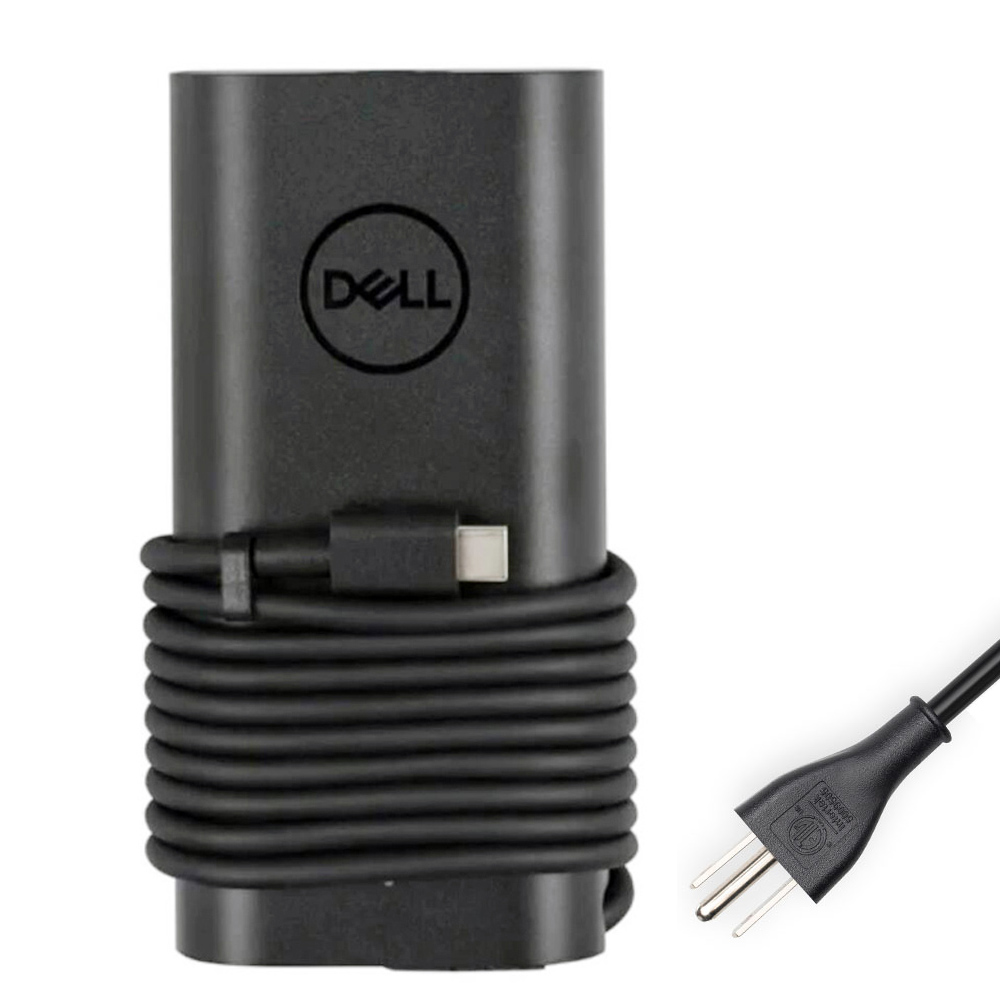
- Reduces “battery drains while plugged in” under sustained load
- Helps prevent slow charging when the laptop power draw is high
- Great for creators: long exports, multitasking, and demanding workflows
- Ideal for web/office tasks and normal charging
- May be insufficient for sustained high CPU/GPU load on some XPS 15 configurations
- Good secondary adapter for travel or the office
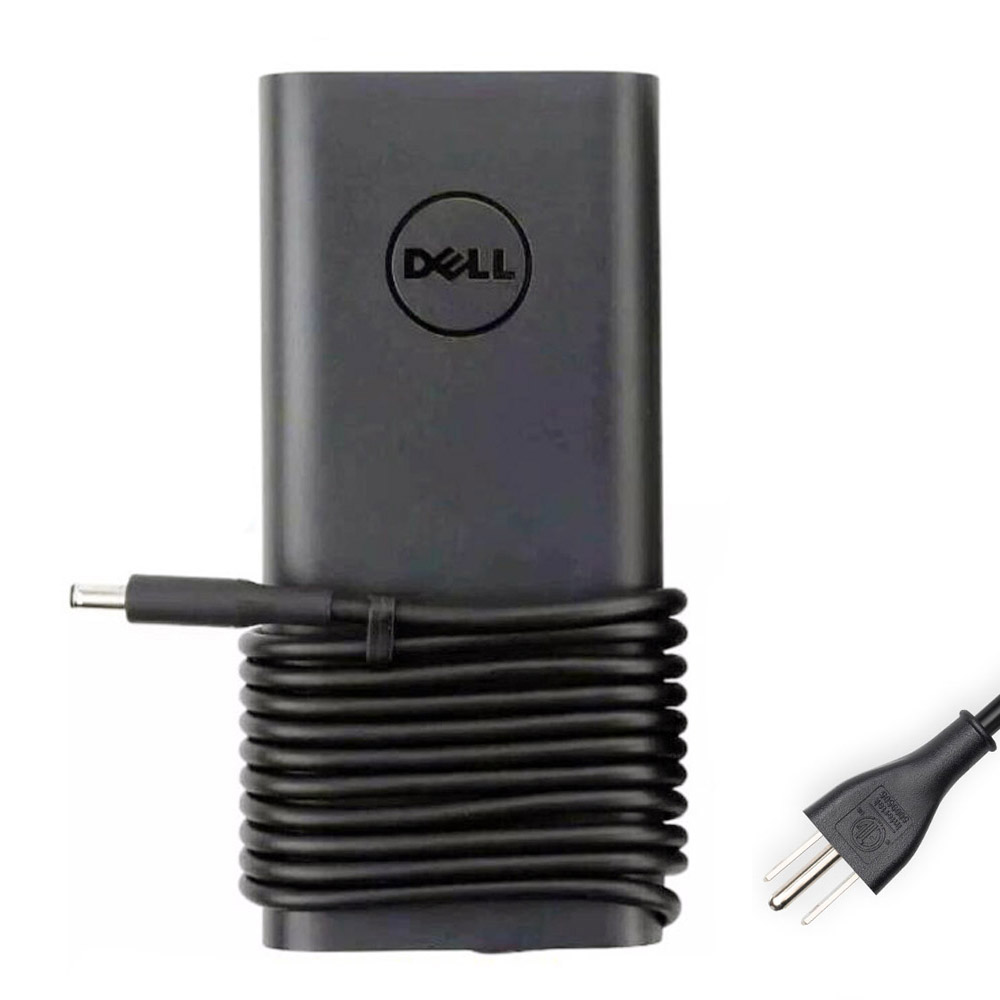
Some older XPS models use barrel connectors. If the plug is loose or the jack is worn, you can get adapter-not-recognized behavior
and intermittent charging. Always match connector size and wattage to your exact model.
9) When it’s the battery (and when replacement makes sense)
Not every “not charging” problem is the charger. Batteries can degrade in ways that cause:
charge stopping early, unstable percentage jumps, sudden shutdowns, or the laptop refusing to run unplugged.
If BIOS shows a recognized adapter but battery health is poor, a replacement is often the most reliable fix.
- BIOS battery health: Poor / Replace / unstable status
- Sudden shutdown with charge remaining
- Battery percentage jumps or drains inconsistently
- Laptop won’t run on battery (only on adapter)
- Any swelling or chassis/trackpad lifting (stop using and replace)
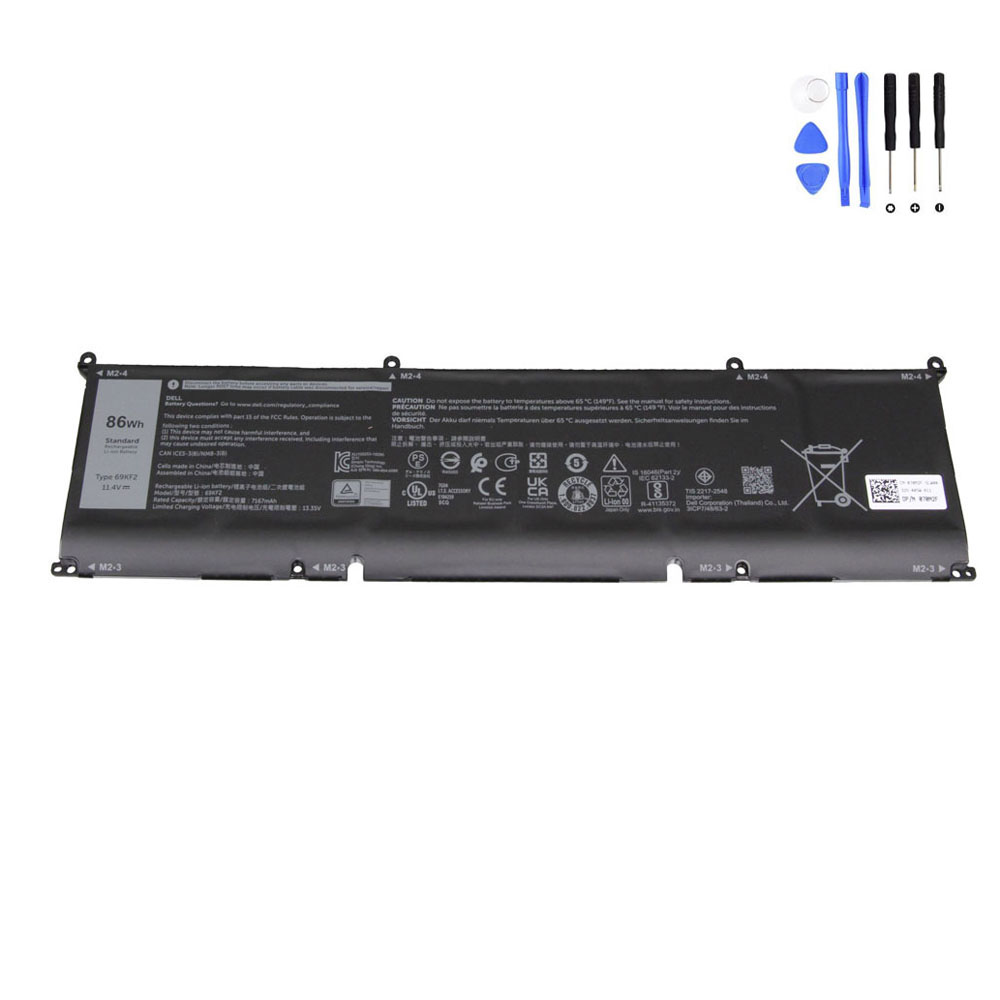
Ideal if your XPS 15 shows poor battery health, unstable runtime, or charging stops unexpectedly.
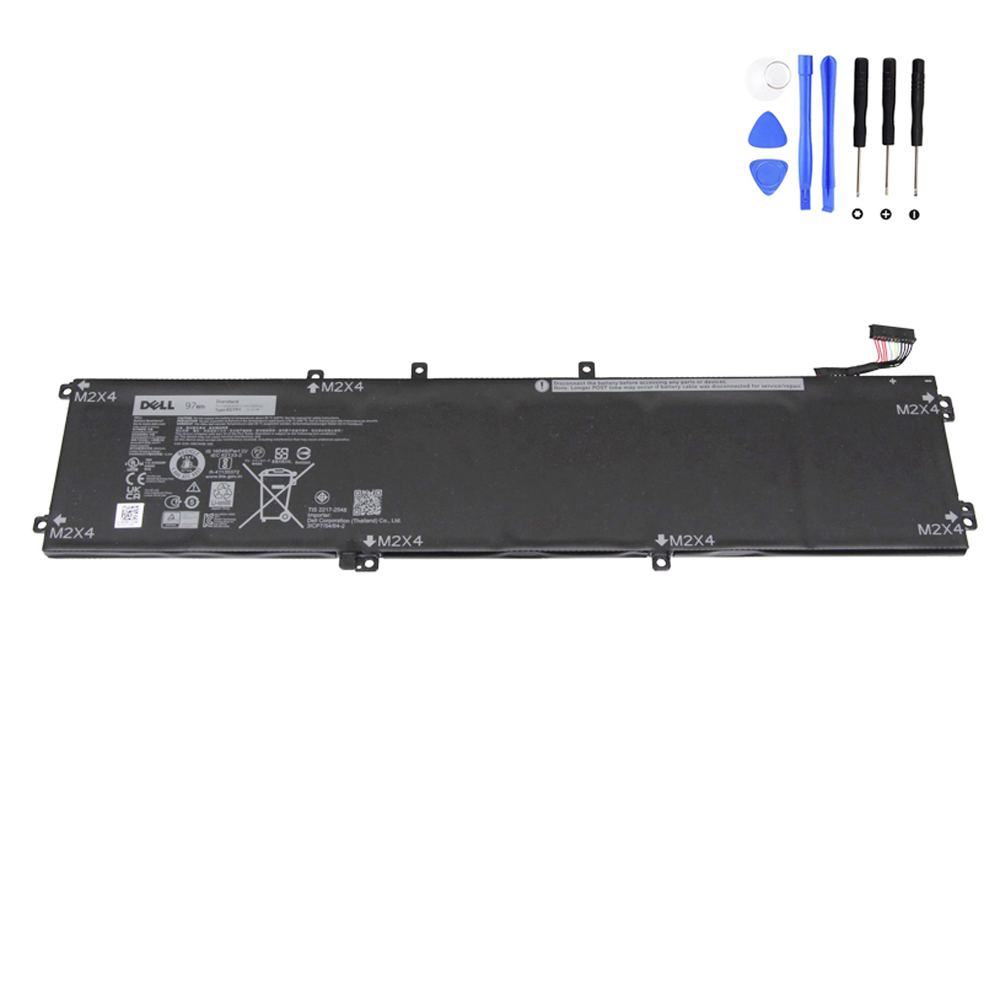
Higher capacity option for longer unplugged runtime on compatible XPS configurations.

A solid replacement choice when your original battery has degraded and runtime has dropped.
FAQ: Dell XPS 15 130W charging
Start by removing the dock, swapping to a known-good high-power USB-C cable, and checking BIOS wattage again.
Remove hubs/docks, swap the cable, try another port, do an EC reset, and retest BIOS wattage.
and negotiation behavior can reduce the “usable” power. BIOS wattage reading is the fastest way to confirm.
the laptop will supplement power from the battery. This is very common under heavy CPU/GPU load when wattage is capped at 60–90W.
or the connector becomes dangerously hot quickly, especially if charging is unstable.
If the adapter is recognized but the battery is unhealthy, replace the battery and re-check charging stability.