“Dell XPS 15 battery replacement” sounds straightforward—until you actually start shopping. The XPS 15 name covers many generations
(9550/9560/9570/7590 and newer 9500/9510/9520/9530 lines), and Dell has shipped multiple battery options across configurations.
That’s why you’ll often see batteries online that look similar, list the same capacity, or claim wide compatibility—yet they still may not fit.
This guide gives you a practical, step-by-step method to identify the exact XPS 15 battery you need,
avoid wrong connector/layout issues, and order the correct replacement with confidence.
- Find your Dell Service Tag (best) OR read the battery label (fastest if accessible).
- Record the battery part number (example: 6GTPY), plus the Wh rating (example: 97Wh).
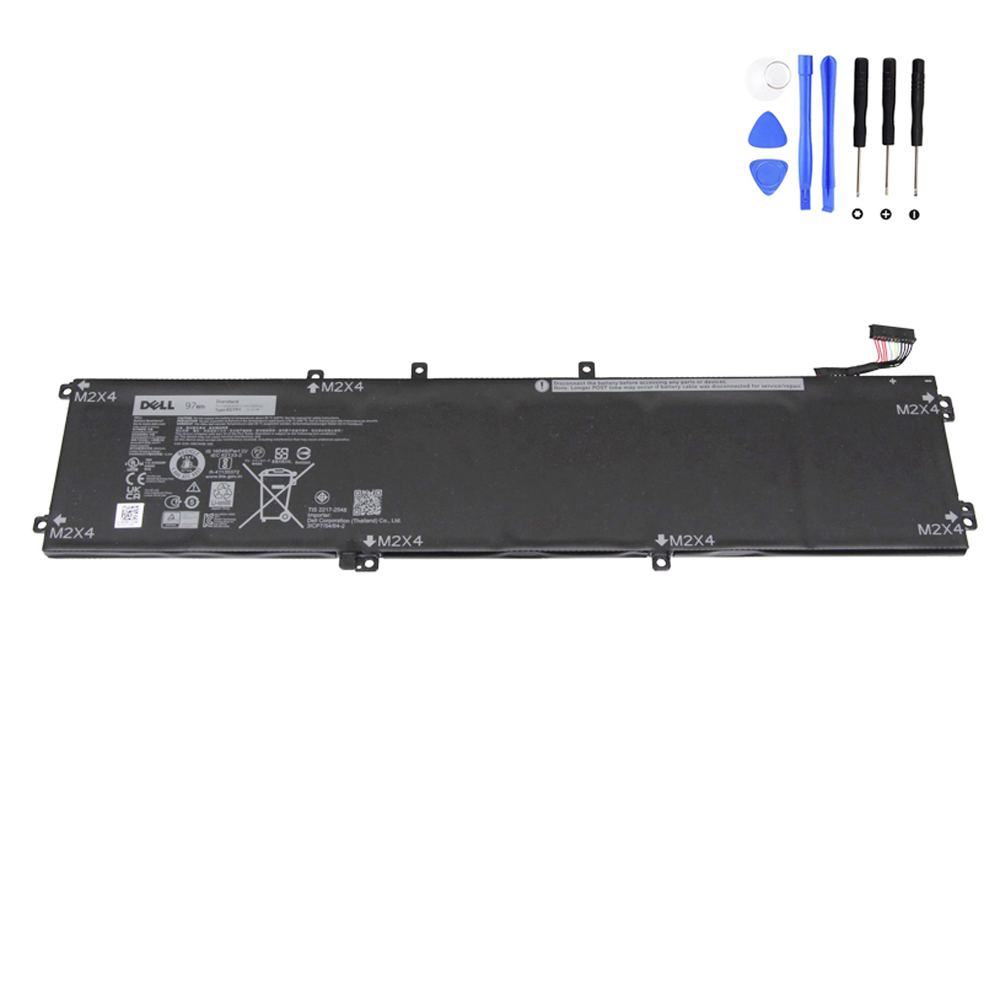
- Confirm connector position + layout using product photos.
- Order from a trusted listing that matches your identifiers (see recommended links at the end).
- Why XPS 15 battery matching is tricky
- Step 1: Use the Dell Service Tag (most reliable)
- Step 2: Read the battery label (fastest confirmation)
- Step 3: Compatibility checklist (avoid wrong fit)
- Step 4: 97Wh vs smaller packs (what it really means)
- Do you actually need a new battery? (symptoms)
- Before you buy: rule out charger/port issues
- Where to buy a compatible XPS 15 battery
- FAQ
Why XPS 15 battery matching is tricky
The XPS 15 line has several chassis families and platform updates. Even within the same model number, Dell may ship different internal
layouts depending on GPU configuration, storage layout, or production revision. That leads to these common problems:
- Multiple battery capacities in the same generation (capacity alone is not a reliable identifier).
- Similar-looking batteries with different connectors or different cable routing.
- Over-broad “compatibility lists” that don’t validate your exact part number.
Service Tag and/or the battery part number printed on your original battery.
Step 1: Use the Dell Service Tag (most reliable method)
The Dell Service Tag identifies your exact configuration. If you only do one thing before buying a battery, do this.
It dramatically reduces the risk of ordering a battery that is “close” but not correct.
Where to find the Service Tag
- Bottom label: often printed near regulatory markings and barcodes.
- BIOS/System Information: accessible during startup on most Dell laptops.
- Dell Support software: some systems display the Service Tag inside Dell utilities.
How to use it to identify the correct battery
- Record your Service Tag.
- Use it in Dell’s support/parts lookup resources to view supported replacement parts.
- Find the battery entry and write down the battery part number and any related identifiers.
- Use that part number to match your replacement listing.
Step 2: Read the battery label (fastest confirmation)
If you can safely access the internal battery (or if your model already exposes it during service), the battery label is your direct answer.
The label typically includes:
- Battery part number (example: 6GTPY)
- Capacity in Wh (example: 97Wh)
- Regulatory/model codes that help distinguish similar packs
use the Service Tag method instead or consider professional replacement.
Step 3: Compatibility checklist (avoid wrong-fit orders)
Use this checklist right before purchase. It’s built to prevent the most common XPS 15 battery ordering mistakes.
| Compatibility check | What to verify |
|---|---|
| 1) Exact part number |
Match the part number from Service Tag lookup or battery label (example: 6GTPY). This is the strongest compatibility indicator. |
| 2) Wh capacity |
Confirm the Wh rating on your original battery (example: 97Wh). Don’t shop by Wh alone—use it as a confirmation layer after part number match. |
| 3) Connector position | Compare connector location and cable direction with product photos. In internal packs, this is a top reason “it doesn’t fit.” |
| 4) Mounting layout | Look at the overall shape and mounting holes/brackets (if visible). Layout differences can exist even within the same model family. |
| 5) Generation sanity check | Confirm your XPS 15 generation (e.g., 9560 vs 9500). Never assume a battery is interchangeable across different chassis generations. |
Buying “by model name only” is the most common reason for returns.
Step 4: 97Wh vs smaller packs (what it really means)
Many buyers focus on capacity (“I want the biggest Wh battery”), which is understandable—but capacity upgrades are not always compatible.
On some XPS 15 configurations, a larger pack like 97Wh may be tied to a specific internal layout.
- Safe approach: Match part number (or Service Tag result) first, then confirm capacity.
- Risky approach: Buy a battery because the Wh looks right, but the part number and connector layout are different.
Do you actually need a new battery? (common symptoms)
If your XPS 15 is showing one or more of the symptoms below, a battery replacement is usually the correct fix:
- Runtime collapse: you go from hours to minutes even after a full charge.
- Sudden shutdowns: the laptop powers off at 20–60% battery.
- Battery percentage jumps: rapid drops, “sticking,” then sudden drops again.
- Only works plugged in: shuts off immediately when unplugged.
- Health warnings: BIOS/diagnostics indicate the battery needs service.
- Physical changes: trackpad click feels different or bottom cover does not sit flush (stop using and inspect).
Before you buy: rule out charger/port issues
Not every “battery problem” is caused by the battery. Before ordering, do these quick checks:
- Verify your charger wattage is correct for your XPS 15 configuration (underpowered chargers can cause strange behavior).
- Check port stability: if charging only works at certain angles, the port/jack may be involved.
- Review charging limits: some BIOS settings intentionally stop charging below 100% to extend lifespan.
Where to buy a compatible Dell XPS 15 battery
Once you have your correct battery part number (from Service Tag or the battery label), the fastest next step is to choose a matching listing from our Dell battery collection:
https://fixing-tools.store/laptop-parts/product-category/battery/battery-for-dell/
If your parts lookup or battery label shows the part number 6GTPY and capacity around 97Wh,
you can view the matching replacement here (always confirm by Service Tag/battery label before ordering):
FAQ
Can I buy a battery just by searching “XPS 15 battery”?
It’s not recommended. XPS 15 spans many generations and can have multiple battery options. Use your Service Tag or original battery label to match the correct part number.
Is a higher Wh battery always better?
Higher Wh can mean longer runtime, but only if it is designed for your exact internal layout. Match the correct part number first, then confirm capacity.
What if I only know my model number (like 9560) but not the part number?
Use your Dell Service Tag to look up the correct battery part number for your configuration, then match that part number on the replacement listing.
Model number alone can still be ambiguous across configurations.
What information should I send if I need help confirming compatibility?
- Dell Service Tag (best)
- A photo of your battery label showing the part number (if accessible)
- The Wh capacity shown on your original battery
and are not affiliated with or endorsed by Dell Inc.