If your Dell XPS 15 says “Plugged in, not charging,” charges extremely slowly, or won’t recognize the adapter at all, the root cause is usually one of three things:
power delivery (charger/cable/port), firmware & settings (BIOS/EC), or battery health. This guide walks you through a technician-style flow to isolate the problem quickly—without replacing parts blindly.
- Common symptoms and what they suggest
- Step 0: Identify your XPS 15 charging type (USB-C vs barrel)
- The troubleshooting workflow (fastest path)
- USB-C charging: wattage, cable, and PD negotiation
- Similar Dell charging problems (and first checks)
- When it’s the battery (and when to replace it)
- Expanded FAQ (PAA-style)
Common symptoms—and what they usually mean
- “Plugged in, not charging” → commonly BIOS/battery settings, battery health limits, or an adapter that’s underpowered/unrecognized.
- Charges only at very low speed → often insufficient wattage, poor USB-C cable (non-e-marked), PD negotiation issues, or thermal throttling.
- Adapter not recognized / “Unknown” adapter → charger ID/PD handshake failure, damaged port, bad cable, or non-compatible adapter.
- Charges when off, not when on → firmware/driver/EC behavior, or system load exceeding adapter wattage.
- Random disconnect/reconnect while charging → loose connector, worn port, cable fatigue, or debris in the port.
- Battery drains even while plugged in → adapter wattage too low for workload (gaming/rendering), or battery is failing.
Important: XPS 15 systems can be sensitive to adapter wattage. If your adapter can’t keep up (or the laptop can’t confirm it), the machine may reduce performance, refuse to charge, or charge only slowly.
Step 0: Identify your XPS 15 charging type (USB-C vs barrel)
Before troubleshooting, confirm how your XPS 15 is meant to charge:
- Look at the charging port: USB-C ports are small and oval; barrel ports are round.
- Check the adapter label: wattage (W) and output (V/A) matter.
- Check BIOS “AC Adapter Type” / “Battery Information” (more on this below).
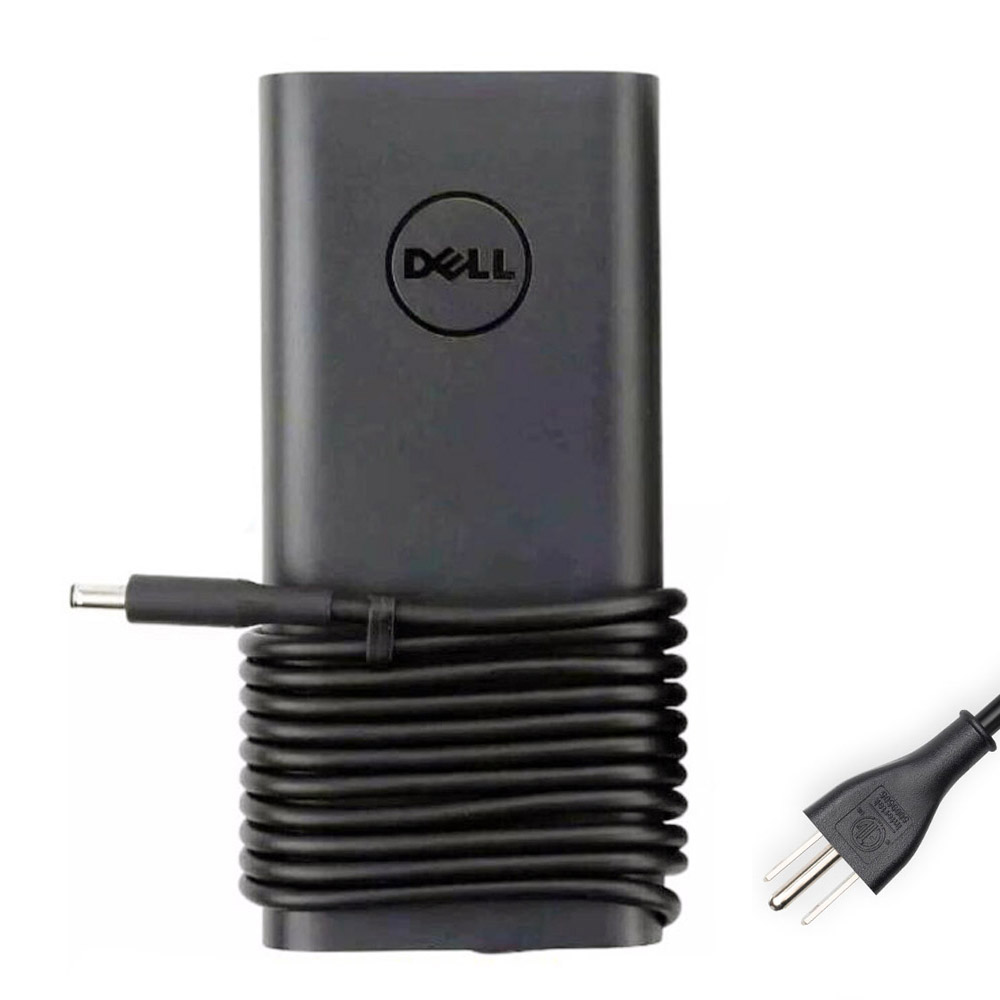
Tip: If your XPS uses a barrel adapter, ensure the connector size and wattage match your model. A loose or mismatched barrel connector can cause intermittent charging or adapter-not-recognized messages.
The troubleshooting workflow (fastest path)
Follow these steps in order. Each step is designed to eliminate a category of failure quickly.
- Swap outlet → confirm adapter LED/status
- Inspect/clean port → test another port/cable
- EC/power reset (20–30s hold)
- BIOS: AC Adapter Type + Battery Health
- Try correct-watt adapter for your workload
- Diagnostics → decide: charger/cable/port vs battery
1) Confirm the basics (but do it like a technician)
- Wall power: try a different outlet (not just a power strip).
- Adapter LED / status: if your adapter has a light, does it stay stable when connected?
- Visual inspection: check for cable cuts, bent USB-C plug, wobbling barrel tip, or scorching/discoloration.
2) Port + connector inspection (the most skipped step)
- Use a flashlight and check for lint, dust, or debris in the USB-C port (or barrel jack).
- Check for looseness: does the plug wiggle more than it should?
- If the connection feels unstable, suspect port wear or internal solder joint damage.
3) Perform an EC/Power reset (fixes many “stuck” charging states)
- Shut down the laptop.
- Unplug the charger.
- Hold the power button for 20–30 seconds.
- Reconnect the charger and power on.
Why this works: the embedded controller (EC) manages charging logic. A reset can clear abnormal states after sleep/hibernation, thermal events, or PD handshake failures.
4) Check BIOS for adapter recognition and battery status
BIOS is where you can confirm what the system thinks is happening.
- Enter BIOS (commonly via F2 at startup, depending on configuration).
- Locate Battery Information and AC Adapter Type.
- If the adapter shows “Unknown” or wattage is missing, focus on charger/cable/port issues.
- If the adapter is recognized correctly but the battery health is Poor (or similar), battery replacement is likely.
5) Run built-in diagnostics (hardware vs software)
Many Dell systems include pre-boot diagnostics. Run them to check the battery, adapter detection, and charging circuit behavior.
USB-C charging: wattage, cable, and PD negotiation
With USB-C charging, wattage isn’t just “nice to have”—it’s fundamental. If you use a lower-watt charger or a weak cable,
the laptop may charge slowly, refuse to charge under load, or repeatedly connect/disconnect.
| Power Option | Best For | Typical Symptoms If Undersized | Notes |
|---|---|---|---|
| 90W USB-C | Everyday office/web work, light workloads | Slow charging, battery drain during heavy load | Quality USB-C cable matters a lot |
| 130W USB-C | XPS 15 under higher load (creative work, sustained performance) | Fewer “plugged in not charging” cases under load | Helps prevent drain-while-plugged behavior |
What to check (USB-C specific)
- Use the correct wattage for your XPS 15 usage profile (especially if it has a dGPU).
- Try a different USB-C cable (high-power, e-marked cables are more reliable for higher wattage).
- Try another USB-C port if your model has multiple ports (one port may be worn/damaged).
- Test while the laptop is off: if it charges only when off, suspect firmware/PD negotiation under load.

- Helps reduce slow-charge or drain-under-load scenarios
- Good choice when XPS performance demand is high
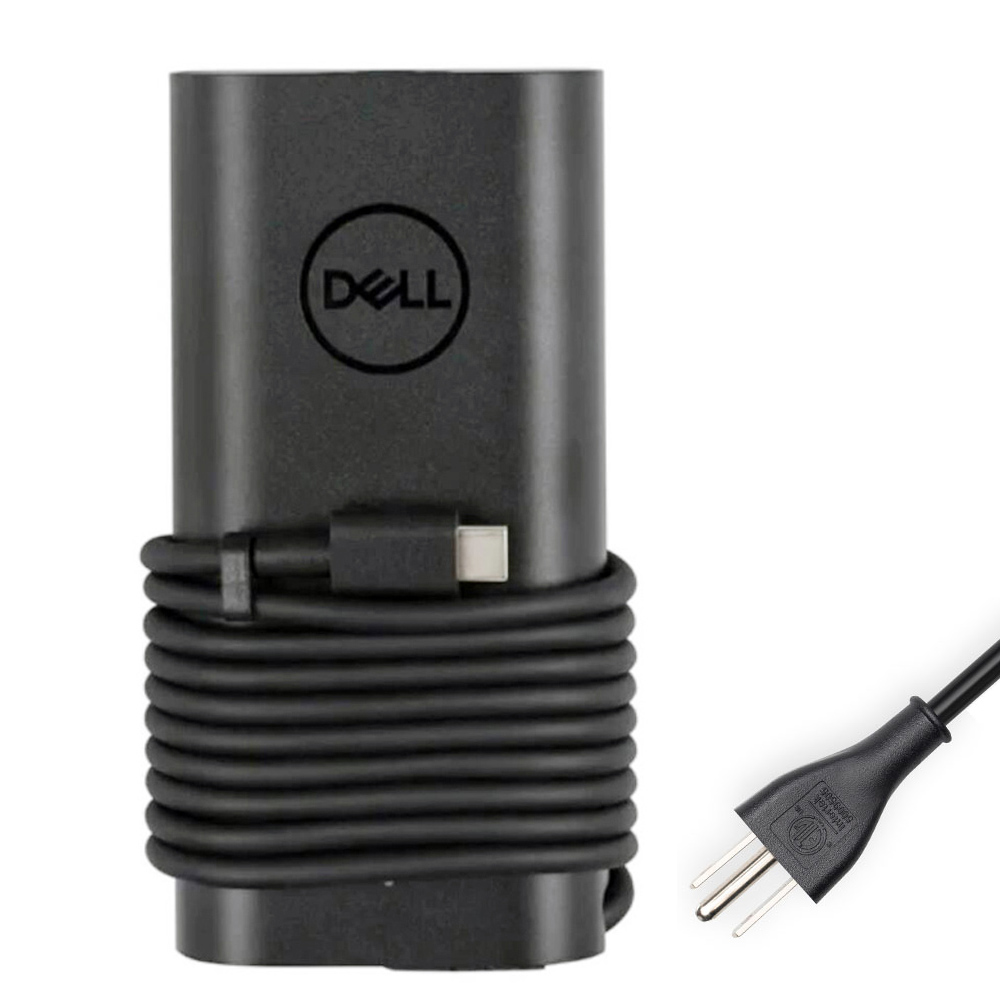
- Ideal for light-to-moderate daily use
- Can be insufficient for heavy workloads on some XPS 15 configs
Pro tip: If your XPS 15 “charges” but the battery percentage keeps dropping during heavy work, it’s often not a battery problem—
it’s a wattage mismatch. The system load can exceed what the adapter is supplying, so the laptop supplements power from the battery.
Similar Dell charging problems (and what to check first)
The same charging “symptoms” often show up on other Dell families (and even other brands), because the logic is similar:
the laptop must (1) receive power, (2) recognize it correctly, and (3) have a healthy battery path.
Here are the most common “related” complaints and the fastest first checks.
- Check BIOS battery health and whether charging is intentionally limited (battery longevity settings).
- Verify adapter wattage is sufficient for your workload (especially when a dGPU is present).
- Do an EC/power reset to clear stuck charging states.
- USB-C: test with a known-good high-power cable + known-good adapter.
- Barrel: suspect connector/jack wear if the plug feels loose or charging cuts out when moved.
- If multiple adapters behave the same, suspect the port or internal charging circuitry.
- Usually a power budget issue: the laptop draws more than the adapter can deliver under load.
- Reduce load as a test (close heavy apps), then re-check if the battery still drains.
- Move to a higher wattage adapter if your usage is consistently heavy.
- Inspect for debris and port wear; try another port if available.
- Swap cable first (USB-C) because cable fatigue is extremely common.
- Any charging that changes when you gently move the connector points to a mechanical issue.
- Battery may be disconnected, failed, or not detected.
- If BIOS battery health is poor or status is missing, replacement is typically the most reliable fix.
When it’s the battery (and when replacement makes sense)
If the adapter is recognized correctly in BIOS but charging behavior is still abnormal, the battery may be the limiting factor.
Batteries can fail in ways that look like a charging issue—especially when internal resistance rises over time.
Strong signs the battery is the culprit
- Battery health reports as Poor or Needs replacement.
- Sudden shutdown at 20–40% (or large percentage jumps).
- Charge stops at a very low percentage even with a recognized adapter.
- The laptop runs fine on the charger but can’t run (or instantly powers off) on battery.
- Physical swelling, trackpad lift, or chassis bulging (stop using and replace immediately).
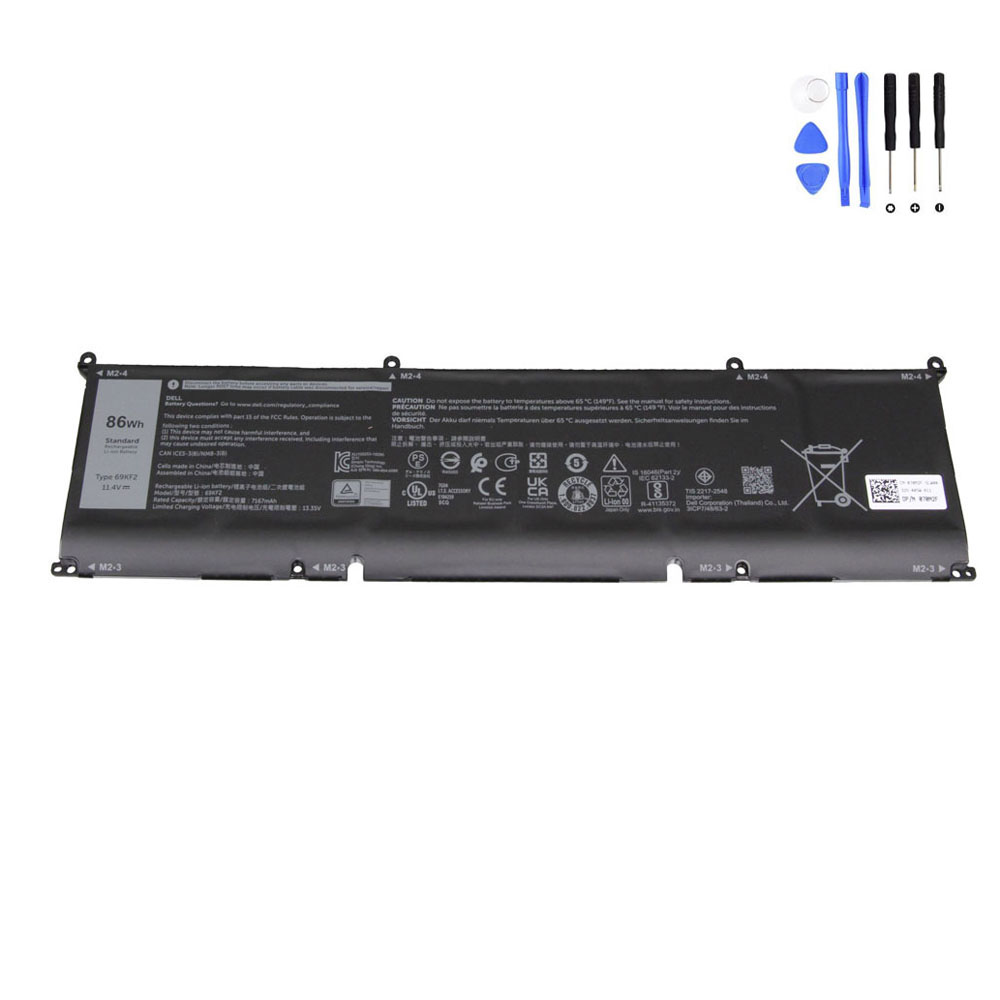
A practical replacement when your XPS 15 shows poor health, unstable percentage, or won’t hold charge.
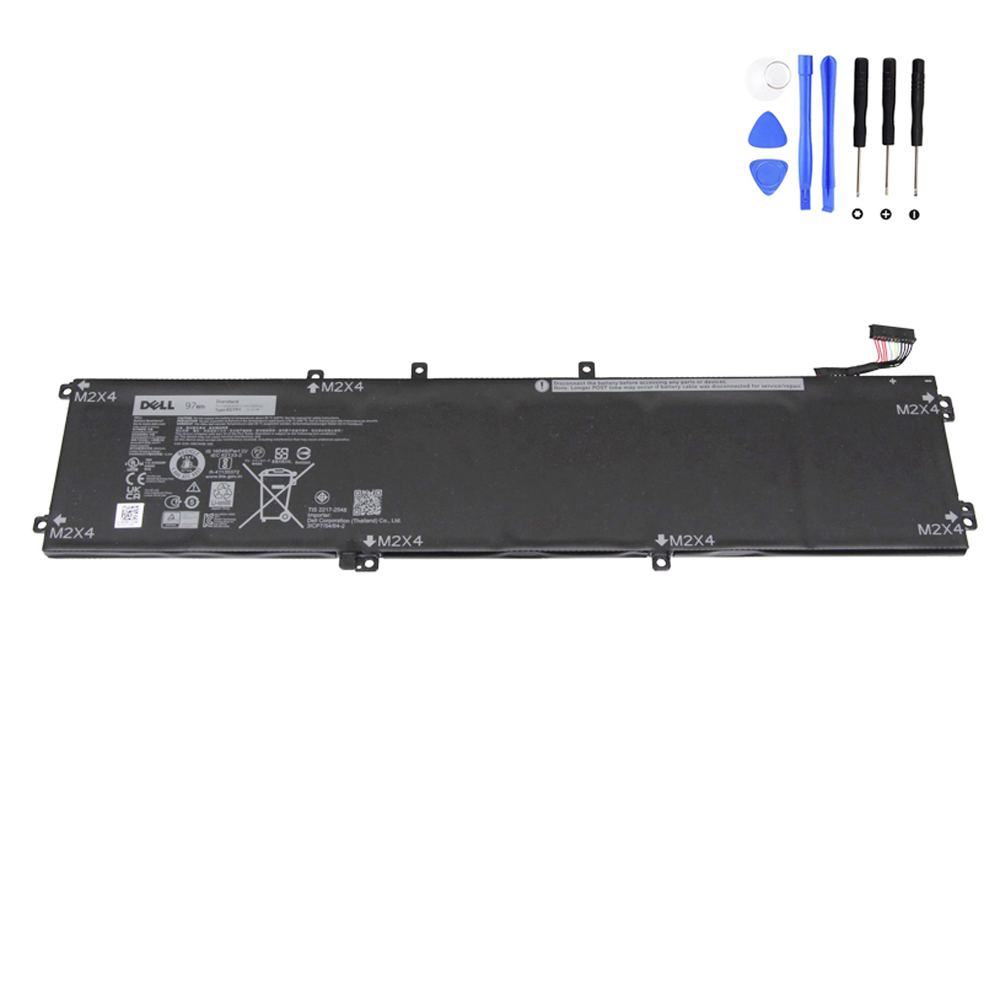
Higher-capacity option for longer runtime, helpful when you want to restore or improve unplugged endurance.

A solid replacement choice for compatible XPS 15 builds when the original battery has degraded.
After replacing the battery: what “normal” looks like
- Battery percentage should climb steadily when plugged in.
- Under heavy load, a properly sized adapter should prevent battery drain while plugged in.
- It’s normal for charging speed to slow down near 80–100% (battery protection behavior).
Troubleshooting patterns (diagnose by scenario)
- Check battery health; replace if poor or unstable.
- Check BIOS battery settings (some limit charging to protect longevity).
- If you’re using USB-C: ensure wattage matches workload (consider 130W for XPS 15 heavy use).
- Try a different charger and a known-good cable (USB-C).
- Inspect and clean the charging port; try another port if available.
- If the behavior persists with a known-good adapter, suspect a damaged port or charging circuit.
- Perform EC reset (power button hold).
- Update BIOS/firmware (often improves charging logic and PD behavior).
- Re-check wattage vs workload; high CPU/GPU load can overwhelm a smaller adapter.
Expanded FAQ (PAA-style): XPS 15 not charging, slow charging, and adapter issues