If your Dell Inspiron 15 barely lasts off the charger, shuts down unexpectedly, or won’t charge past a certain percentage,
you might be wondering: is it worth replacing the battery?
In most cases, yes—especially if the laptop still performs well for your daily work.
- 1) Quick answer: when it’s worth it (and when it isn’t)
- 2) Common Dell Inspiron 15 battery symptoms
- 3) How to check battery health (Windows + Dell tools)
- 4) Cost vs. benefit: battery replacement vs. laptop upgrade
- 5) How to choose the correct Dell battery
- 6) Dell battery options (category + example products)
- 7) After you replace it: testing and calibration tips
- FAQ
1) Quick answer: when it’s worth it (and when it isn’t)
Replacing the battery in a Dell Inspiron 15 is usually worth it if the laptop is otherwise working well—especially if you rely on portability.
A new battery can restore practical runtime and reduce performance throttling that happens when a weak battery can’t deliver stable power.
| If you see this… | Battery replacement is usually worth it | Consider upgrading the laptop instead |
|---|---|---|
| Runtime dropped a lot (but laptop is fast enough) | ✅ Yes | — |
| Laptop shuts down early (e.g., at 20–40%) | ✅ Yes (often gauge/pack wear) | — |
| Battery is swollen / cover won’t sit flush | ✅ Yes (replace immediately for safety) | Only if other major issues exist |
| Laptop is very slow due to CPU/SSD/RAM limits | Maybe | ✅ Often yes |
| Motherboard/charging port problems suspected | Maybe | ✅ If repair cost is high |
2) Common Dell Inspiron 15 battery symptoms
- Very short runtime compared to when the laptop was new.
- Battery percentage jumps (for example, dropping from 50% to 20% quickly).
- Shuts down early even though Windows shows charge remaining.
- “Plugged in, not charging” (sometimes caused by charge thresholds or adapter recognition issues).
- Battery health shows “Poor” in BIOS/diagnostics or Dell tools.
- Swelling (bottom cover bulges or trackpad feels tight). If you see swelling, stop using it and replace the battery.
3) How to check battery health (Windows + Dell tools)
3.1 Windows Battery Report (fast and reliable)
- Open Command Prompt (Admin).
- Run:
powercfg /batteryreport - Open the generated HTML report and compare:
- Design capacity vs Full charge capacity (a large gap usually indicates wear).
- Recent usage patterns (look for sudden drops or irregular behavior).
3.2 Dell BIOS/Diagnostics (quick detection check)
- Restart and enter BIOS/UEFI (key varies by model; often F2/F12).
- Look for battery status such as Excellent / Good / Fair / Poor.
- Confirm the system recognizes the AC adapter correctly (some Dell models reduce charging if adapter ID isn’t recognized).
a battery replacement usually delivers the best value-per-dollar upgrade.
4) Cost vs. benefit: battery replacement vs. laptop upgrade
Battery replacement is typically a “high ROI” fix because it restores daily usability without the cost of replacing the entire laptop.
It makes the most sense when:
- Your Inspiron 15 still boots quickly and handles your apps smoothly.
- Your screen, keyboard, hinges, and ports are all fine.
- You mainly need stable runtime for work/school/travel.
Upgrading the laptop may make more sense if you’re dealing with multiple issues at once:
performance is slow even after an SSD upgrade, the charging port is loose, the display is failing, or repairs add up.
5) How to choose the correct Dell battery
Dell Inspiron 15 laptops have many generations, and batteries are not universal. The safest way to match a replacement is:
- Check the part number on the old battery label (examples: V6W33, TN70C, R8D7N).
- Verify capacity and voltage are appropriate for your model (Wh rating can vary between compatible options).
- Confirm connector and mounting shape match (internal batteries must fit perfectly).
- Use your Dell Service Tag to confirm compatible parts if you’re unsure.
Check for charging thresholds (battery health mode) and verify the AC adapter wattage/recognition first.
6) Dell battery options (category + example products)
If you’re shopping for a replacement, start with the Dell battery category page and then match by part number and laptop model:
Featured examples (match your part number)
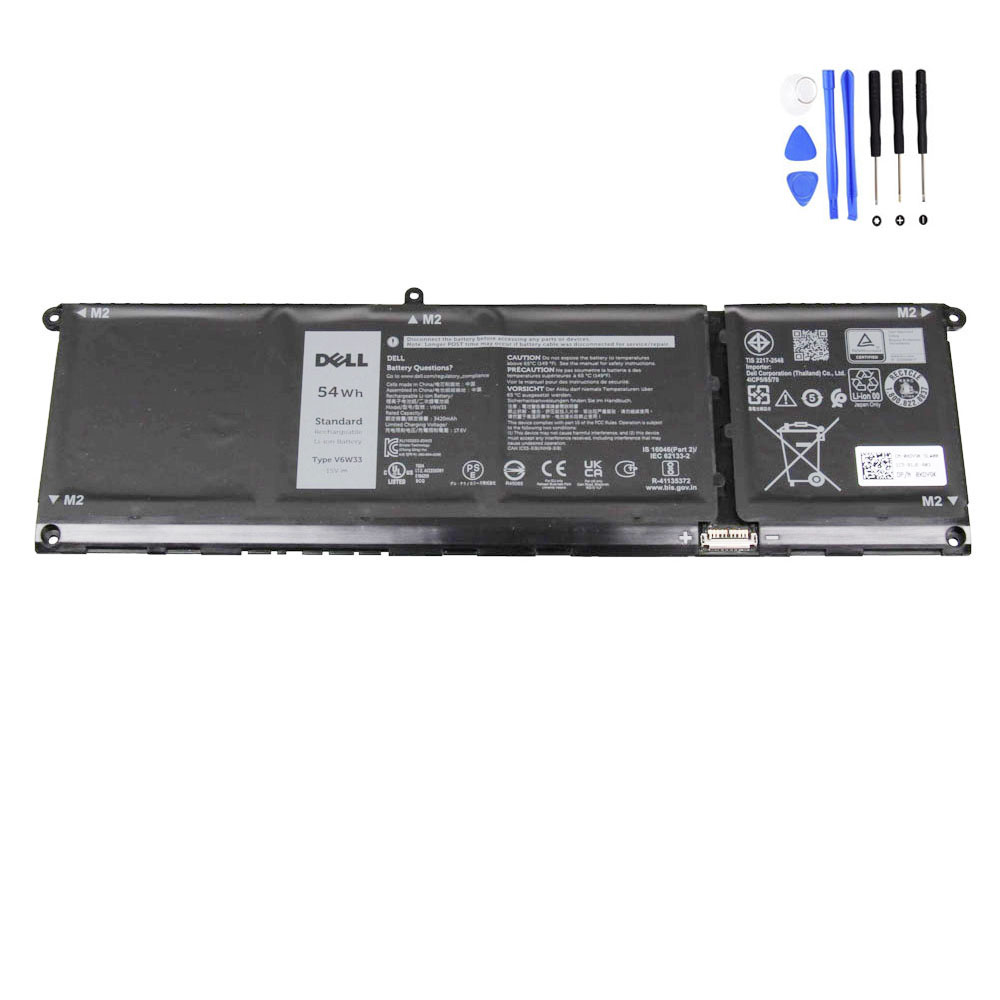
A solid option if your original battery part number matches V6W33. Great for users who want restored portability for daily use.

If your Inspiron 15 supports TN70C, a higher Wh option can be ideal for longer unplugged sessions.

A practical replacement when your original pack is labeled R8D7N. Ideal for restoring normal daily battery life and stability.
7) After you replace it: testing and calibration tips
After installing a new Inspiron 15 battery, most systems work immediately. To confirm everything is healthy:
- First boot: confirm the battery is detected in BIOS/UEFI and Windows.
- Charge test: start around 20–40% and confirm the percentage increases steadily when plugged in.
- Runtime sanity check: test under light use (web browsing, video) and compare to what your laptop used to achieve.
If the percentage reading is inaccurate (big jumps or early shutdown), do a single calibration cycle:
charge to 100%, use down to ~10–15%, then charge back to 100% uninterrupted. Don’t repeat frequently.
FAQ
Will a new battery make my Dell Inspiron 15 faster?
It mainly restores portability and stability. However, a failing battery can sometimes cause power-related throttling or sudden shutdowns.
Fixing the battery can make the laptop feel more reliable in daily use.
My Inspiron says “plugged in, not charging.” Is the battery bad?
Not always. Check for charging thresholds (battery health mode), confirm your AC adapter wattage is correct, and verify the adapter is recognized.
If health is poor or full charge capacity is much lower than design capacity, then battery replacement is often the right move.
How do I make sure I’m buying the correct Dell battery?
Match by battery part number on your original pack (for example: V6W33, TN70C, R8D7N) and confirm your Inspiron 15 model compatibility.
If you’re unsure, use the Dell battery category page to browse options and compare details.
What’s the #1 reason battery replacements “don’t work” after installation?
Incorrect compatibility (wrong part number or shape/connector) is most common. The second is an AC adapter issue (wrong wattage or not recognized),
which can prevent proper charging even with a good new battery.
Start by matching your original battery part number, then choose the correct replacement from the Dell battery collection.