If your Dell XPS 15 shows “Slow charger” or “Charger not recognized / wattage cannot be determined” even when you’re using a 130W adapter, the issue is usually not the printed wattage. Most of the time, the laptop either can’t identify the adapter correctly or can’t negotiate the expected power level.
When the XPS 15 can’t confirm the adapter type/wattage, it may protect itself by reducing charging speed, throttling performance, or even stopping charging.
1) First: confirm which 130W charger type you’re using (barrel vs USB-C)
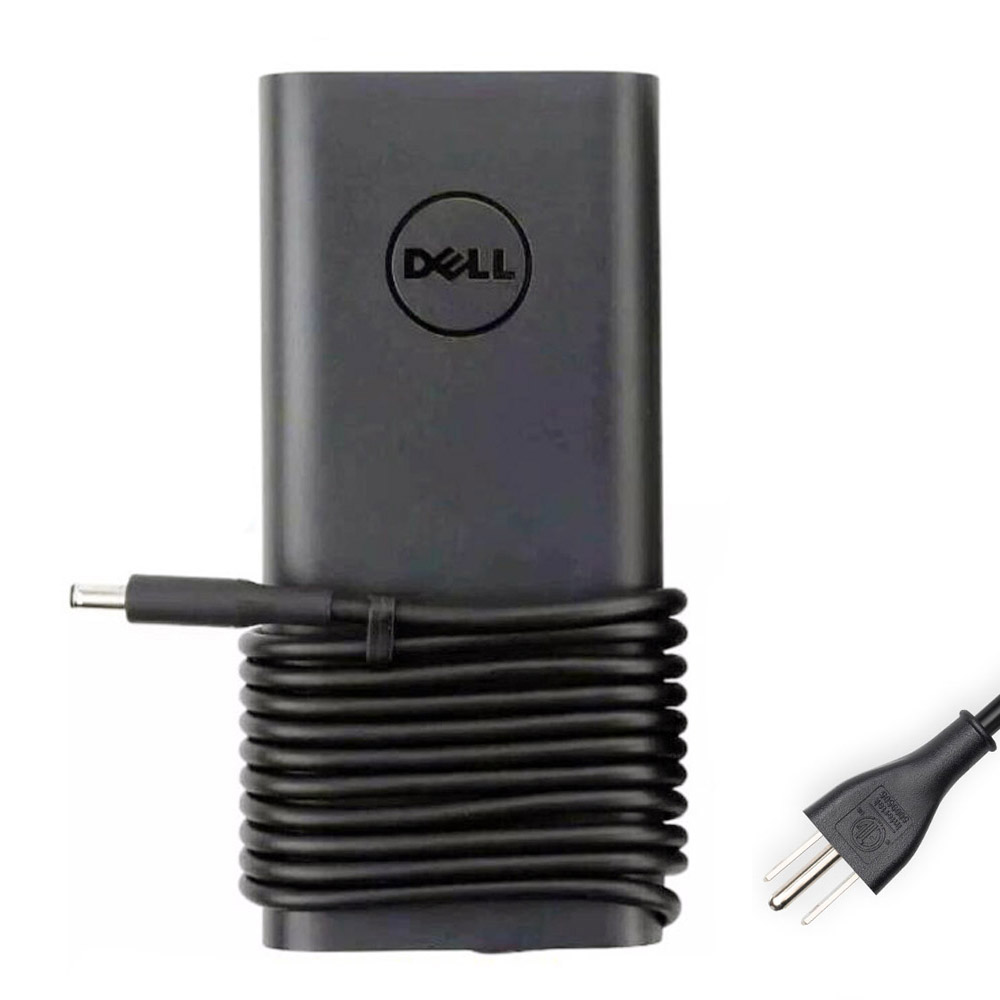
For XPS 15 models with a round DC-in port.

For XPS 15 models that charge through USB-C.
Why it matters: If your XPS 15 is designed for a barrel charger but you use USB-C (or the reverse), you can get “slow charger” warnings or no charging at all.
2) The fastest check: what does BIOS say about the adapter?
Before changing anything, verify whether your laptop recognizes the adapter:
- Restart the laptop and press F2 to enter BIOS.
- Go to Overview and find AC Adapter.
- Check whether it shows 130W or something like Unknown / None / 90W / 65W.
How to read it:
- Shows 130W: detection is OK. If Windows still warns, it’s often a dock/hub/cable or charge limit setting.
- Shows 90W or 65W: you’re not getting full power, even if the adapter is labeled 130W.
- Shows Unknown/None: the system can’t identify the adapter, which commonly causes slow charging and throttling.
3) Common causes for “Charger not recognized” (barrel 4.5mm x 3.0mm)
A) Center pin / ID signal problem
Many Dell barrel chargers use a center pin for identification. If the pin is bent/damaged, or the laptop’s DC-in jack is worn, the adapter may show as Unknown in BIOS.
- Inspect the charger tip carefully: check if the center pin looks bent or missing.
- Inspect the laptop’s DC-in port: look for looseness or debris.
- Try a known-good compatible barrel charger (swap test) to isolate the issue.
B) DC-in jack / I/O board wear
If charging cuts in/out when the plug moves, the jack can be loose or internally damaged.
- Test with the laptop on a table (no movement) to see if it stays stable.
- If BIOS still shows Unknown with a known-good charger, hardware service may be needed.
4) Common causes for “Slow charger” (USB-C 130W)
A) USB-C power negotiation drops to lower wattage
USB-C charging depends on successful negotiation between the laptop, charger, and cable. If negotiation fails, the laptop can fall back to a lower power level and show “slow charger”.
- Use a high-quality USB-C cable rated for high power.
- Plug the charger directly into the laptop (avoid pass-through hubs while testing).
- Try another USB-C port on the laptop.
B) Dock/hub/pass-through reduces available power
If you charge through a USB-C hub or dock, power pass-through can reduce what the laptop receives.
- Test direct charging (charger → laptop) first.
- If direct charging is fine, the dock/hub path is the cause.
5) Quick resets that often fix detection glitches
- Hard reset: shut down → unplug charger → hold power button ~30 seconds → reconnect and test.
- Update BIOS/firmware: BIOS updates can improve charging detection and USB-C behavior.
6) Battery charge limits can look like “slow charging”
If you enabled a battery health mode or charging threshold (for example, stopping at 80%), charging may appear slow or paused even though the adapter is fine.
- Check BIOS or Dell power settings for any charge limit while troubleshooting.
7) Practical “decision tree”
- BIOS shows 130W but Windows says slow charger: test without dock/hub, swap cable, check charge limits.
- BIOS shows 90W/65W: USB-C negotiation/cable/port issue—test direct, try another cable/port.
- BIOS shows Unknown/None: barrel center-pin/DC-jack/adapter issue—inspect tip/port and swap-test.
Need the correct 130W charger type for your XPS 15?
Tip: BIOS (F2) → Overview → AC Adapter. If it’s not recognized correctly there, fix detection first—then charging speed usually returns to normal.