Yes — in many cases you can use a 65W or 90W charger on a Dell XPS 15, even if your model normally uses a 130W adapter. But what “works” depends on your exact XPS 15 generation and how you use it.
This guide explains what happens when you use 65W/90W instead of 130W, when it’s fine, and when it will cause problems like slow charging, battery drain while plugged in, or performance throttling.
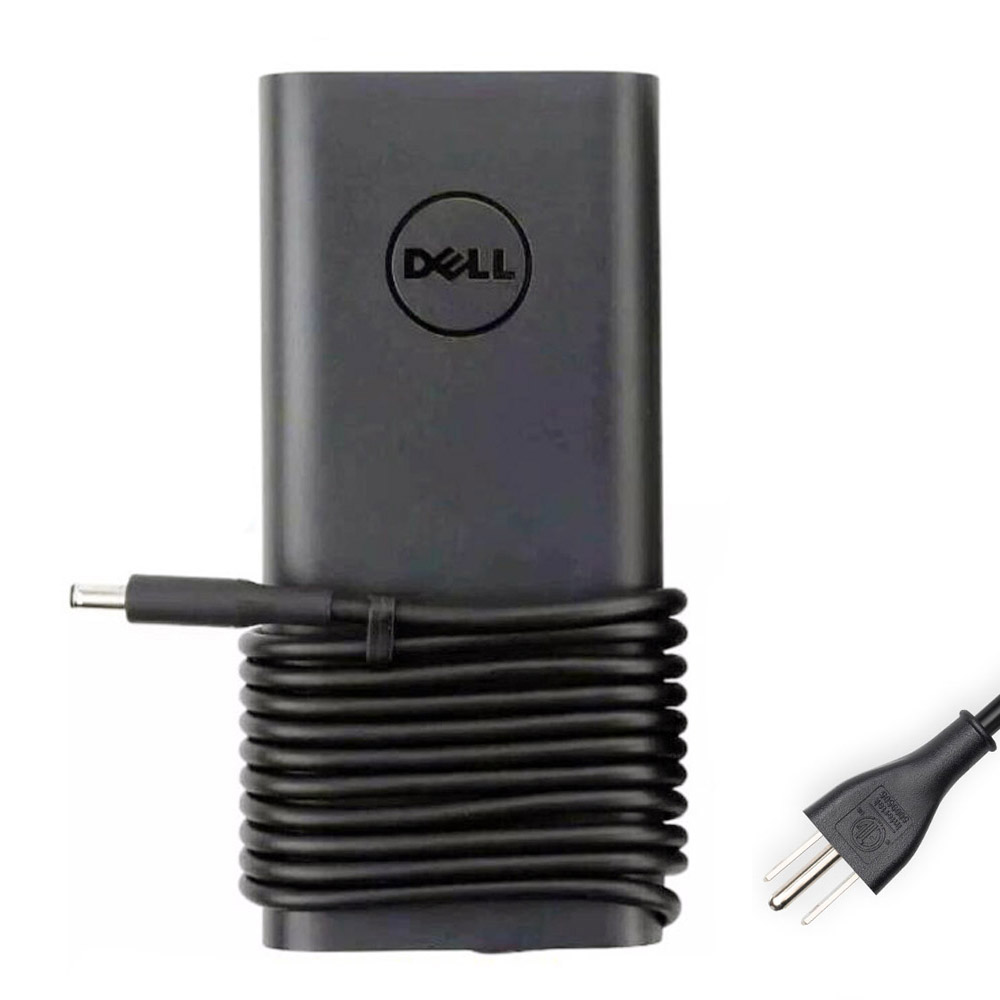
Best for XPS 15 models with a round DC-in port.

Best for XPS 15 models that charge through USB-C.
1) Why XPS 15 often “wants” 130W
XPS 15 models with higher-power CPUs/GPUs can draw a lot of power during:
- gaming
- video editing / rendering
- 3D / CAD workloads
- heavy multitasking while charging
In those moments, a 65W or 90W adapter may not cover the peak system demand plus battery charging at the same time.
2) What happens if you use a 65W charger
- It usually charges, but very slowly (especially from low battery).
- Under heavy use, the battery may still drain even while plugged in.
- You may see warnings like “Slow charger” or reduced charging speed.
- Performance may throttle (CPU/GPU clocks reduced) to stay within the available power.
Best use case for 65W: travel/emergency charging, web browsing, documents, light work.
3) What happens if you use a 90W charger
- Often acceptable for normal daily use (office work, browsing, meetings).
- Faster than 65W, but still may be “not enough” for heavy workloads.
- During gaming/rendering, you can still see slow charging or battery drain.
Best use case for 90W: daily use on USB-C XPS 15 models that support 90W; light-to-medium workloads.
4) Important: some XPS 15 models officially support both 90W and 130W (USB-C)
Many modern XPS 15 generations list 90W USB-C and 130W USB-C as supported power adapter options. If your model supports both, then:
- 90W works for many users most of the time.
- 130W is recommended if you want full performance and faster charging under load.
5) USB-C note: why a “100W/130W” third-party charger may still behave like 65W
On some Dell systems, when you use a non-Dell USB-C power source, the laptop may not draw the full available wattage and can fall back to a lower level (commonly reported around 65W). If you see “slow charger” with a good USB-C PD charger, this behavior is a common reason.
6) Practical decision guide
| Your situation | 65W | 90W | 130W |
|---|---|---|---|
| Web / Office / School | OK (slow) | Good | Best |
| Light photo editing / coding | Sometimes OK | Often OK | Best |
| Gaming / rendering / heavy workload | Not recommended | May throttle / drain | Recommended |
| You want fastest charging | No | Medium | Yes |
7) Quick tips to avoid problems
- Match the connector type: older XPS 15 may need 4.5mm x 3.0mm barrel; newer models charge via USB-C.
- If your XPS 15 supports 130W USB-C, use a charger known to deliver full power to Dell systems (some third-party USB-C chargers may fall back to lower wattage).
- For barrel chargers, ensure the connector and cable are in good condition—poor connection can cause “not recognized” warnings and throttling.
Need the correct 130W charger for your XPS 15?
Tip: check your XPS 15 model number in Windows (Win + R → msinfo32) and confirm whether your laptop has a round DC-in port or charges via USB-C.