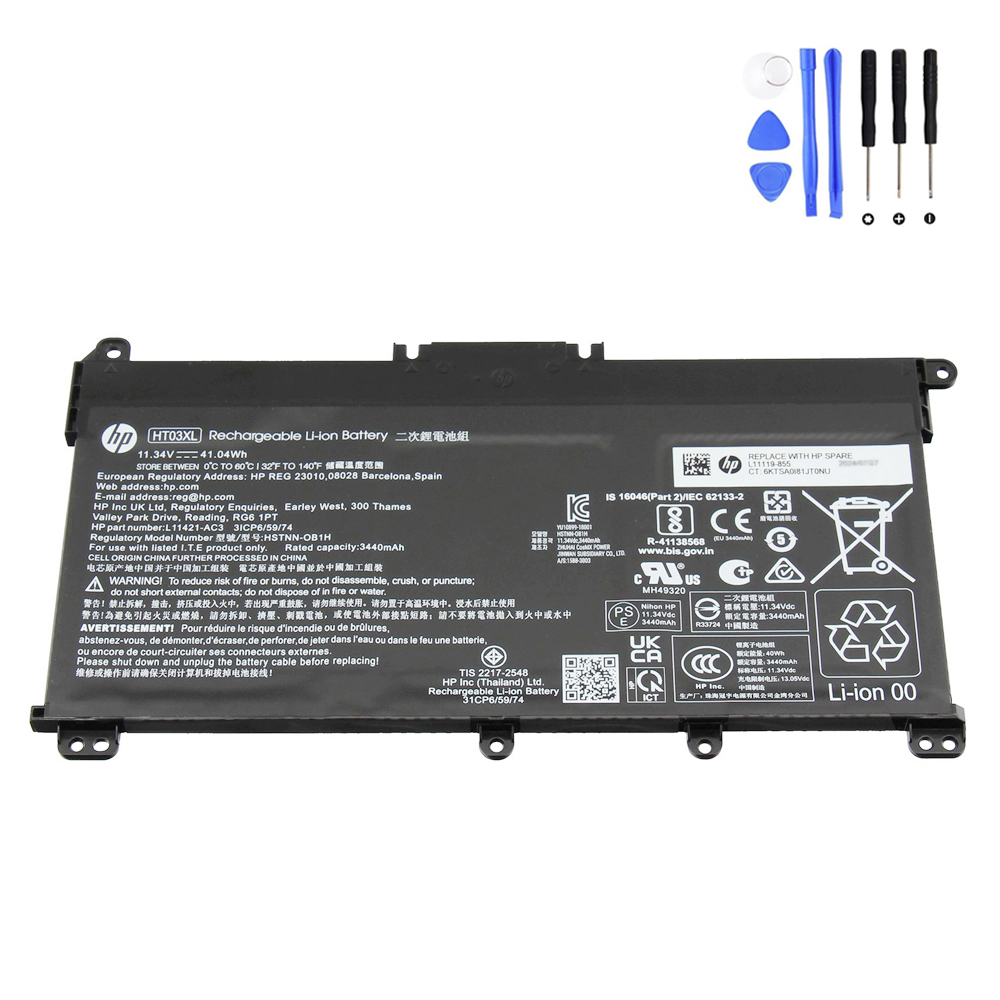
This step-by-step guide shows four reliable ways to check the health of an HP HT03XL (L11119-855) 41.04Wh battery on Windows laptops—plus how to read the results and when to replace the pack.
Quick answer
- Windows 10/11 Battery Report: shows Design Capacity vs Full Charge Capacity. Health ≈
FCC / Design × 100%. - HP UEFI Diagnostics: pre-boot test returns “OK/Calibrate/Replace” and a status code.
- HP Support Assistant / MyHP: in-Windows battery check with a simple pass/fail and calibration prompts.
- Visual & usage signs: fast drain, sudden shutdown at high %, charging stuck, or any swelling → replace immediately.
Method 1 — Windows Battery Report (most detailed)
- Press Win key, type cmd → right-click Command Prompt → Run as administrator.
- Run:
powercfg /batteryreport /output "%USERPROFILE%\Desktop\battery-report.html"
- Open the generated battery-report.html on your Desktop.
How to read it: Find Design Capacity and Full Charge Capacity (FCC). Calculate health:
Health % = (FCC ÷ Design) × 100%.
- ~90–100%: excellent/new-like
- ~80–89%: normal wear
- <70–75%: noticeable runtime loss—plan replacement
- Cycle Count: higher cycles → expected capacity drop; compare to your usage.
Method 2 — HP PC Hardware Diagnostics (UEFI, pre-boot)
- Shut down the laptop. Power on and tap Esc repeatedly → choose F2 System Diagnostics.
- Component Tests → Power → Battery.
- Run the battery check (Quick or Extensive). Note the status and failure ID if any.
Result meanings: “OK” (healthy), “Calibrate” (perform a full gauge calibration), “Replace” (capacity or self-test below threshold). Save screenshots/codes for RMA records.
Method 3 — HP Support Assistant (Windows)
- Open HP Support Assistant (or MyHP on newer models).
- Device → Battery Check (or Diagnostics) → run test.
- Follow any Calibration prompt to improve gauge accuracy.
Method 4 — Quick command check (optional)
If PowerShell is your preference, you can still rely on the Battery Report for accuracy; most WMI classes don’t expose design/FCC consistently across all models. The powercfg report is the recommended baseline.
When should I replace the HT03XL (L11119-855)?
- Health < ~70–75% and the laptop no longer meets runtime needs.
- Sporadic shutdowns at 20–40% remaining; erratic % jumps.
- Battery fails HP Diagnostics (“Replace”) or cannot complete calibration.
- Bulging or case lift: power off and replace immediately. Do not continue using a swollen pack.
Calibration (to fix inaccurate % readings)
- Charge to 100%, keep charging for 30–60 minutes.
- Use on battery down to 10–20% (avoid 0%).
- Charge back to 100% without interruptions. Re-run Battery Report.
HT03XL quick facts
- Family: HT03XL (aka HT03041XL), nominal 41.04Wh, 3-cell Li-ion.
- Voltage group: 11.4–11.55V. Do not mix with 14.4/15.2V families.
- Common P/N:
L11119-855(others exist by region/batch).
FAQ
Does Windows Settings show “battery health”?
Settings shows usage by app, not true health. Use the Battery Report or HP diagnostics for accurate capacity/health data.
Should I regularly drain to 0%?
No. For longevity, avoid deep discharges. Use 20–80% day-to-day; reserve full cycles for occasional calibration only.
What if diagnostics can’t detect the battery?
Power down, reseat the connector, check for BIOS updates, then re-test. If still missing, the pack or board may require service.
Need a replacement?
If your report or diagnostics say “Replace,” here’s a direct option for an HT03XL (L11119-855) pack:
Bottom line: Generate the Windows Battery Report and/or run HP Diagnostics. If health is low, results say “Replace,” or you notice swelling, swap the HT03XL promptly to restore reliable runtime and safety.